¶ Attendees
Attendees is where you can see all badges, create new badges, import badges via a CSV file when the registration system (which automatically creates badges) is not being used, export badges via a CSV file, print both single badges and pages of badges (ALIGNED WITH AVERY Name Badge Inserts 3” x 4” - 5392).
The viewing of badges will provide you information on everything about that badge in the convention. There is an extensive amount of information available from here.
¶ Menu Breakdown
¶ Overview - A high level overview of attendees
¶ Browse - View, create and work with badges
¶ Badges - Manage Badges for Attendees
Add-ons- View and export Add-onsCheckins- View and export Checkins and collection status of itemsHolds- Prevent badges from taking specific actions by placing a holdRenames- View and manage badge renamesTickets- View and export event ticketsTransfers- View and manage the transfer of badges between attendees
¶ Setup - Setup for Attendees
Types- View and manage all badge typesCategories- View and manage badge categories
¶ Admin - Administration
Activity- See recent changes made in Attendees by administratorsSettings- Manage settings of Attendees
¶ Overview
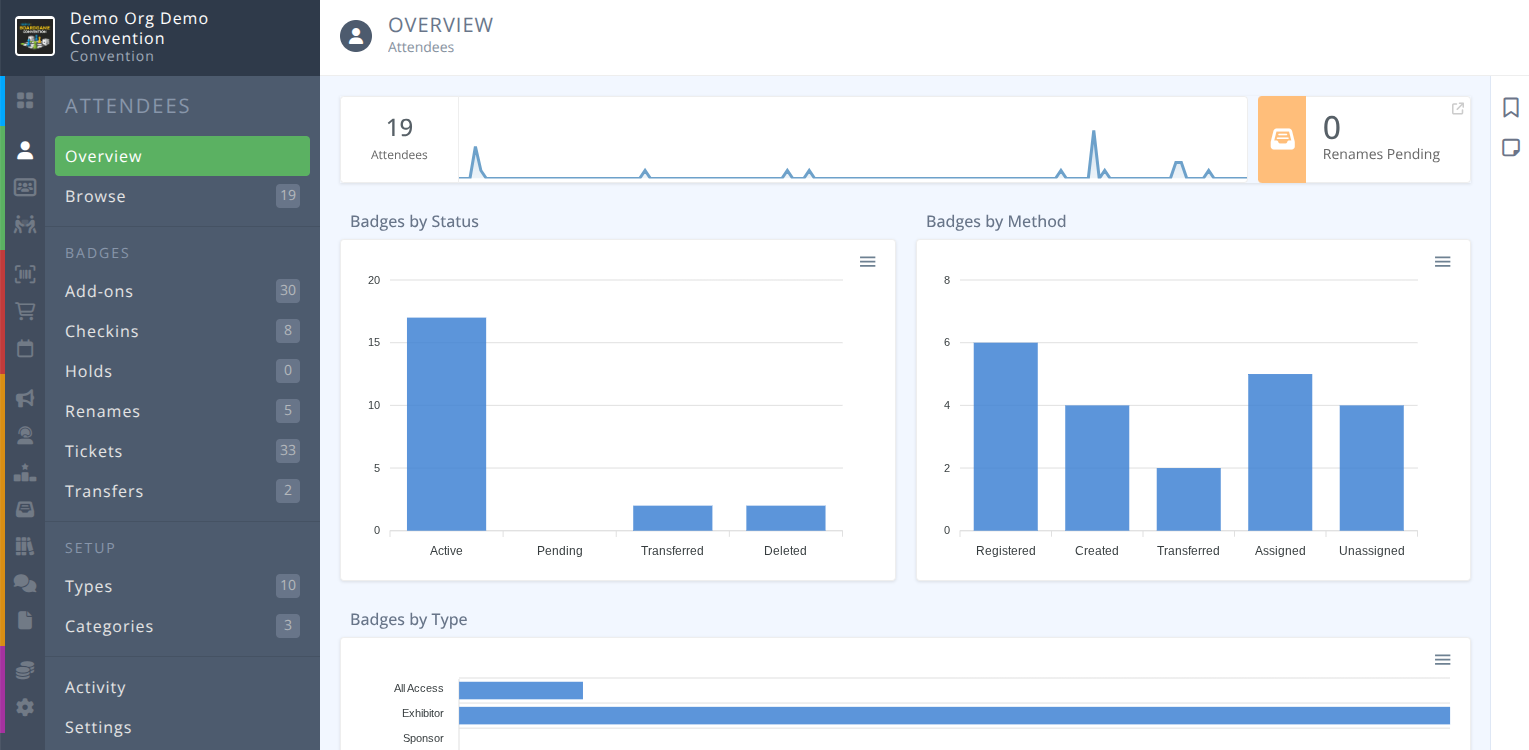
The screen will show you a breakdown of the number of attendees, a high level timeline view of when badges were created, any pending renames, and a grapical breakdown of your badges by status, method, and type. Each graph can be exported in SVG, PNG, or CSV format.
¶ Common Procedures
Printing Selected BadgesBatch Printing BadgesBatch Printing CodesImporting BadgesExporting BadgesCreating a Badge
¶ Fields
Platform ID- Only visible in the attendee export, this is an internal value only.Status- The status of the badge, either:- Active - The badge is valid and active for the attendee
- Pending - The badge is pending the purchase of a badge item to become active
Reference- The internal reference number for this badgePublic Number- The public badge number that is connected to this badgeMethod- The method from which the badge was created, either:- Created - The badge was created by an admin
- Registered - The badge was obtained through the registration system
- Assigned - The badge was a linked badge that has been assigned to another attendee
- Transferred - The badge was transferred from another attendee
- Unassigned - The badge is a linked badge that was purchased by a primary badge, but has not yet been renamed or transferred to another attendee
Sale- If present, the sales record associated with the creation of this badgeCreated On- The date the badge was createdCredit Balance- Any balance on the badgeNameThe name of the attendee broken down into:
First Name-
Last Name
-
E-mail- The e-mail address associated with this badge. Subtitle- If enabled, a secondary line that will appear on the badge.-
Type- The type of badge e.g.) Weekend, Exhibitor, Sponsor, etc... Category- If assigned an additional line that will appear on the badge. All badges purchased from a badge with an assigned category will have the same category. This can be useful for exhibitors and companies with a convention presence.
¶ Browse

Viewing Badge Details
- Click a badge to view its details.
The badge details page displays. For more information refer to theDetailed Badge View
Actions that can be taken from a detailed badge view include:
Filtering Badges
You can filter your badges in numerous ways (e.g. filter by groups, badge types, etc. before exporting to generate a list of the people who match that filter).
¶ Procedures
¶ Printing Selected Badges
- Filter and select a single badge or multiple ones as required.
- Click .
- The pane displays.
- Click without entering anything in the page range box.
This will pull up the selected badges in a pdf viewer. Click the three dots in the upper right corner of the pdf view and select print. Follow the steps to print. We recommend the Primera LX500 Color Label Printer for printing single badges at Registration.
¶ Batch Printing Badges
- Click .
- The pane displays.
- Put in the page range you want to print (1-10, 11-20, etc.).
- Click without entering anything in the page range box.
This will pull up the selected badges in a pdf viewer.
Click the three dots in the upper right corner of the pdf view and select print.
Follow the steps to print. Note: We recommend that you generate small batches at a time. Generating large batches of badges will take several minutes to load.
Badges are aligned with Avery Name Badge Inserts 3” x 4” - 5392.
¶ Batch Printing Codes
- Click .
- The pane displays.
- Put in the page range you want to print (1-10, 11-20, etc.).
- Click without entering anything in the page range box.
This will pull up the selected badge codes in a pdf viewer.
Click the three dots in the upper right corner of the pdf view and select print.
Follow the steps to print. Note: We recommend that you generate small batches at a time. Generating large batches of badges will take a long time to load.
QR Codes are aligned with Avery Name Square Labels 2” x 2” - 22806.
¶ Importing Badges
If you are NOT using the registration system, then you will need to import a CSV file containing the required columns [First Name, Last Name, a unique Email address and the Badge Type (at least one badge type must be entered)]. All other fields are optional.
- Click .
- Click from Import Pane.
- Find and open your CSV file.
- Match the required columns with the columns in your file.
Note: Be sure to review the section so that badges connect with Type and Method correctly.
- Click to import the records. Any existing records with the same e-mail address will be updated.
¶ Exporting Badges
To export a badge list.
- Click .
- Click to export the visible records.
You can filter your badges in numerous ways before exporting (e.g. filter by groups, badge types, etc.) to generate a list of the people who match that filter.
¶ Creating a Badge
There are times you have to manually create a badge (e.g. staff, volunteers, etc.).
(badge)Typemust already be created
- Click at the top.
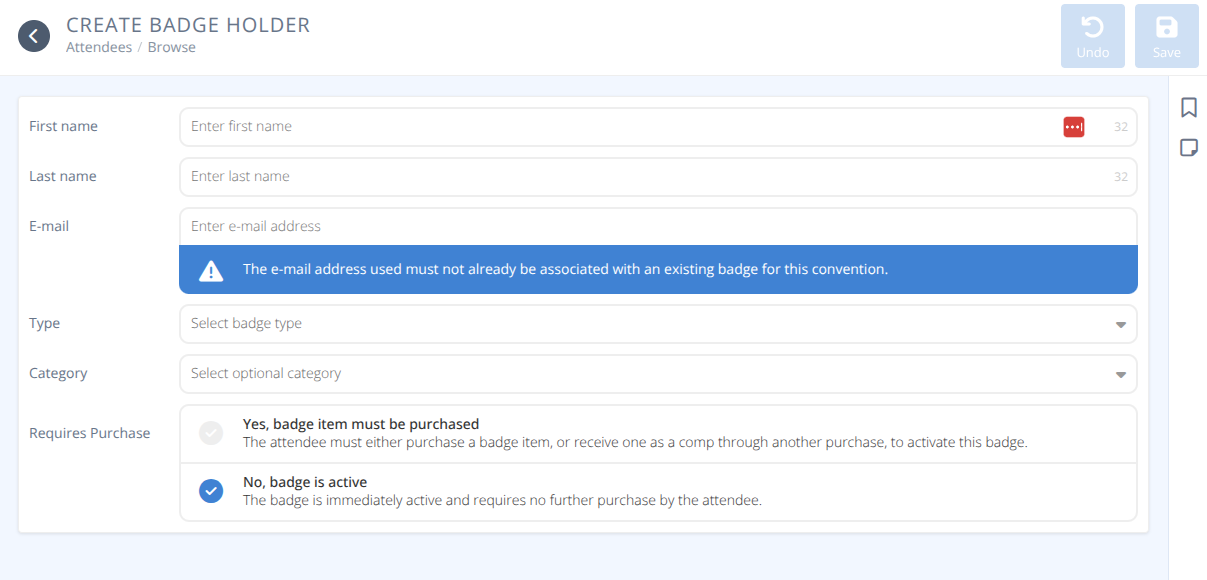
- Specify the following parameters:
a. Email: Enter a unique email address for the badge at this convention. It cannot be an email already used at this specific convention.
b. First Name: Enter the First Name for the badge.
c. Last Name: Enter the Last Name for the badge.
d. Type: Select the badge type. This will pull up a list of badges that you have already created for the convention. The badge type is already create for it to show up here. Select the type of badge you want for this created badge.
e. Category: Select the Category Tag that you want to assign to this badge. The category is create to show up here. Categories are an additional piece of information that shows up on all badges with the same Category name (e.g. exhibitor company name). Leave blank for regular attendee badges.
f. Requires Purchase: Select No if you do not want the person you created the badge for to have to purchase something to activate the badge (will become an active badge immediately). Select yes, if you do want the person you are creating the badge for to have to purchase or receive a badge to activate it (will show as pending until the required purchase is made) (e.g. You can create a pending exhibitor badge for someone and require that person to purchase a booth that includes a comped badge, or purchase a badge to activate it. Note: The activation will be automatic and the comped or purchased badge will be consumed by this badge.
- Click .
The newly created badge will show as the most recent badge and will display CREATED for method vs. REGISTERED for someone who bought their badge.
The user of the new badge will receive an auto-generated dated password via email.
¶ Sample Attendee E-mails
¶ Sample Attendee E-mail on Account Creation
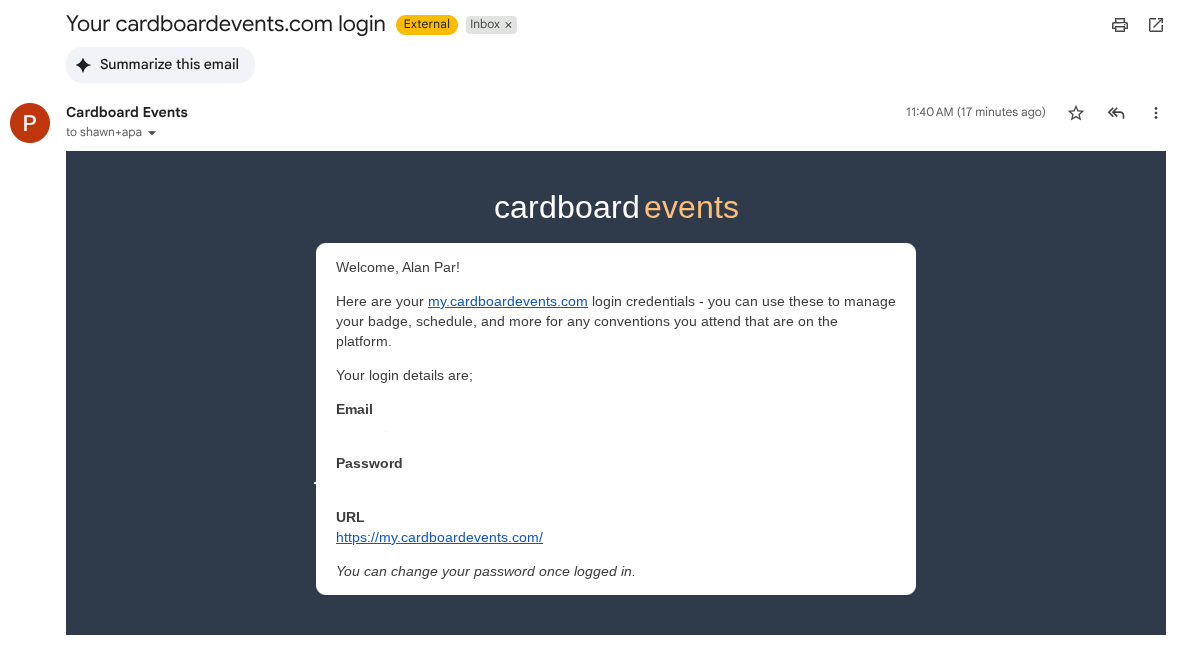
If during badge creation an account is created for the attendee they will receive an account email from support@cardboardconnect.com that looks something like this:
¶ Sample Badge Creation E-mail
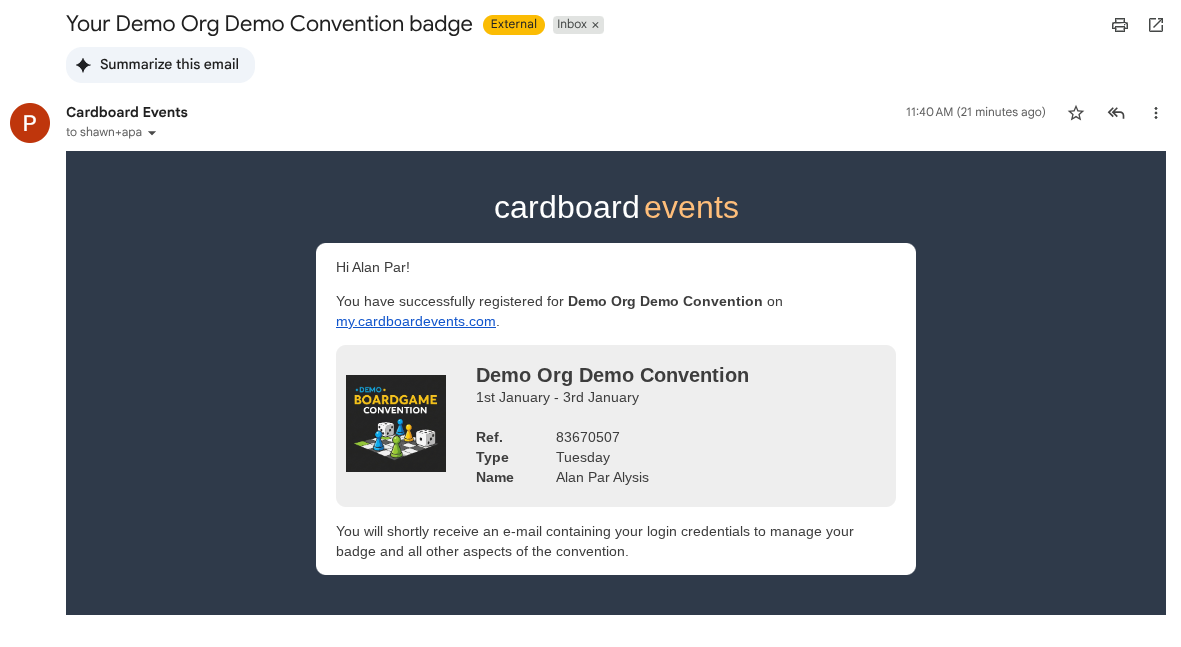
When a badge is created (through any means e.g. registration, admin creation, etc.) the associated e-mail address will receive an e-mail from support@cardboarconnect.com that looks something like this: