¶ Renames
The Renames menu shows all pending, completed, rejected, and reverted badge renames.
¶ Overview
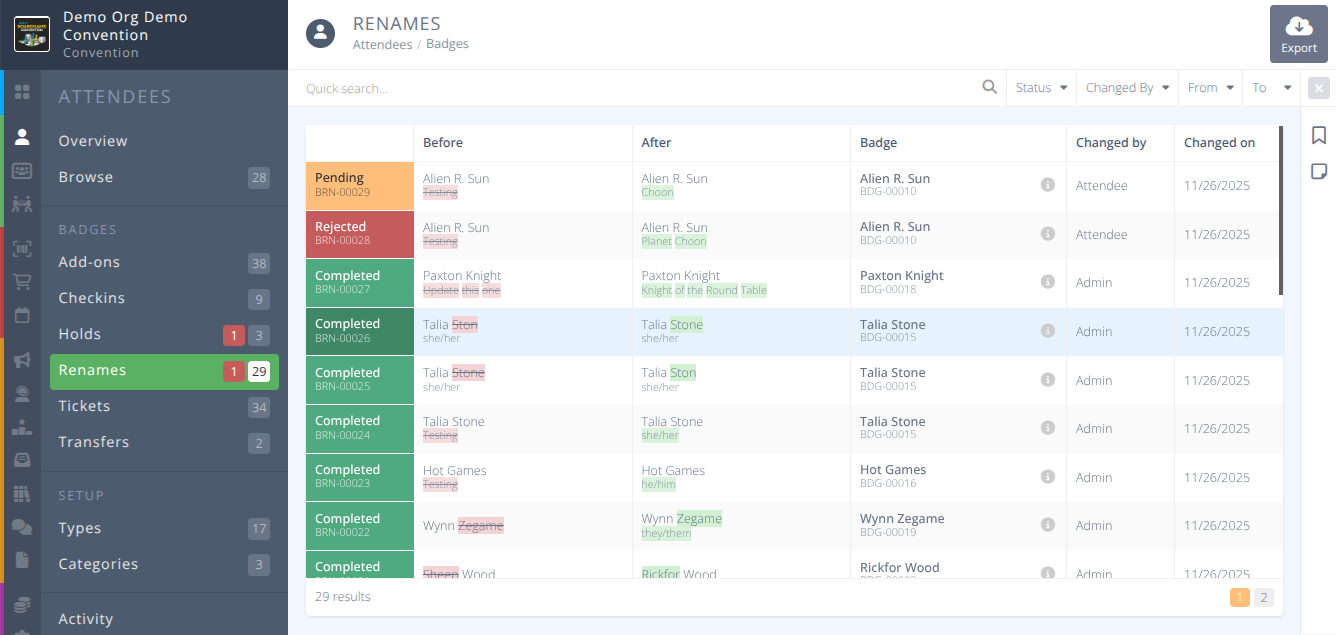
The grid provides a view of all badge renames. Clicking on a row will take you to the full details of the rename. The red number shown in the menu indicates the number of pending renames requiring a decision. The other number indicates how many renames have been submitted.
¶ Filtering
The quick search and filter options are in the usual place above the grid. Select any option to filter the view to those records. Click the to clear any filters set.
You can filter the list of renames in numerous ways (i.e. status, changed by, and between selected dates). The quick search filters records by Name, Badge, Badge number, and Reference number.
¶ Common Procedures
Attendee Submits a Rename RequestAccept or Reject a Pending RenameRevert a Completed RenameExport Selected RenamesAdministratively Rename a Badge- Redirects to the detailed attendee view.
¶ Fields
-
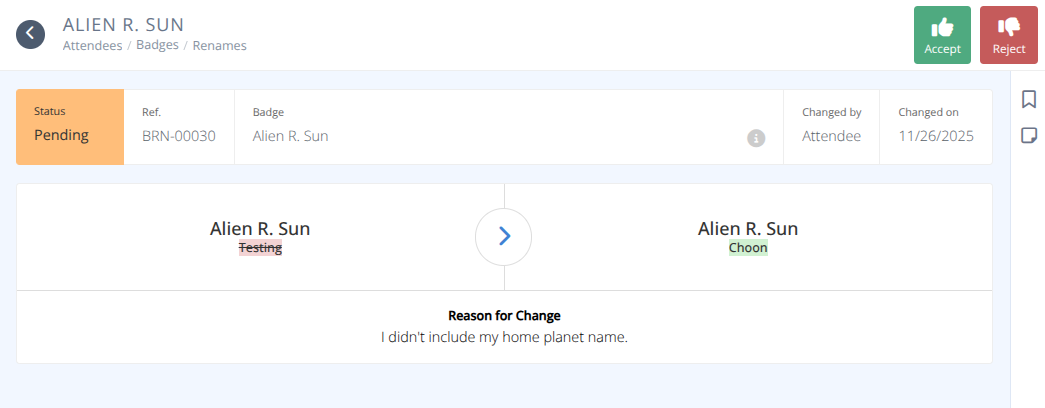
Status- The status of the rename, either:
Pending - Awaiting review by an administrator.
Rejected - The request has been rejected by an administrator.
Reverted - The request has been reverted back to the original name by an administrator.
Completed - The request has been made by or approved by an administrator. -
Ref.- The internal reference number for the change -
Before- The name and subtitle of the badge before the rename. The changed portion is highlighted in red and crossed out. -
After- The name and subtitle of the badge after the rename. The changed portion is highlighted in green. -
Badge- The name and badge number of who the item belongs to. Clicking the will show details on the badge in the side panel. -
Changed by- Who initiated the change of name, either:
Attendee - The attendee renamed their own badge with the attendee software.
Admin - An admin renamed the badge with the administration software. -
Changed on- The date of the change. -
Reason for Change/Rejected/Reverted- Any messages provided by the attendee or admin that indicate the reasons for the action.
¶ Procedures
¶ Attendee Submits a Rename Request
Attendee's can submit a rename request, when permitted, by clicking on their badge and selecting Rename Badge.
¶ Accept or Reject a Pending Rename
- From the menu and submenu in the Badges section use the Quick search and available filters to locate the rename to review and click on the row.
- Review the details of the change and decide to accept or reject the pending request. Click on the approriate button in the actions area.
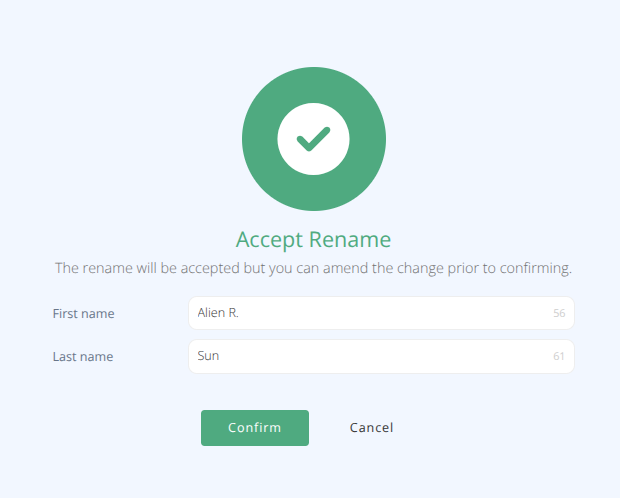
- If accepting the request:
a. Review the first and last name supplied, adjust as needed, and if appropriate click .
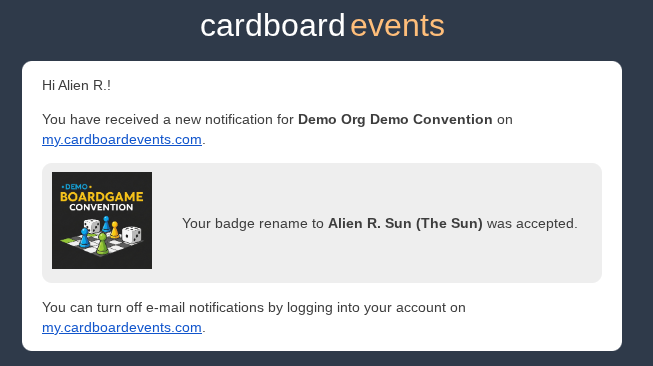
b. The requestor will receive an email confirming the change:
c. The requestor will also receive a note in their notifications section of the app:

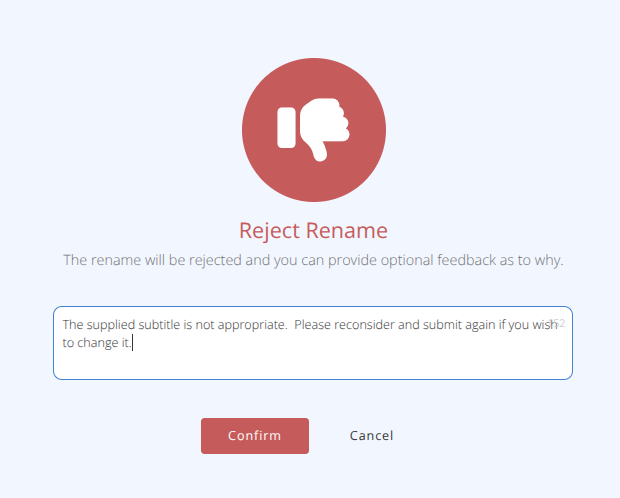
- If rejecting the request:
a. Provide an optional reason for the rejection and click
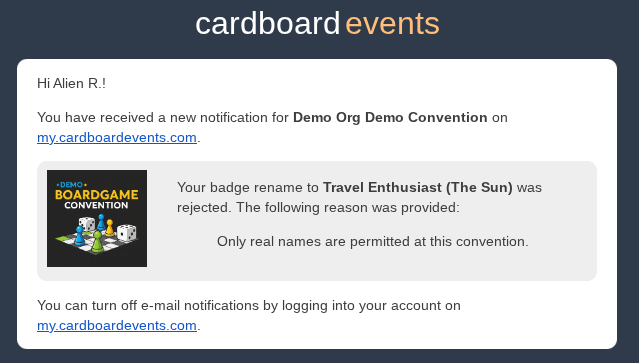
b. The requestor will receive an email notifying them of the rejection:
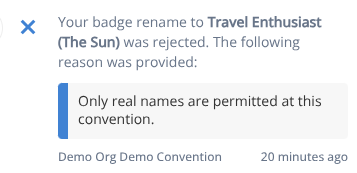
c. The requestor will also receive a note in their notifications section of the app:
- The status of your change will be updated in the grid and the Changed on date set.
¶ Revert a Completed Rename
- From the menu and submenu in the Badges section use the Quick search and available filters to locate the rename to review and click on the row.
- Review the details of the change and note what will be reverted. Click on the button in the actions area.
- The change will be reverted to the Before value.
Note: Reversions do not currently notify the attendee of the change.
¶ Export Selected Renames
- From the menu and submenu in the Badges section use the Quick search and available filters to display the records to export.
- Click the button in the action menu.
- Select the chosen fields and settings for the export and click .
- A csv file containing the data will be downloaded to your device.