¶ Transfers
Badge Transfer Options Feature Release Notes - October 1, 2025
¶ Overview
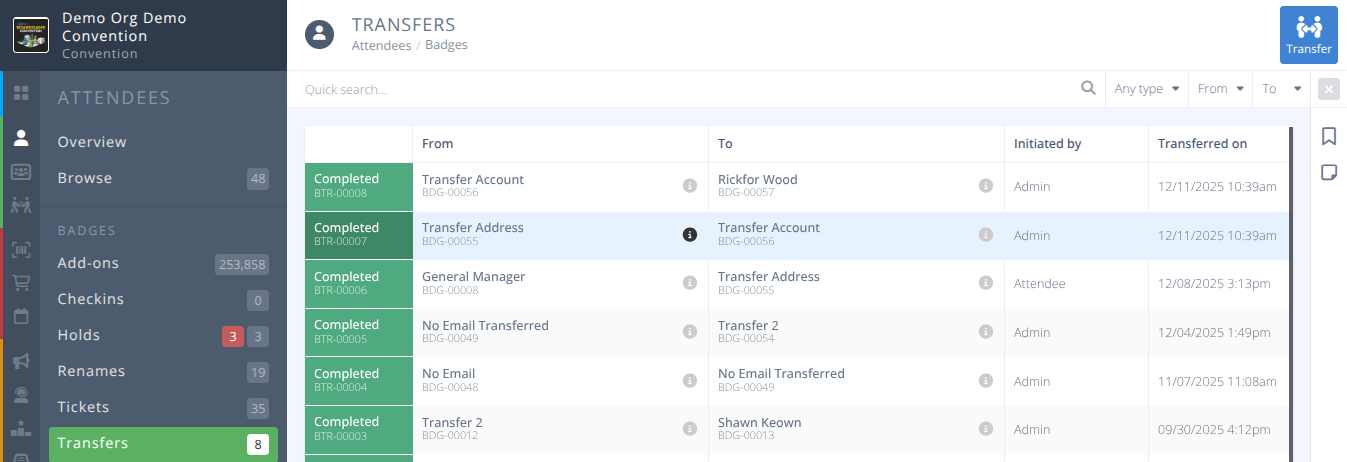
Here you will see all badge transfers and can administratively transfer a badge from one e-mail address to another.
¶ Common Procedures
Enable/Disable Self Transfers- Redirects to the Attendees SettingsAdministratively Transfer a Badge to Another E-mail Address
¶ Fields
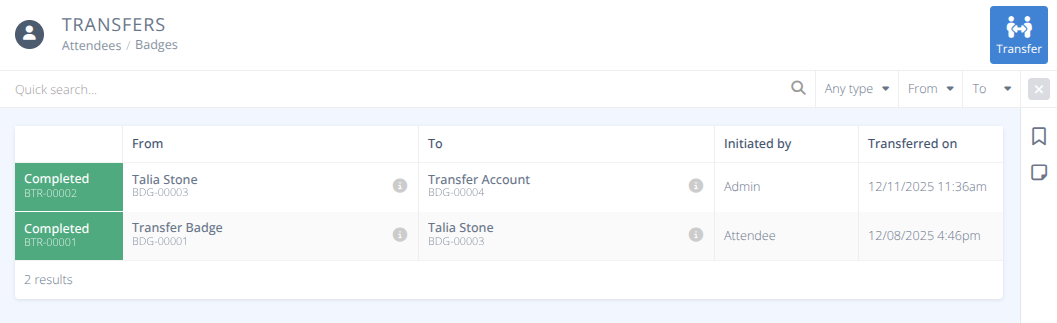
Status- The status of the transfer. Currently only:
Completed - The badge has been transferred.From- The name and original badge number of the transferred badge.To- The name and new badge number of the transferred badge.Initated By- Who initiated the transfer, either:
Admin - An administrator transferred the badge.
Attendee - The attendee performed the badge transfer.Transferred On- The date and time the transfer was completed.
¶ Attendee Transfer Request
Attendee's can perform a badge transfer, when permitted, from the convention view of the app by clicking on their badge and selecting Transfer Badge.
¶ Procedures
¶ Administratively Transfer a Badge to Another E-mail Address
- . From the menu and submenu in the Badges section click in the actions area.
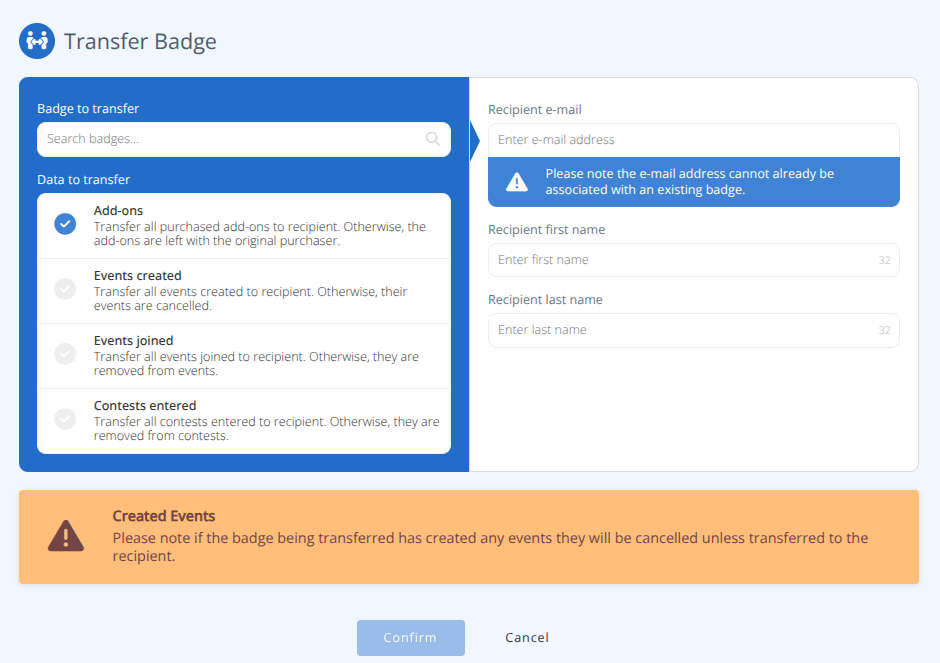
- Search for the Badge to transfer and select the badge you'd like to transfer.
- Select which elements to transfer, any of:
a. Add-ons - Transfer all purchased add-ons to the new recipient. Otherwise, the add-ons are left with the original purchaser.
b. Events created - Transfer all events created to the recipient. Otherwise, the events are cancelled.
c. Events joined - Transfer all events joined to the recipient. Otherwise, they are removed from events.
d. Contests entered - Transfer all contests entered to the recipient. Otherwise, they are removed from contests. - Enter the Recipient e-mail.
Note: The e-mail address cannot already have a badge at this convention.
- Enter the Recipient first name and Recipient last name of the transfer.
- Confirm the details and click to complete the transfer. The recipient will receive an email indicating they have recieved a badge.