¶ Sales
¶ Overview
The Sales Menu provides access to a list of all sales, categories, discounts, items, and referrals. This is where you can track all of your sales, view the details and transaction breakdown of each sale. You can also view emails sent from the system regarding sales and resend them if needed.
¶ Menu Breakdown
¶ Browse - Browse Sales
¶ Setup - Setup Sales
Categories- Setup Store CategoriesDiscounts- Setup DiscountsItems- Items for sale that will be added to CategoriesReferrals- Track Sales against Referral codes
¶ Admin - Administrate Sales
Settings- Sales Settings
¶ Common Procdeures
¶ Browse
From the menu click to view the grid of all sales. There are two different views of sales the regular view that shows all sales, and the Itemised view which will show all sales broken down to the item level.
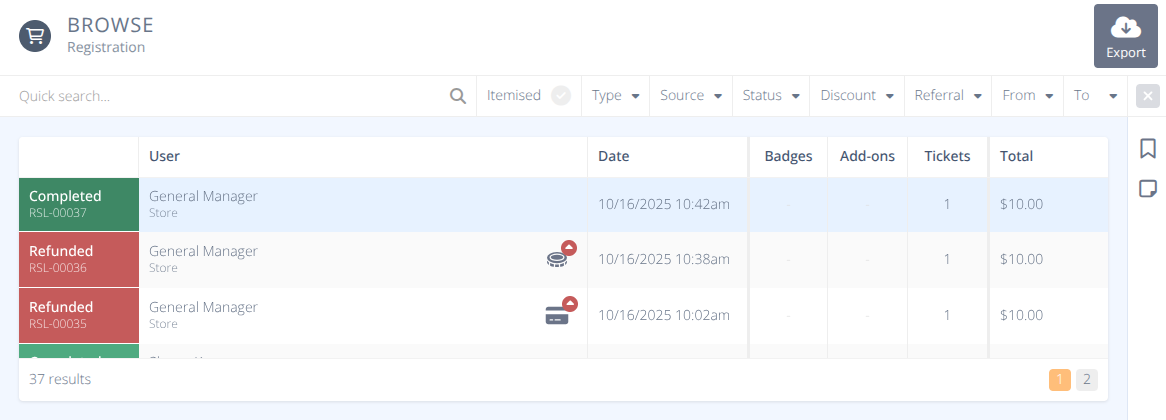
Selecting a row will display the details of that sale.
¶ Filtering
The quick search and filter options are in the usual place above the grid. Select any option to filter the view to those records. Click the to clear any filters set.
You can filter your sales in numerous ways (e.g. filter by items (itemised), types, discount, referral, and in specific date ranges. The quick search filters records by Name and/or E-mail address.
If filtering by Itemised, you can further filter using the Item and Variant dropboxes that display next to the Itemised button. Clicking on them will provide a secondary search function where the name of the item/variant you want to filter by (e.g. coffee mug) can be located and selected to filter.
This process can be repeated to add additional items to the filtered list (e.g. coffee mug, then t-shirt, etc.)
¶ Additional Symbols
| Symbol | Explanation |
|---|---|
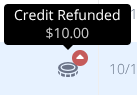 |
Hovering over this icon displays the amount credited to the user's account for this convention. |
 |
Hovering over this icon displays the amount returned to the user's original method of purchase |
¶ Detailed View
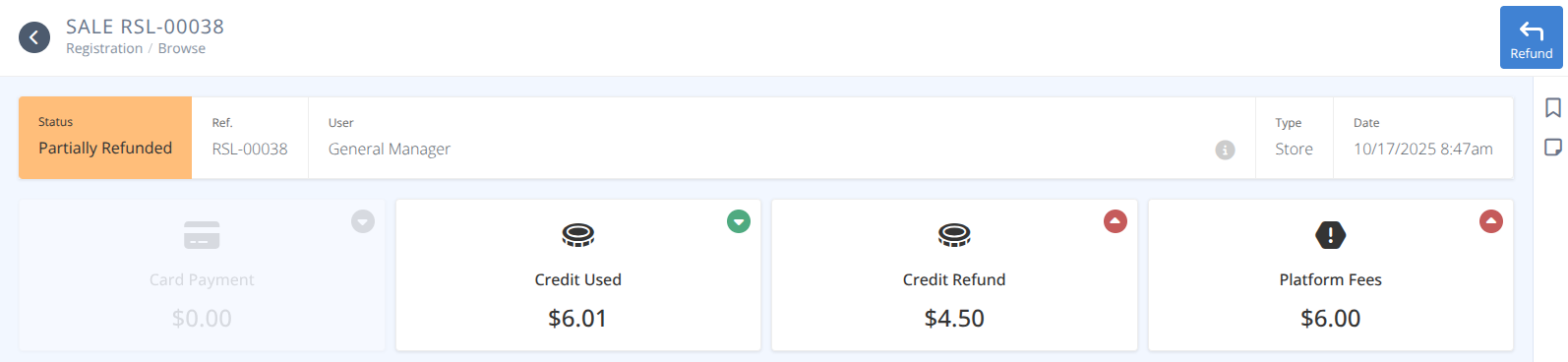
The detailed view provides a breakdown of the sale transaction.
The page is broken down into a summary at the top and three tabs at the bottom of the screen.
The summary provides the following information:
-
Status- The overall status of the sale either:- Completed - The sale has been completed.
- Refunded - The full transaction has been refunded.
- Partially Refunded - Part of the transaction or part of the transaction amount has been refunded.
-
Ref.- This is the internal reference for the sale. -
User- The person who completed the transaction. -
Type- The type of sale either:- Registration - Completed from a registration page.
- Store - Completed from a convention store.
- Third Party - Completed from a third party page.
- Admin Comp - Completed by an administrator through the comp process.
-
Date- The date and time of the transaction (based on the convention timezone)
Click on the tabs below for details on the corresponding tab from the sales record.

Status- The status of this item either:- Completed
- Refunded
- Partially Refunded
Item- The name of the item as defined on the sales item pagePayment- How much was paid by the userFee- The fees paid for the itemRefund- The amount refunded on the itemBadge- The Name and reference number of the associated BadgeLinked Content- Any additional content linked to this item (i.e. comps)
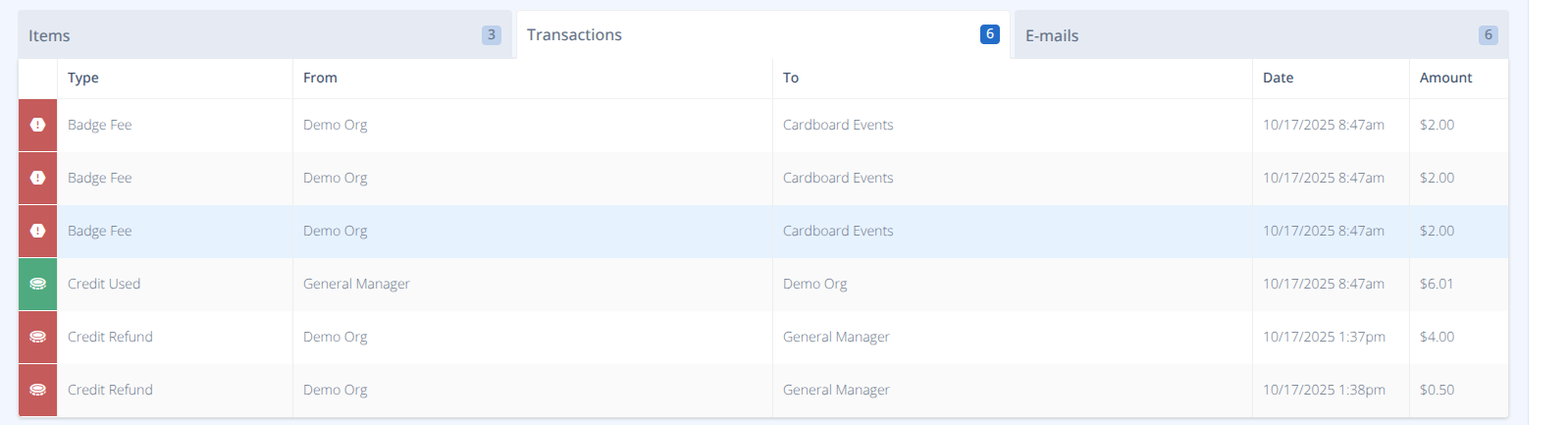
Type- The type of the transactionFrom- The payer of the transactionTo- The payee of the transaactionDate- The date of the transaction (using convention timezone)Amount- The amount of the transaction
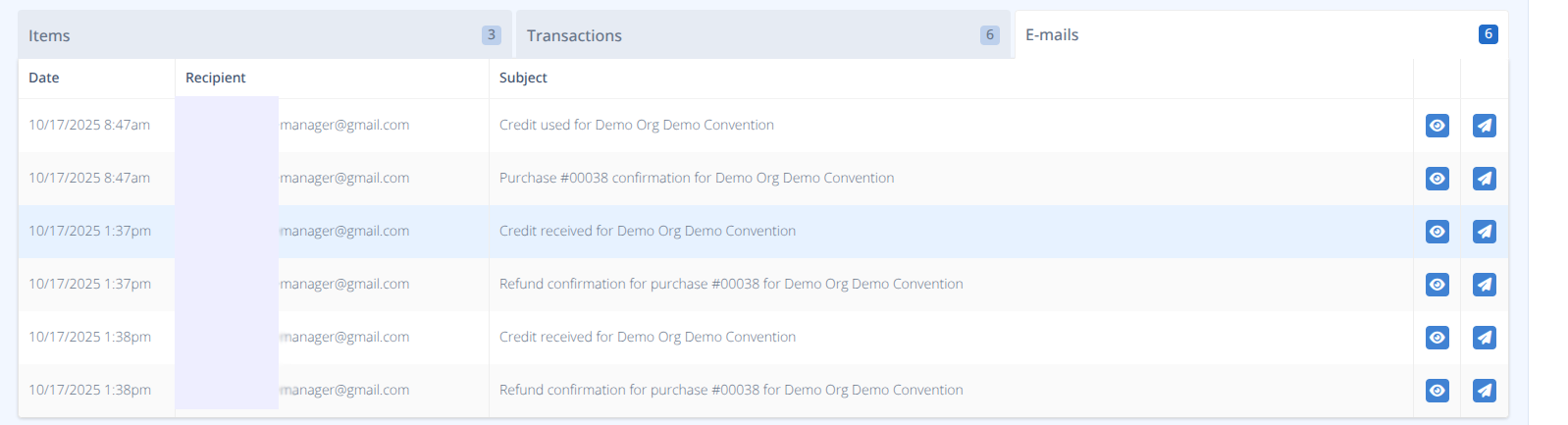
Date- The date (using the convention timezone) of the transactionRecipient- The email address of the recipientSubject- The subject of the email - Preview the email sent
 - Re-send the email
¶ Procedures
¶ Export Sales Records
- From the menu use the Quick search... bar to apply any filters and reduce the number of records to export.
- Click Export at the top right-hand corner of the page.
- Select the columns you want to export.
- Click to create the CSV file.
¶ Refund A Sale
-
From the menu locate the sale you wish to refund and click on the row. If needed use the filter options to locate the sale.
-
Click the button in the action or on the item to refund row.
-
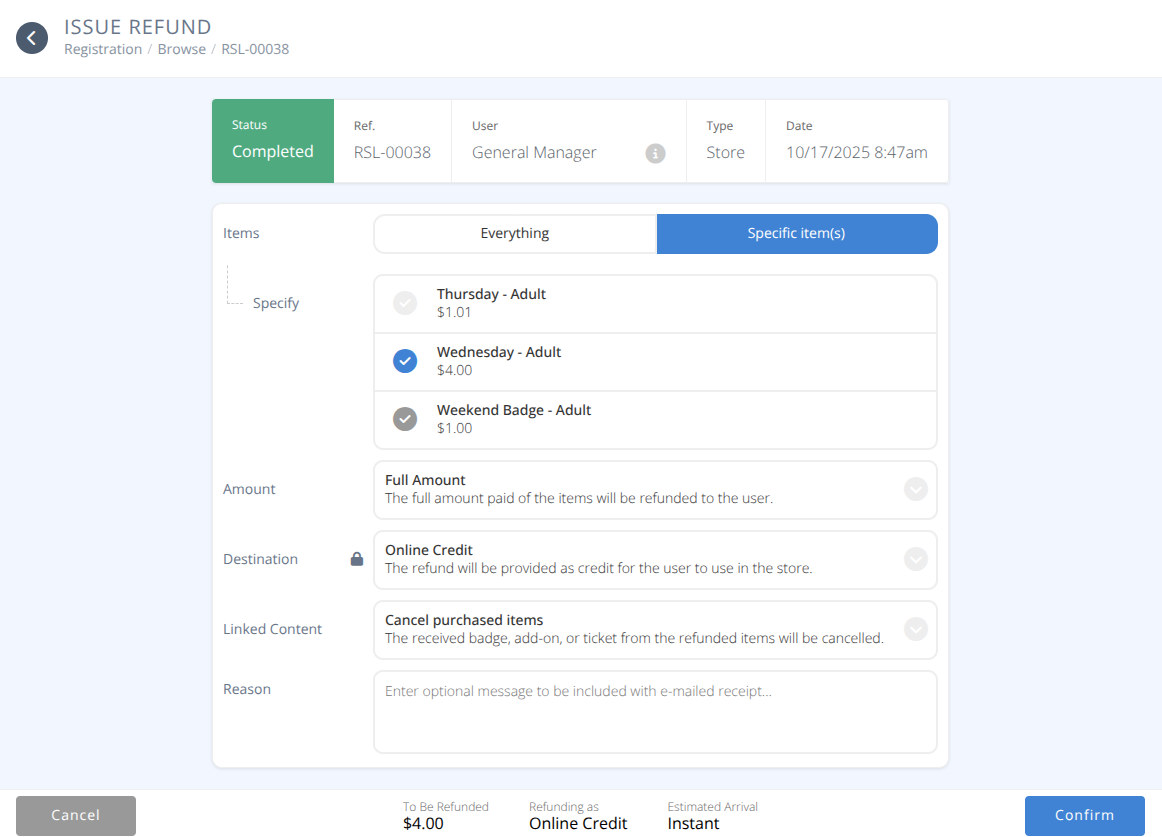
Complete the Sales refund screen
a)
Items- What is to be refunded either:-
Everything
-
Specific Items - A new subsection labeled
Specifyallows you to select which items are to be refunded.
b)Amount- How much is to be refunded either: -
Full Amount - The full amount charged is refunded
-
Full Amount Excluding Platform Fees - The full amount paid, after any platform fees, will be refunded
-
Full Amount Excluding Convention Charges - The full amount paid, after any convention charges, will be refunded
-
Partial Fixed Amount - A specifc dollar amount will be refunded
-
Partial Percentage Amount - A percentage of the remaining refundable amount will be refunded
c)Destination- Where to send the credit either: -
Original Payment Method - The refund will be sent to the orginal payment method. Card is prioritised before credit if both were used.
-
Online Credit - The refund will be provided as credit to use in the store
-
Offline Payment - The refund will be given outside of the platform and this sale will be marked as refunded.
d)Linked Content- What to do with the item(s) being refunded either: -
Cancel Purchased Items - The associated item(s) will be cancelled. If a ticketed event is refunded in this way the participant will be removed from the event.
-
Retain Purchased Items - All associated item(s) will be maintained by the user.
e)Reason- An optional message to be included with the e-mailed receipt.
-
-
The amount
To Be Refunded, where the credit will beRefunding as, andEstimated Arrivalwill be displayed at the bottom of the screen.
Warning Refunds cannot be undone.
- Click
- The item(s) will now show as refunded or partially refunded.
¶ Resend A Transaction E-mail
- From the menu locate the sale you wish to resend the transaction email from and click on the row. If needed use the filter options to locate the sale.
- Click on the E-mails tab.
- Locate the E-mail that you wish to send.
- Preview the E-mail to confirm using the eyeball.
- Click on the airplane to resend the email.
¶ Sample Attendee Emails
Sales transactions will be sent to the primary badge holder's email address and will be sent by support@cardboardevents.com.
Helpful Tip: If an attendee is reporting that they are not receiving the emails:
1) Check the email address on their badge to confirm it is correct
2) Ask them to add support@cardboardevents.com as a contact and check their spam folder
3)Resend the Transaction E-mail.
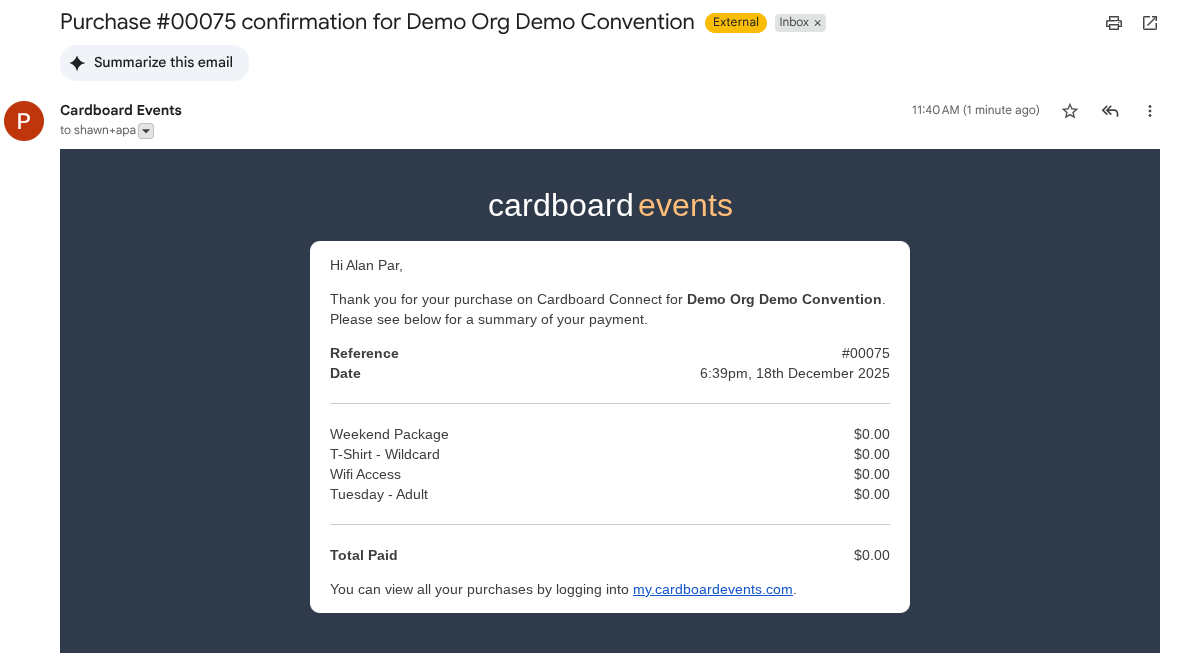
¶ Sample Sale E-mail of Free Badge with Comped Items