¶ Items
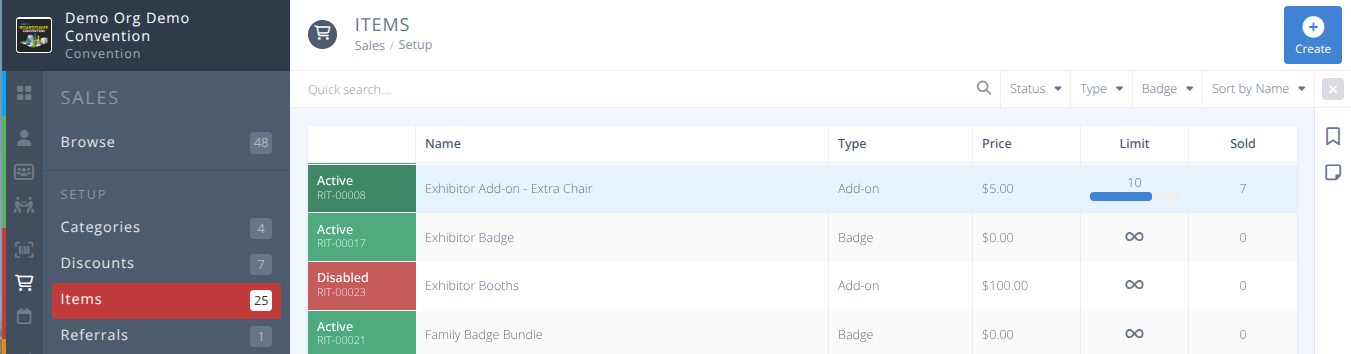
Create all of the items you will sell during your convention (e.g. badges, tickets, merchandise, advertising, sponsorships, exhibitor booths, flea market tables, etc.). This is a critical tab within CardboardEvents.com.
¶ Overview
Everything that needs to be sold or comped must have a sales item created for it. (e.g. badges, tickets, merch, sponsorships, exhibitor booths, etc.)
¶ Common Procedures
Create a Sales ItemManage Variants for a Sales ItemManage Comped Items on a Sales ItemCreate a Badge Upgrade Sales ItemAdd a Sales Item to a Store Category- redirects to Categories documentationAdd a Badge Sales Item to a Registration Page- redirects to Pages documentation
¶ Fields
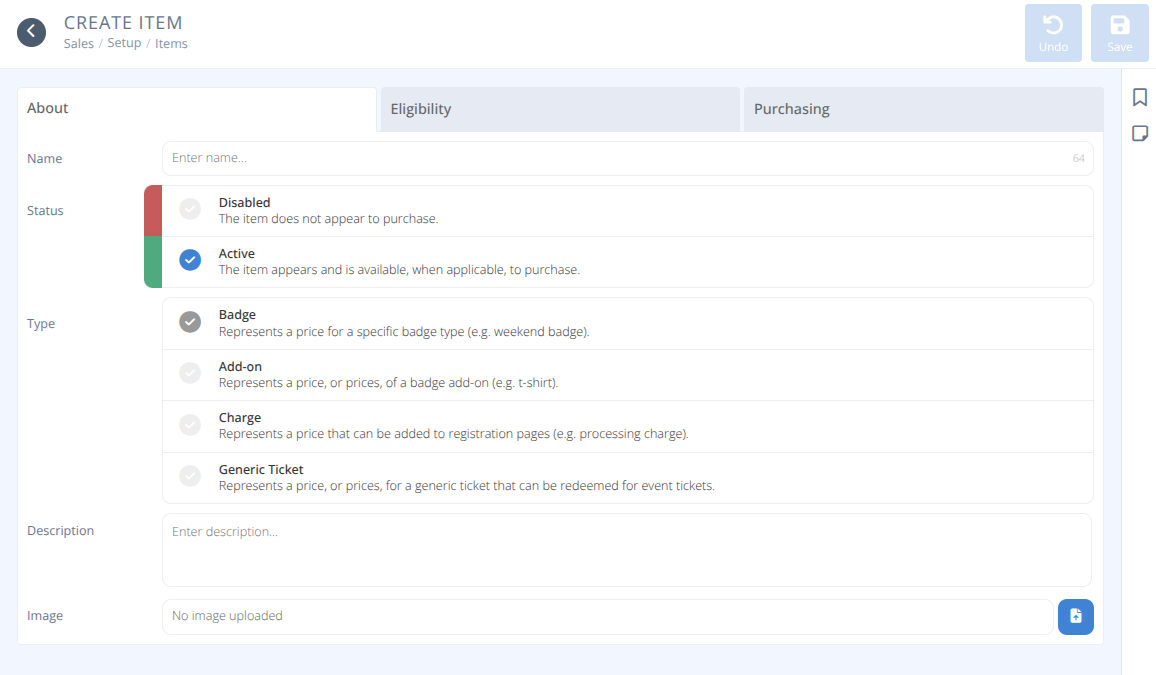

Name - The name of the item
-
Status- The status of the item, either:
Disabled - The item does not appear for purchase.
Active - The item appears and is available to purchase when applicable. -

Type- The type of item. This will modify the screen to show the relevant fields. Once set this value cannot be changed.
Additional fields depend on the chosen Type. Select the corresponding Type below for details:
TypeBadge: Represents a price for a specific badge type (e.g. weekend badge).Badge- Search or select a specific badge type (e.g. weekend badge).
 Note: The Badge Type must exist prior before the Sales Item can be created. See
 Badge Typesfor details on badge types.Upgrade- Is this an upgrade from one badge to another badge, either:
No - This badge is not an upgrade
Yes - This badge upgrades (changes) the badge from one type to another or from one price to another.
Description- A description shown to attendees during purchasing.Image- An image that will help identify this badge.
Type- Add-on: Represents a price, or prices of a badge add-on (e.g. t-shirt).Checkin- Does this item require collection, either:
No collection Attendees do not need to collect the item (e.g. exhibitor booth, digital item, etc.)
Requires collection - Attendees must collect the item at the convention (e.g. t-shirt, game, etc.)
Description- A description shown to attendees during purchasing.Image- An image that will help identify this add-on.Tags- One or more tags to help find add-ons when building store categories or registration pages.
Type- Charge: Represents a price that can be added to registration pages (e.g. processing charge).Description- A description shown to attendees during purchasing.
Type- Generic Ticket: Represents a price, or prices, for a generic ticket that can be redeemed for event tickets.Description- A description shown to attendees during purchasing.Image- An image that will help identify this ticket.

Select the corresponding tab below.
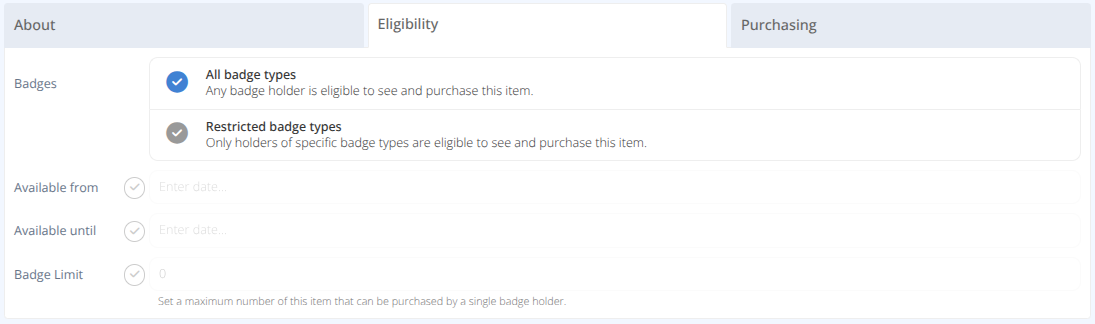
Badges- Who can purchase this item, either:
All badge types - Any badge holder is eligible to see and purchase this item.
Restricted badge types - Only holders of specific badge types are eligible to see and purchase this item. (e.g. Booths for ExhibitorsAvailable from- The date and time when this item is available for purchase.Available until- The date and time when this item is no longer available for purchase.Badge Limit- Available only when Type is not a Badge.
The purchasing tab differs depending on the Type selected in the About tab. Select the corresponding Type below:
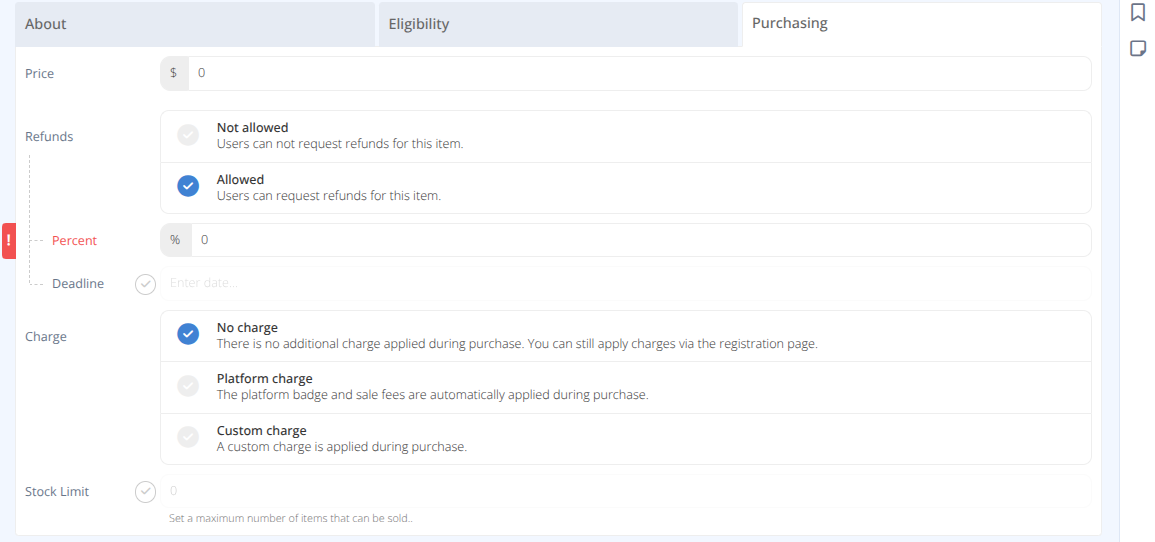
Price- The price of this specific badgeRefunds- Are refunds allowed for this item, either:
Not Allowed - Users cannot request refunds for this item.
Allowed - Users can request refunds for this item. Note: Platform fees incurred by the initial sale are not refunded.Percent- The percentage of the price refunded.Deadline- The date and time after which refunds will no longer be allowed.
Charge- Any additional charges to the sale of the item, either:
No charge - There is no additional charge applied during purchase. You can still apply charges via the registration page.
Platform charge - The platform badge and sale fees are automatically applied during purchase.
Custom charge - A custom charge is applied during purchase-
Type- The type of charge, either:
Fixed charge - A fixed amount is applied as a charge.Amount- The dollar amount of the charge.
Percentage charge - A percentage of the badge price is applied as a charge.
Amount- The percentage amount used to calculate the charge.
-
Stock Limit- The maximum number of this item that can be sold.
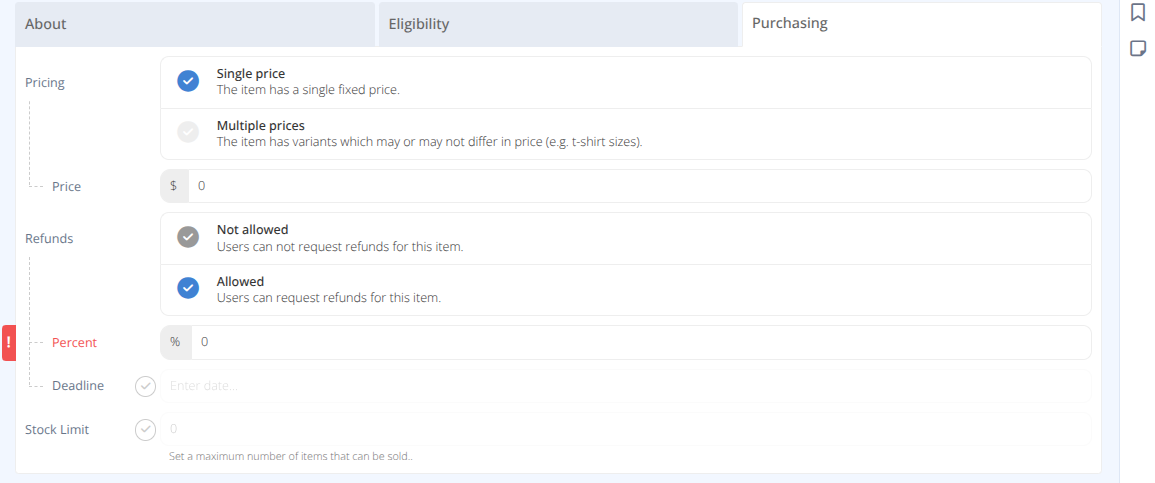
Pricing- The price of the item, either:
Single price - The item has a single fixed price
Multiple prices - The item has variants which may or may not differ in price (e.g. t-shirt sizes).Price- When Pricing is Single price the cost of the item.Wildcard Comp- When pricing is Mutiple prices are wild-card comps allowed, either:
Never - If item is comped then a specific variant must be specified.
Allowed - If item is comped a variant doesn't have to be specified and the user can select a specific variant later (e.g. t-shirt size).
Refunds- Are refunds allowed for this item, either:
Not Allowed - Users cannot request refunds for this item.
Allowed - Users can request refunds for this item. Note: Platform fees incurred by the initial sale are not refunded.Percent- The percentage of the price refunded.Deadline- The date and time after which refunds will no longer be allowed.
Stock Limit- The maximum number of this item that can be sold.
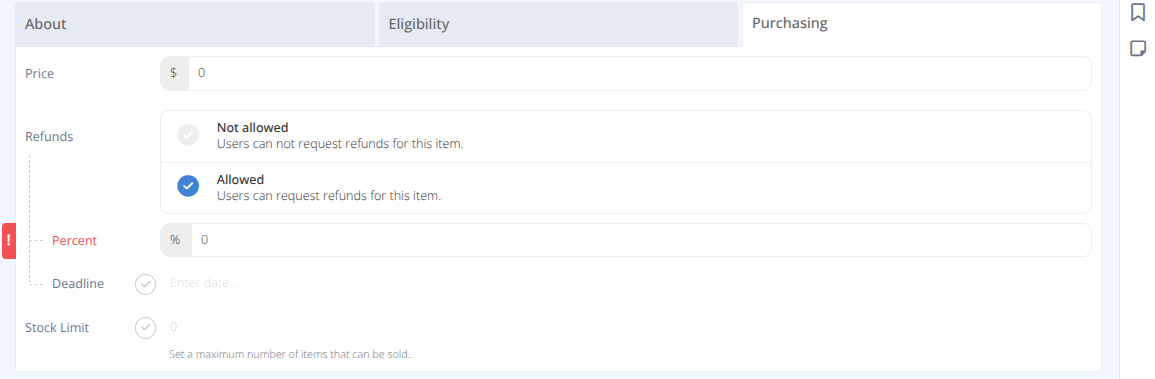
Price- The dollar amount of the chargeRefunds- Are refunds allowed for this item, either:
Not Allowed - Users cannot request refunds for this item.
Allowed - Users can request refunds for this item. Note: Platform fees incurred by the initial sale are not refunded.Percent- The percentage of the price refunded.Deadline- The date and time after which refunds will no longer be allowed.
Stock Limit- The maximum number of this item that can be sold.
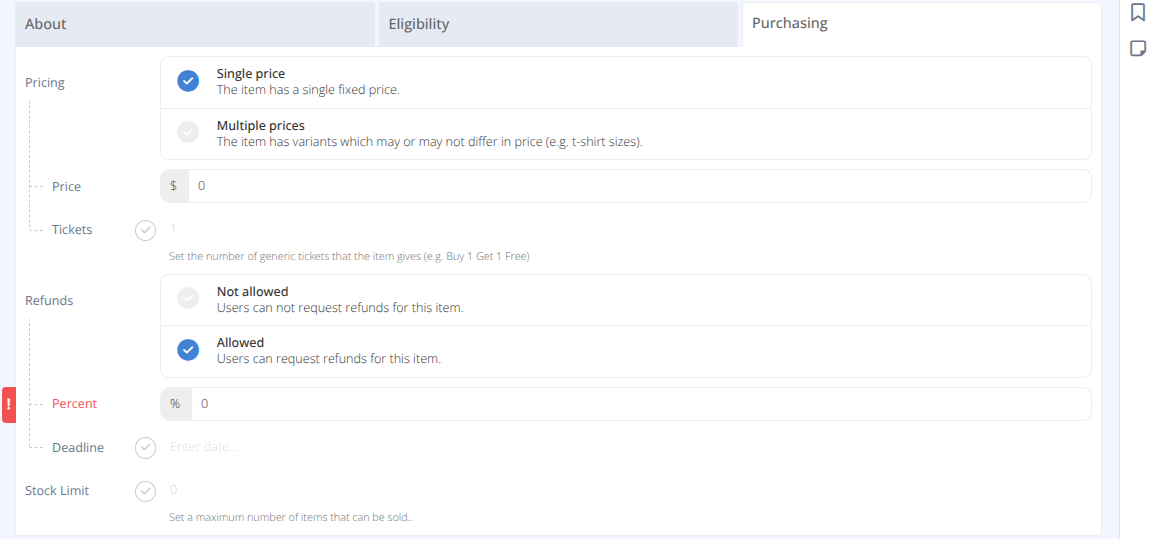
Pricing- The price of the item, either:
Single price - The item has a single fixed price
Multiple prices - The item has variants which may or may not differ in price (e.g. t-shirt sizes).Refunds- Are refunds allowed for this item, either:
Not Allowed - Users cannot request refunds for this item.
Allowed - Users can request refunds for this item. Note: Platform fees incurred by the initial sale are not refunded.Percent- The percentage of the price refunded.Deadline- The date and time after which refunds will no longer be allowed.
Stock Limit- The maximum number of this ticket that can be sold.
¶ Variants
Status- The status of this variant, either:
Disabled - The variant does not appear to purchase.
Active - The variant appears and is available to purchase when applicable.Name - The name of this variant.Price- The price of this variant.Stock Limit- The maximum number that can be sold of this variant across all purchases.
Please refer to Notes about Stock Limits for more details on the interconnectivity of stock limits across items and variants.
¶ Comps
Manage any additional items that are comped when this item is purchased.
¶ Procedures
¶ Create a Sales Item
- From the menu select the sub-menu.
- Click in the actions area.
- Enter the Name of the item for sale.
- Select the Type of the item for sale.
- Complete all other Fields as needed and click
- If the item has multiple prices or variants refer to the procedure
Manage Variants for a Sales Item - If you wish to add comped items refer to the procedure
Add Comped Items to a Sales Item
¶ Manage Variants for a Sales Item
- From the menu select the sub-menu.
- Locate the Item you wish to manage variants for using the Quick search... or filter options as needed and click on the row.
- Click on the Variants bar and choose your action below.
- Click on the button in the actions area.
- Enter the Name of the variant.
- Enter the Price of the variant
- Optionally select and enter the Stock Limit of this particular variant. Refer to the
Notes about Stock Limitsfor more details. - Click .
- The newly added variant will appear in the grid.
- Locate the variant(s) using the Quick Search... as needed and click on the checkbox at the end of the row to select the variant(s) to remove.
- Click the button in the actions area.
Warning: As with all deletions exercise caution. If the number Sold is not 0 it is recommended to instead change the status to Disabled.
- Review the summary of the removal and click the button.
- Locate the variant using the Quick Search... as needed and click on the row of the variant to edit.
- Modify fields as needed including Status, Name, Price, and Stock Limit.
- Click .

¶ Manage Comped Items on a Sales Item
- From the menu select the sub-menu.
- Locate the Item you wish to manage comped items for using the Quick search... or filter options as needed and click on the row.
- Click on the Comps bar and choose your action below.
- Click on the button in the actions area.
- Search for the Item to comp when this item is obtained.
- If you wish the comped item to be added to previous purchases of this item select Retrospective Yes.
- Click .
- The newly added comp will appear in the grid.
- Locate the comp(s) using the Quick Search... as needed and click on the checkbox at the end of the row to select the comp(s) to remove.
- Click the button in the actions area.
- Review the summary of the removal and click the button.

¶ Create a Badge Upgrade Sales Item
Due to the complexities of badge sales, the different prices that a convention may use, and the number of possible upgrade paths, automatic upgrades are not currently available. A specific sales item must be created for each upgrade path permitted.
¶ A) Create the Upgrade Sales Item
Follow the Create a Sales Item above with the following details
-
Set the Name to something meaningful. e.g.) Upgrade Early Bird 4-Day to VIG
-
Set the Type to Badge
-
Set Upgrade to Yes
-
Set the Badge to be the upgraded badge e.g.) VIG
-
In the tab:
a. Set Badges to Restricted badge types.
b. Set Allowed to the pre-upgrade type e.g.) 4-Day -
In the tab:
a. Set the Price to be the upgrade cost e.g.) The cost to upgrade from 4-Day to VIG
b. Set the Charge to your preference Note: Additional badge platform fees are not charged to create an upgraded badge, however sales fees will still apply. -
Complete any other desired fields and click
¶ B) Add the Sales Item to a Sales Category
Follow the Add Items In A Sales Category process.
- Locate or Create the Store Category you wish to use to sell badge upgrades. e.g) Badge Upgrades
- In the tab click Add Item
- Find the item using the name set in section A. e.g.) Upgrade 4-Day to VIG
- Click
¶ C) Direct Attendees to the Store to Purchase the Upgrade Item
Details on what the attendee will see are shown in the Categories documentation.
- Direct the attendee to the my.cardboardevents.com website (current app store restrictions prevent us from allowing purchases to be made from the mobile app.
- Once logged in direct them to click on the Store Icon
- Direct the attendee to choose the selected Store Category. e.g.) Badge Upgrades
- Direct the attendee to select the correct badge upgrade. e.g.) Upgrade 4-Day to VIG
- Once they have completed the purchase their badge will be changed from the pre-upgrade type to the post-upgrade type.
¶ D) Additional Considerations
Notes about Stock Limits.
¶ Notes about Stock Limits
Working with items that have variants if the item stock limit is lower than a variant limit then once any combination of variants exceeds the item stock limit all variants will be considered sold out. On the other side if the variant limit is lower than the item limit the specific variant will be considered sold out, but all other variants will still be available.
¶ Example Scenarios
¶ Badge Types Example:
Scenario:
Sell Weekend badges at multiple prices with a maximum of 100 badges, 50 of which can be early bird pricing.
Actions:
-
Create a Badge Type
Field Value Name: "Weekend" Limit Quantity: 100 -
Create a Sales Item
Field Value Name: "Early Bird Weekend Badge"
| Type: | "Badge" |
| Badge: | "Weekend" |
| Eligibility -> Available until: | Date and time that early bird ends |
| Purchasing -> Price: | $10 |
| Purchasing -> Stock Limit: | 50 |
- Create a Sales Item
Field Value Name: "Advance - Weekend Badge"
| Type: | "Badge"|
| Badge: | "Weekend"|
| Eligibility -> Available from: | Date and time that early bird ends|
| Eligibility -> Available until: | Date and time that convention starts|
| Purchasing -> Price: | $20|
| Purchasing -> Stock Limit: | not set.|
- Create a Sales Item
| Field | Value |
|--|--|
| Name: | "At the Door - Weekend Badge"
| Type: | "Badge"
| Badge: | "Weekend"
| Eligibility -> Available from: | Date and time that convention starts
| Purchasing -> Price: | $40 |
| Purchasing -> Stock Limit | not set. |
Result:
After 50 Early Bird badges are sold no badges are available until the Available from date of the Advance badges is reached.
Once 100 Weekend badges are sold, regardless of date or variant, weekend badges will no longer be available. The price will start at $10 then increase to $20 and switch to $40 once the convention starts.
¶ Sized Merch Example (e.g. T-shirts with variants)
Scenario:
Selling t-shirts that come in sizes S, M, L, and XL with 20 of each available and a limit of 2 per person. Small t-shirts cost $20, all others cost $25. T-shirts will be comped to volunteers who can select their own size.
Actions:
- Create a Sales Item
Field Value Name: "T-shirt"
| Type: | "Add-on"
| Checkin: | "Requires collection"
| Eligibility -> Badge Limit: | checked and set to 2
| Purchasing -> Pricing: | Multiple Prices
| Purchasing -> Pricing -> Wildcard Comp: | Allowed
-
Save
-
Click Variants button
-
Edit default entry
| Field | Value |
|--|--|
| Name: | Small |
| Price: | $20 |
| Stock Limit: | 20 |- Create new entries for
| Field | Value |
|--|--|
| Name: | Medium, Large, Extra Large |
| Price: | $25 |
| Stock Limit: | 20 |
- Create new entries for
- Clone Medium entry changing name to Large.
- Clone entry changing name to Extra Large.
- Create a Sales Category
Field Value Name: "Merch" - Add item "T-shirt" to category
- Save
Result:
One product is shown in the Merch store category with no apprent limit and the text From $20.
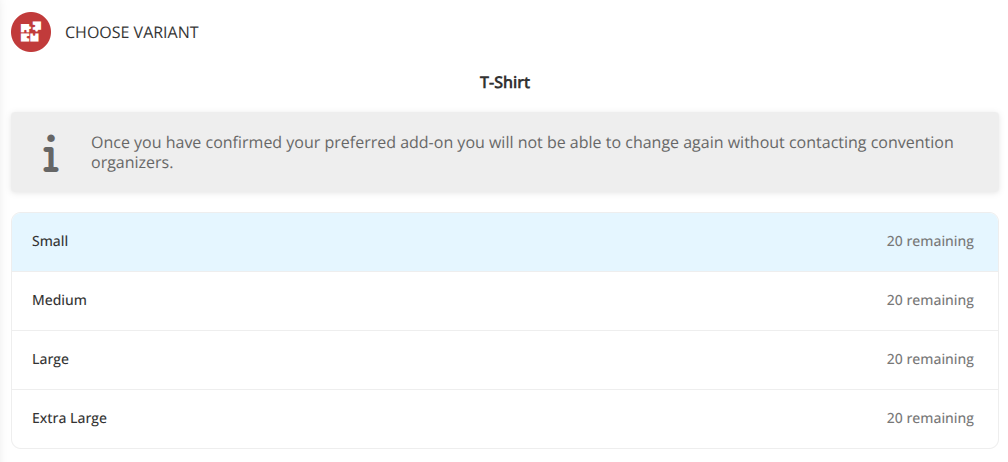
Clicking on the product shows all variants with current stock limits and pricing for the attendee to select.
When comping the T-shirt item to a badge or other item a wildcard option will also be available:
The attendee will see an next to the My Add-ons menu in the store and a Must choose variant tag against the T-shirt

Clicking the Pick variant item will show the options currently available.