¶ Library
Setting up your game library needs to happen if you are utilizing the Card Board Events checkout system. When you set up your library on the organization or convention page, the organization’s library will automatically become available for each convention you create in the future.
¶ Menu Breakdown
Overview- A visual overview of your library/Browse- Browse and manage your library items. Import/Export part or your entire library. Print labels.
¶ Setup - Setup your Library
Fields- Define custom fields and their presence in your Library.Rules- Manage rules to label, hide, or make library items unavailable.
¶ Admin - Administration of Library Section
¶ Open Library - Opens the external view of the library.
¶ Overview
The library is where all of your games will be stored for use during checkout and for attendees to find games they want to play.
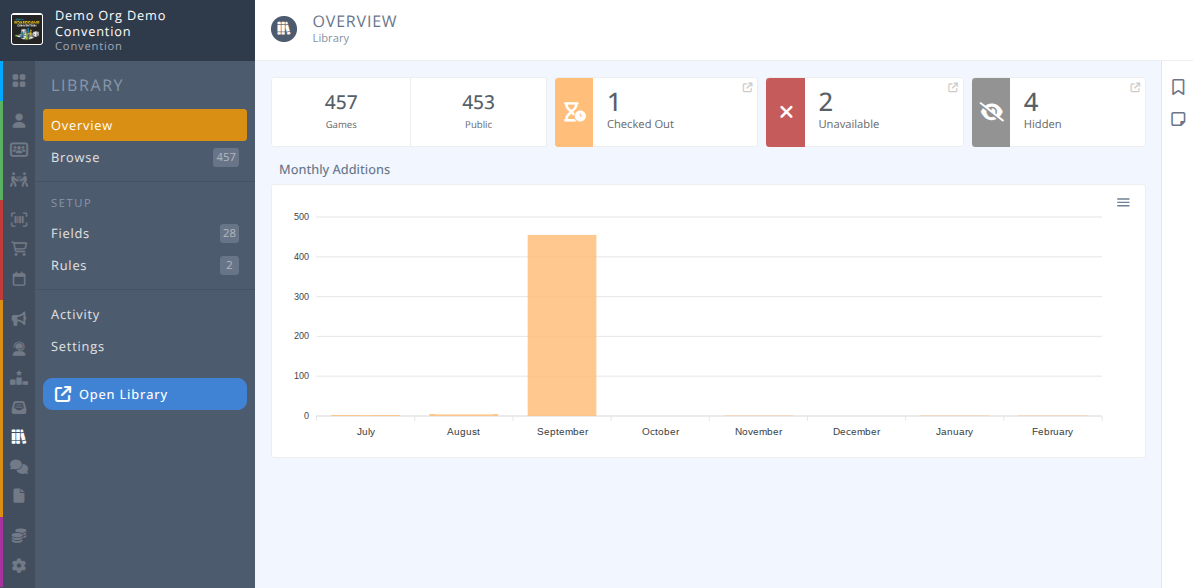
The Overview provides a breakdown of the number of games, how many are visible to the public, the current status of the games, and a graphical display of when games were added to the library.
¶ Common Procedures
Setup Library Fields- redirects to the Fields documentationBulk Input Library ItemsExport Library ItemsAdd a Library ItemUse Rules to Hide or Tag Library Items- redirects to the Rules documentationView a Library Item LabelPrint Labels
¶ Browse
From the menu select to view the grid of library items.
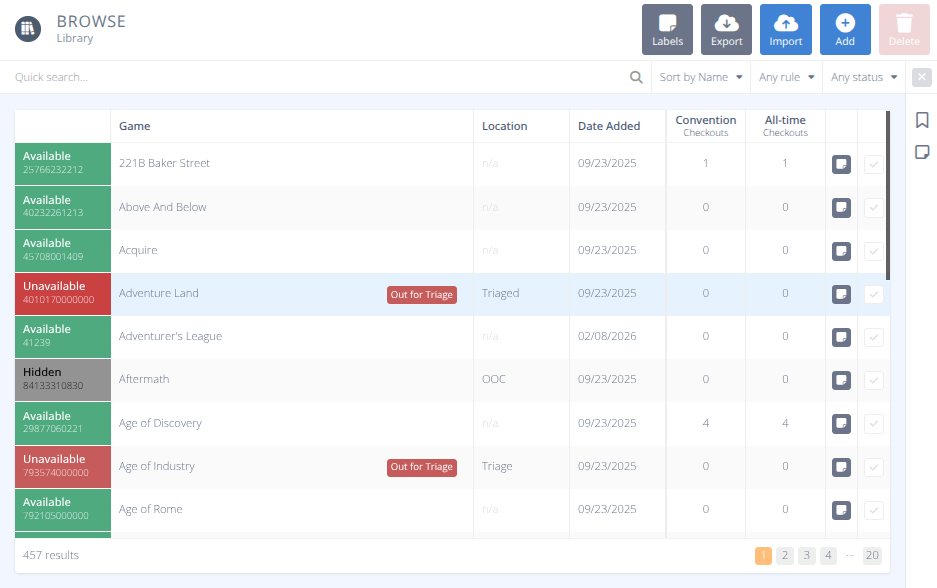
Selecting a row will display the details of that library item. As with all grids, the Quick Search and filter options are shown above the grid along with sort options. Select any option to filter and/or sort the records. Click the button to clear the current filters.
¶ Procedures
¶ Bulk Input Library Items
-
From the menu select to view the grid of library items.
-
Click
-
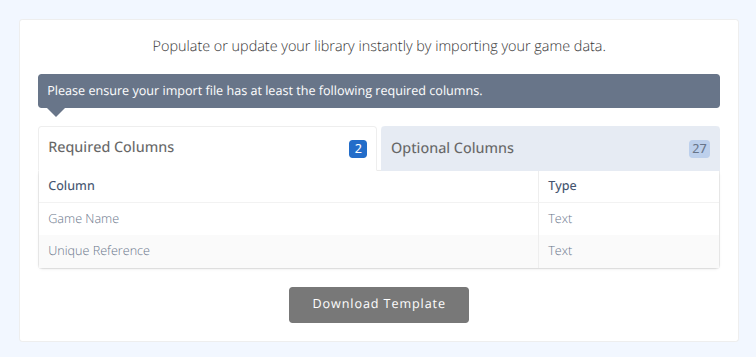
Review the Required Columns and Optional Columns. You may also click the button to download a template to fill in.
-
When you have the CSV ready click .
-
Click the button to locate the CSV with the games to import or update.
Only the header row will be used so you may use your library import file without modification. Note: If there are special characters used in your file, please ensure the format used is UTF-8 so that they are maintained properly.
 -
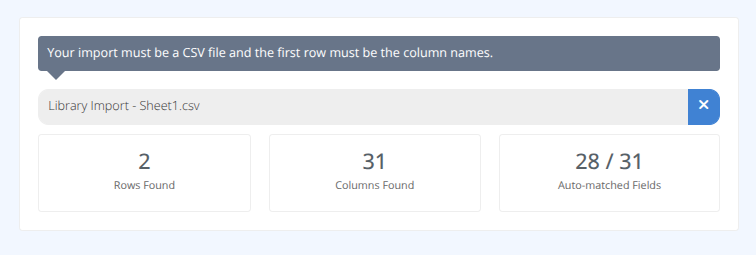
The file will be analyzed and the number of rows and columns found will be displayed along with the fields that were auto-matched. Once the details have been confirmed and are as expected click .
-
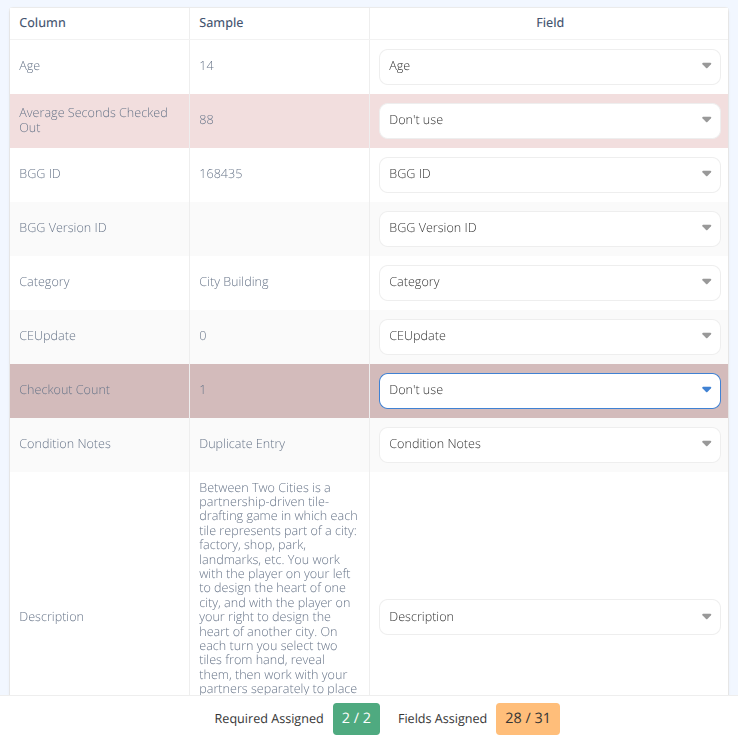
The columns will be displayed with the sample being extracted from the first entry. If the column has been auto-matched it will be selected in the Field drop-boxes. You can manually match columns if needed or mark a column as Don't use.
-
Once you have verified that the data will be entered properly click .
-
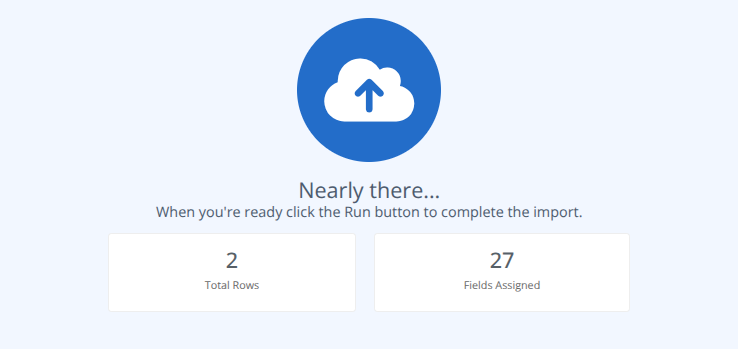
Confirm the total number of rows to be imported and that the fields are assigned as expected and click .
-
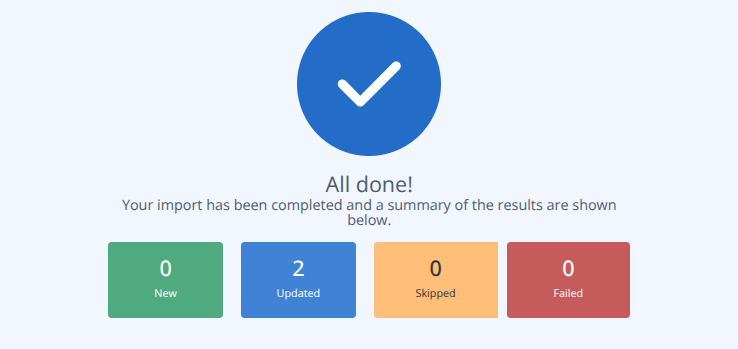
The import will run and the results displayed.
-
Click .
¶ Export Library Items
-
From the menu select to view the grid of library items.
-
Click
-
Select the columns you want to include in the export.
-
Click
-
A CSV file in UTF-8 format will be downloaded.
¶ Add a Library Item
-
From the menu select to view the grid of library items.
-
Click
-
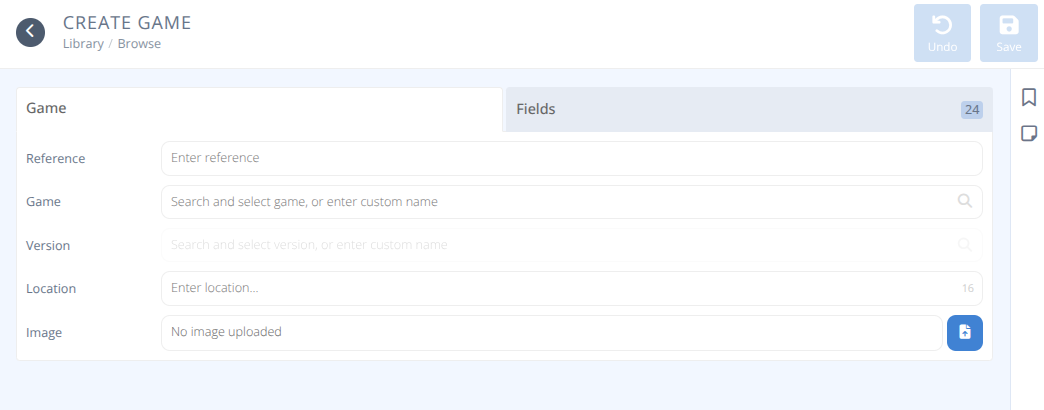
Enter the details of the game.
-
When entering the Game if a match is made an image will be automatically loaded
-
If the library settings Reference is set to Provided, be sure to enter your external reference along with the game name.
-
Click
¶ View a Library Item Label
-
From the menu select to view the grid of library items.
-
Locate the game you wish to view the label for using the Quick Search and filters.
-
On the end of the row click the View Label button.
Alternatively the label may also be viewed from the detailed view of the library item.
¶ Print Labels
You can print QR codes or game labels for each game in your game library. Either type can be applied to the game boxes and used during the Checkout process to more quickly scan the game.
- Avery 5160 (30 per sheet, 1" x 2.625")
- Dymo 30321 (1 per sheet, 1.4" x 3.5")
- Dymo 30334 (1 per sheet, 2.25" x 1.25")
- Dymo 30336 (1 per sheet, 1" x 2.125")
-
From the menu select to view the grid of library items.
-
Filter the games you wish to print labels for using the Quick Search and supplied filters. You can select individual records using the select check on the end of each row. If no records are selected all displayed rows will be printed
Tip: Often you will want to print labels for the last few games added to the library. Use the Sort by drop box to first sort your games by Date Added.
-
Click to print the chosen labels.
-
A summary will be shown indicating the Label size, number of items to print, how many per page, and the total pages needed.
-
If needed select the pages to print. e.g.) 1-3
-
Confirm the details and click .
-
A PDF file will be generated and can be downloaded to your computer to print.