¶ Rules
Library Rules allow you to hide, make unavailable, or tag library items based on specified criteria. They are a valuable tool to make sure your attendees see the games that are available.
¶ Overview
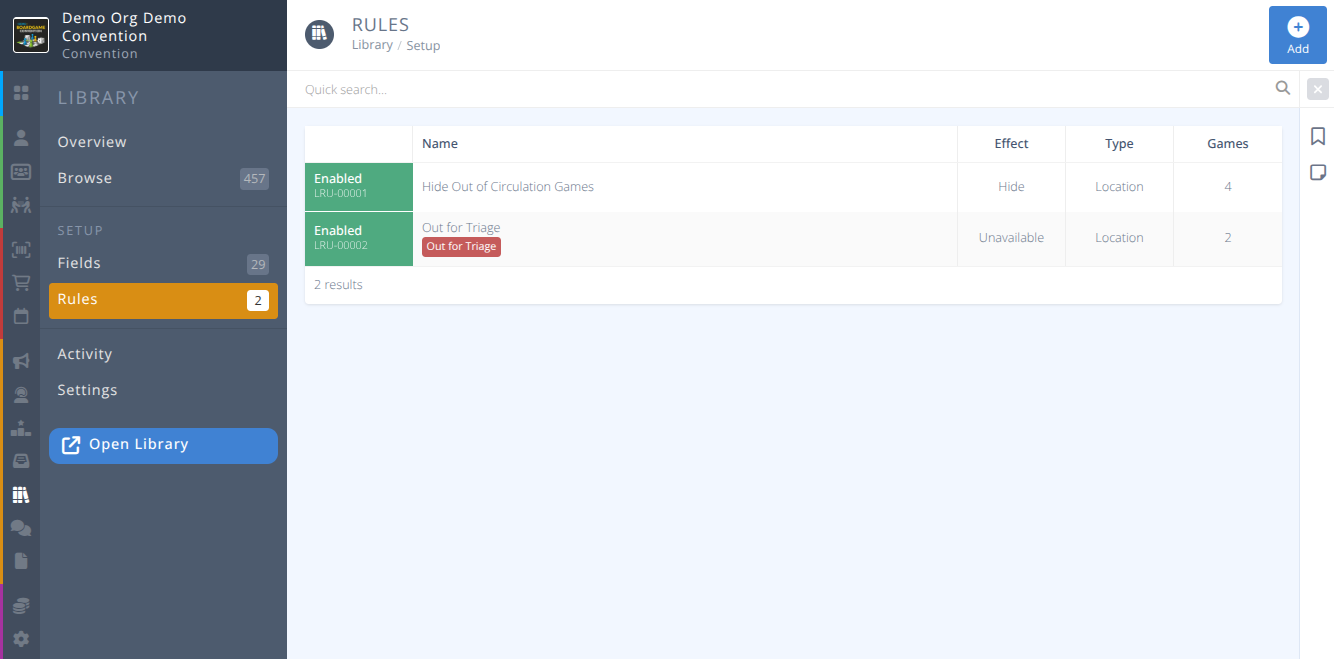
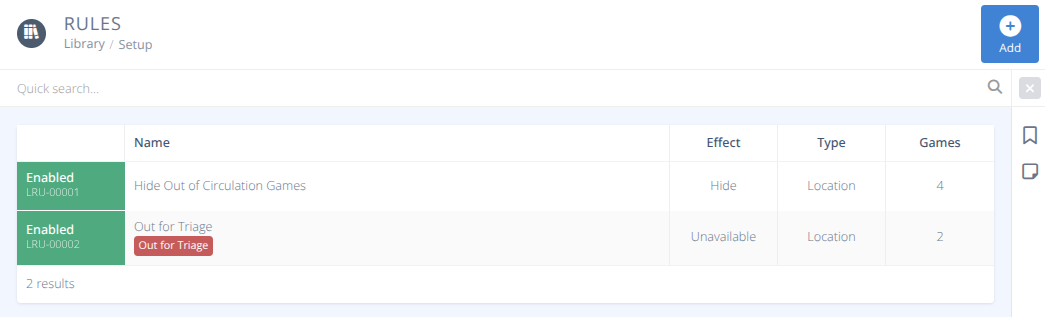
The grid displays all current rules. As with all grids the Quick Search may be used to filter the rules by name to more easily locate the records you wish. To clear the current filters click on the .
¶ Common Procedures
¶ Fields
-
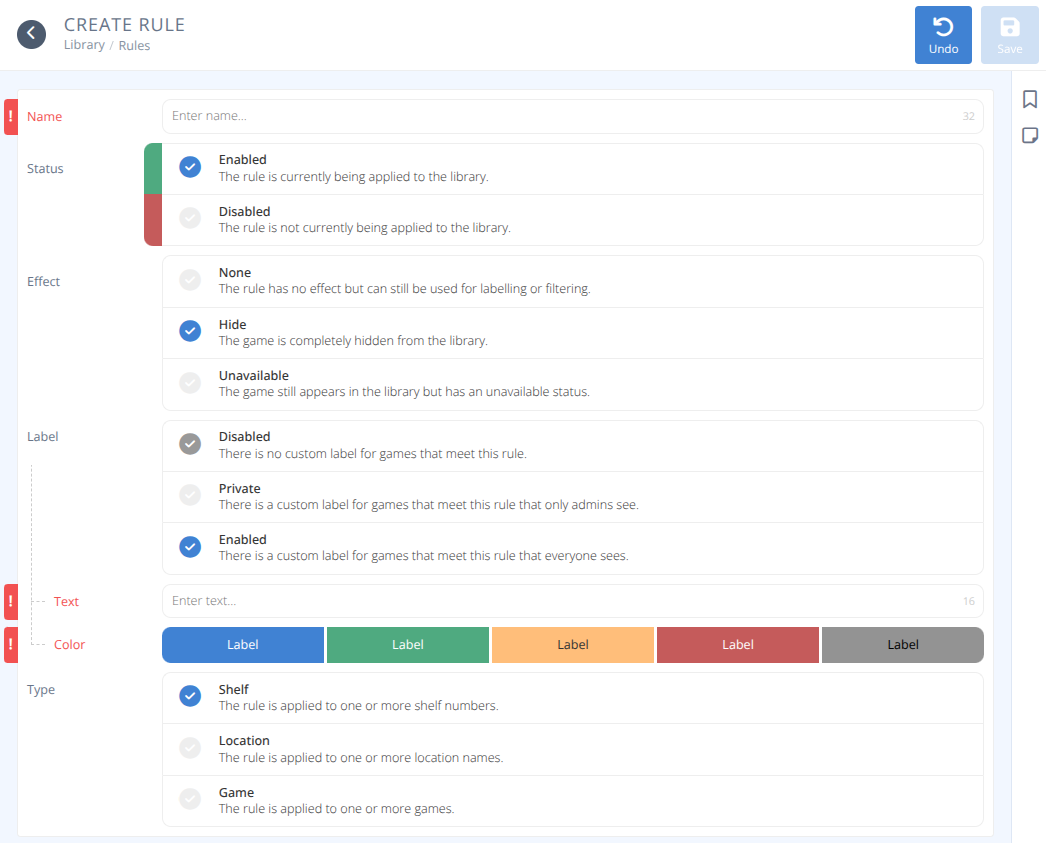
Status- The status of the rule, either:
Enabled
Disabled -
Name- The name of your rule. -
Label- A custom label is applied to games that meet this rule, either:
Disabled No label is applied.
Private A custom label is applied that is only visable to admins.
Enabled A custom label is applied that everyone sees.Text- The text that is applied to the Label.Color- The appearance of the label.
-
Effect- The effect of your rule, one of:
None - The rule has no effect, but may be used for labelling or filtering.
Hide - The game is hidden from the library.
Unavailable - The game is shown in the library but with an unavailable status. -
Type- How the rule determines if it applies to games or not, either:
Shelf - The rule is applied to one or more Locations evaluating the start of the field as a number.Shelves Criteria- The rule will apply if the Location starts with a number and meets any of the criteria specified.
Location - The rule is applied to one or more location names.
Locations Criteria- The rule will apply if the Location field contains any of the specified criteria.
Game The rule is applied to one or more games.
Games Criteria- The rule will apply to the selected Games.
-
Games- This field is auto calculated to display how many games have been modified by this rule.
¶ Procedures
¶ Add a Library Rule
- From the menu select .
- Click in the action area.
- Enter the details referring to
Fieldsas needed, and select the options for your new library rule. - Click
- Once saved you can add the criteria to match against. Depending on the type the criteria will be evaluated as follows:
- Shelf - The start of the Location field of the library item will be scanned for a number and compared to see if it matches the criteria.

a) Enter the criteria in the Add Shelf box and click the to add the criteria. Repeat as needed.
- Shelf - The start of the Location field of the library item will be scanned for a number and compared to see if it matches the criteria.
- Location - A case insensitive scan will be performed on the Location field of the library item. Any occurances of the supplied criteria anywhere in the location will be considered a match. e.g.) Criteria is OOC will match OOC-1, 1-Ooc, pooch

a) Enter the criteria in the Add Location box and click the to add the criteria. Repeat as needed. - Game - Individual games will be selected from the library and the filter will apply to only the selected games.
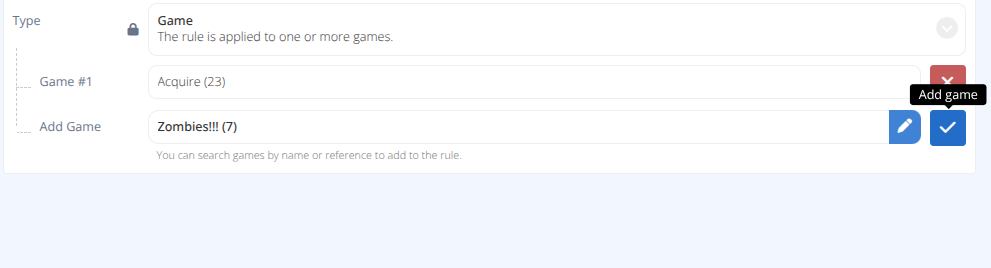
a) Enter the criteria in the Add Game box, click on the matching game, and click the to add the criteria. Repeat as needed.
- Once all criteria have been entered click
Note: Only criteria that has been confirmed with the button will be added.
¶ Modify a Library Rule
- From the menu select .
- Click on the row of the rule you wish to modify.
- Edit the rule as needed.
a) Modify any unlocked field or option.
b) Add additional criteria using the Add Type box and click the to add the criteria.
c) Remove any criteria no longer needed using the - Click
¶ Delete a Library Rule
- From the menu select .
- Click on the row of the rule you wish to delete.
- Click .
- Heed the warning and click .
The rule will be removed and all library items that were modified by the rule will have the effect and label removed.