¶ Fields
The fields in your library are completely customizable. You can either add fields manually or use a CSV file with headers to identify all fields and add them using the wizard. You have full control over if the fields are visible to attendees or internal and only for backend use.
¶ Overview
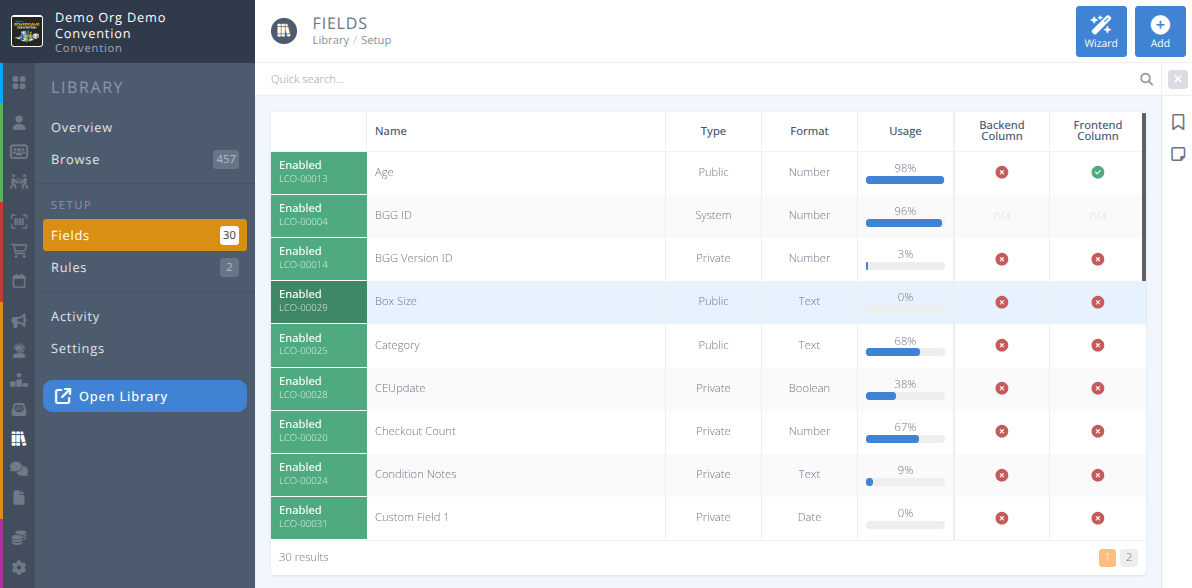
The grid displays all current fields. As with all grids the Quick Search may be used to filter the records to more easily locate the ones you wish. To clear the current filters click on the .
¶ Common Procedures
¶ Fields
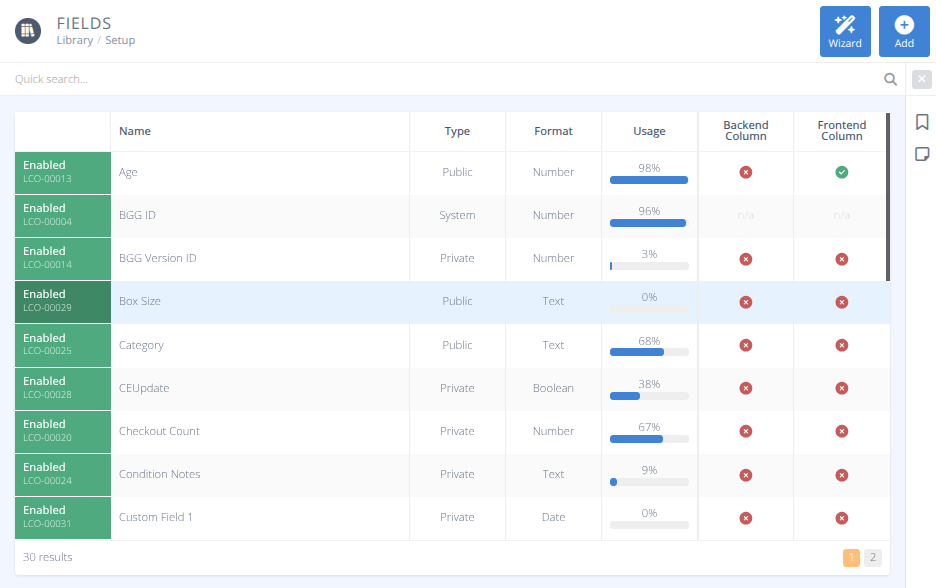
-

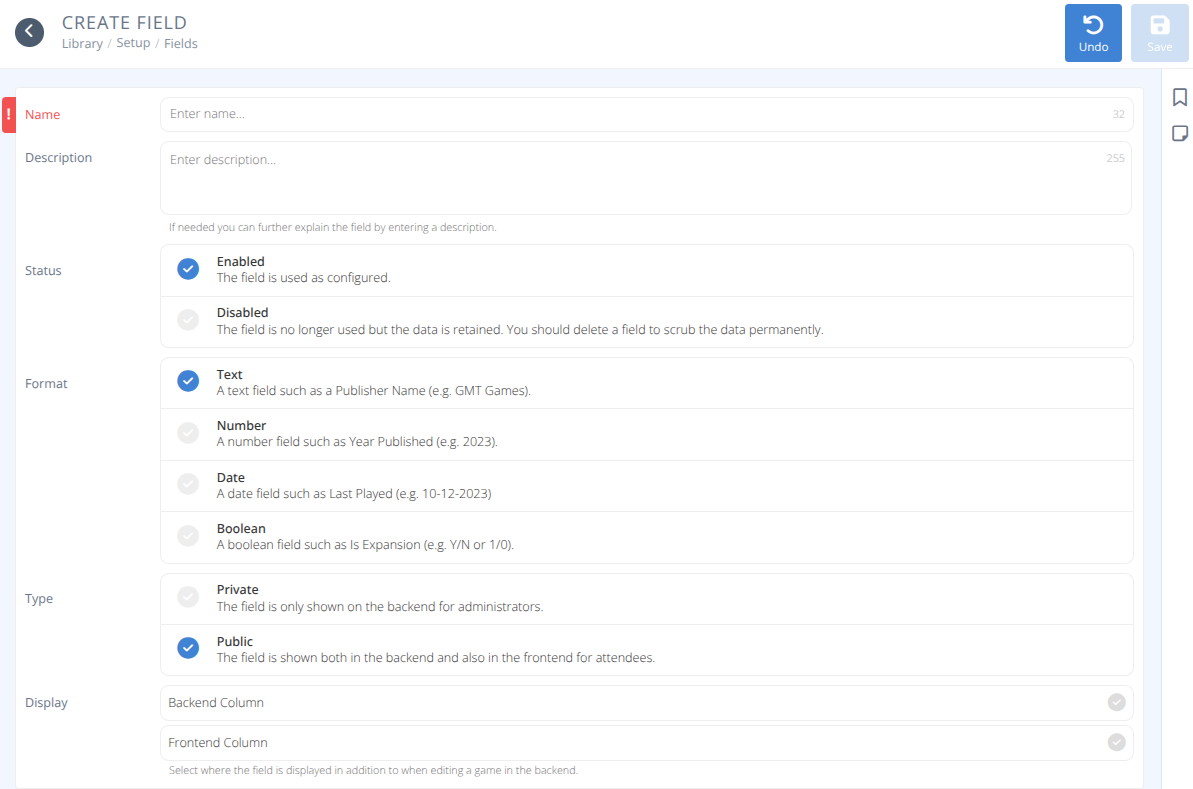
Status- The status of the field, either:- Enabled - The field is used as configured
- Disabled - The field is no longer used but the data is retained.
-

Name - The name of the field that is shown in the library.
 -
Description- If needed provide a description of the field for internal purposes. -
Type- The type of the field, one of:
Private - The field is only shown in the backend for administrators.
Public - The field is shown both in the backend and also in the frontend for attendees.
System - This field is required by the system and may not be modified or deleted. -
Format- The format of the field, one of:
Text - A text field such as a Publisher Name (e.g. GMT Games).
Number - A number field such as Year Published (e.g. 2023)
Date - A date field such as Purchase Date (e.g. 10-12-2023)
Boolean - A boolean field such as Small Box (e.g. Y/N or 1/0) -
Usage - This is a generated field that shows the percentage of records that have a value in this field. -
Backend Column- The field is displayed as a column in the backend browse grid. -
Frontend Column- The field is displayed as a column in the attendee full Library view.
Note: It is not recommended to add large text blocks as frontend or backend columns.
¶ Procedures
¶ Add a Field
- From the menu select .
- Click in the action area.
- Enter the details referring to
Fieldsas needed, and select the options for your new library column. - Click
¶ Modify a Field
- From the menu select .
- Locate the Field you wish to modify in the grid and click on the row.
- To delete the field and remove the current data stored in that field for all Library Items
- Adjust the fields, referring to
Fieldsas needed, and select the options to modify. - Click
¶ Delete a Field
- From the menu select .
- Locate the Field you wish to delete in the grid and click on the row.
- Click in the action area.
Warning: This action cannot be reversed and will remove the stored value for all library items.
- Carefully read the warning and click to complete the deletion.
¶ Use the Wizard to Setup Library Fields
-
From the menu select .
-
Click the button in the action area.
-
Read the explanation and click
-
Click the button to locate the CSV with the header row on your computer to upload for processing.
Only the header row will be used so you may use your library import file without modification. Note: If there are special characters used in your file, please ensure the format used is UTF-8 so that they are maintained properly. -
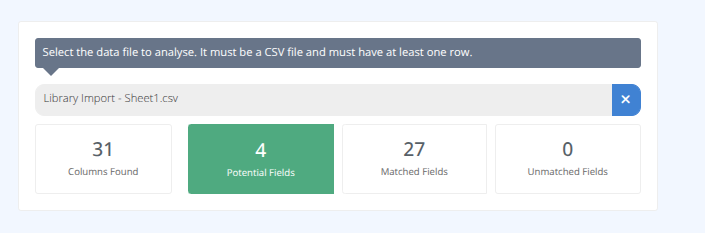
The file will be analyzed and matching fields identified.
-
Confirm the fields are as expected and click .
-
Newly identified columns will be displayed to be added to the library fields.
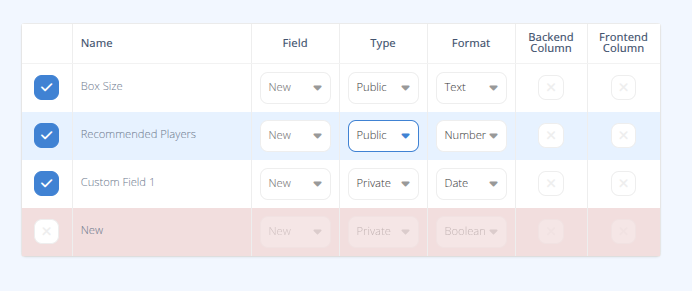
For each item:
a) Check to include the new column or not.
b) Select how to handle the field, either: New or match to an existing or internal field.
c) Select the type of field, either Private or Public
d) Select the format of the field, one of:
- Text - Free form text.
- Number - Values are restricted to numbers.
- Date - A date in the format "YYYY/MM/DD HH:MM:SS"
- Boolean - A true or false checkbox either 1 or 0
e) Select whether this field will be included as a:
- Backend Column (added to the manage browse grid)
- Frontend Column (visible in the library view of the entries) -
Confirm the fields are as desired and click .
-
Confirm the columns selected are as desired and click to complete the creation.
-
The new fields will be added and matched fields updated and the results displayed.
-
Click to return to the list of Fields