¶ Forms
¶ Overview
This is where you will create and review data collection components. It has replaced the previous Data Collection section and has added some new benifits.
Note: Default Forms are provided and contain the following inputs unless modified:
- Default Badge Registration Form - (First Name, Last Name, E-mail)
- Default Group Registration Form - (First Name, Last Name, E-mail, Group Name)
- Default Standard Form - (First Name, Last Name, E-mail)
Option Sets - allow you tyo create pre-defined options for Select, Checklist, and Toggle input types. e.g.) Age with options 12 and under, 13-17, 18-29, etc...
Common Inputs - These were similar to Common Blocks used on Pages, but allow you to create inputs that can be reused on multiple data collection/registration pages. e.g.) AgeRange Select using the Age Option Set to add to any form you want to collect age demographics from
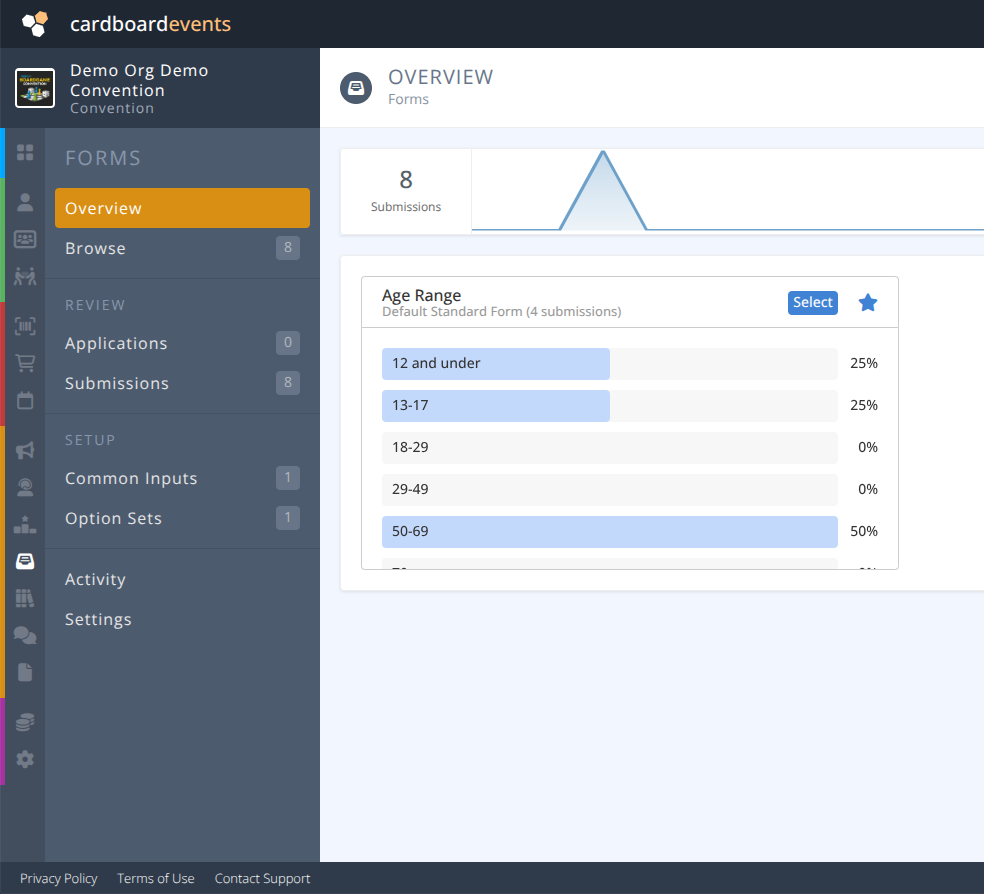
The Overview shows you an activity bar showing all recent submissions as well as any pinned metrics.
¶ Menu Breakdown
¶ Review - Review Applications and Submissions from Forms
Applications- Manage submitted applications (e.g. Volunteers, Game Hosts, etc.)Submissions- View responses that have been submitted from forms (e.g. Registrations, Applications, Data Captures, etc. )
¶ Setup - Setup Option Sets and Common Inputs
Common Inputs- Manage Common Inputs for FormsOption Sets- Manage Option Sets for use on Pages and Forms
¶ Admin - Administration of Forms
¶ Common Procedures
Create an Option Set- Note: This link will take you to the Option Sets Page
Create a Common Input- Note: This link will take you to the Common Inputs Page
Review an Application- Note: This link will take you to the Applications Page
Review Submissions- Note: This link will take you to the Submissions page
Create a FormModify a FormDelete a FormPin a Metric to the Overview Dashboard
¶ Fields
Select the appropriate Tab:
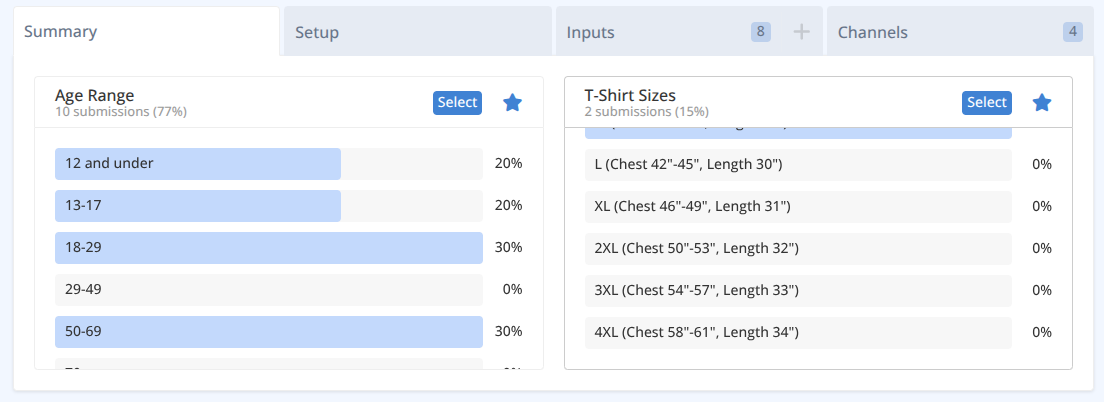
The summary tab contains no fields, but displays any inputs for which metrics are available.
You can add or remove a summary item to be displayed on the Overview page by clicking the  .
.
-
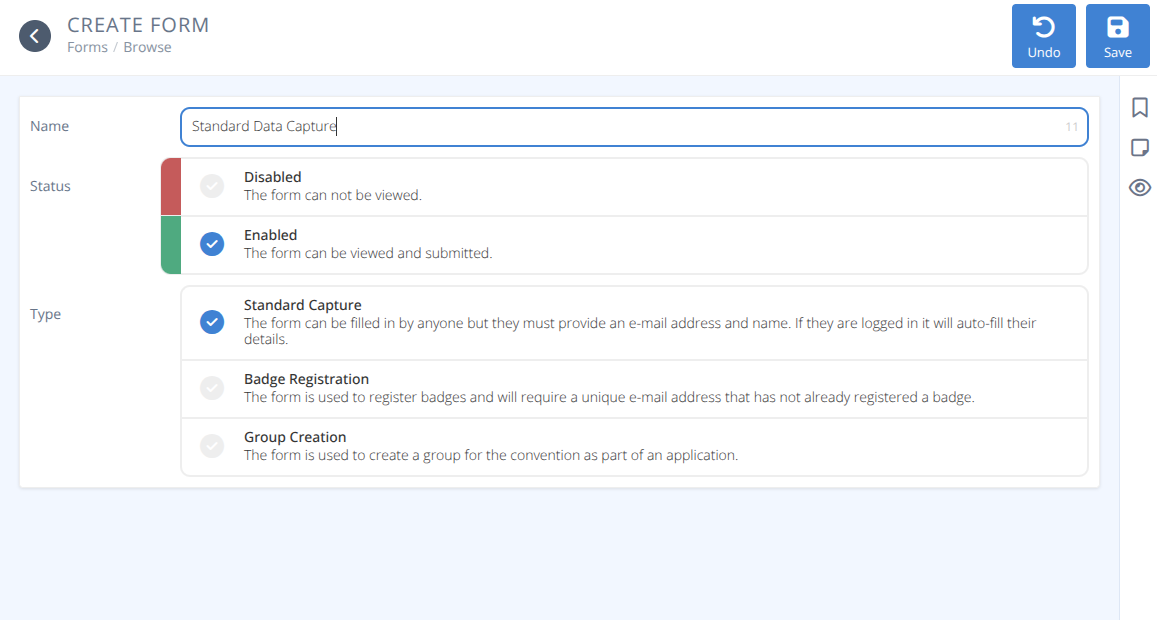
Name- The internal name of the form -
Status- Disabled - the form cannot be viewed.
- Enabled - the form can be viewed and submitted. (default)
-
Type- Standard Capture - The form can be filled in by anyone, but an e-mail and address must be provided. If they are logged in these fields will be filled in automatically. (default)
- Badge Registration - The form used to register badges and will require a unique e-mail address that has not already been assigned a badge.
- Group Creation - The form is used to create a group for the convention as part of an application.
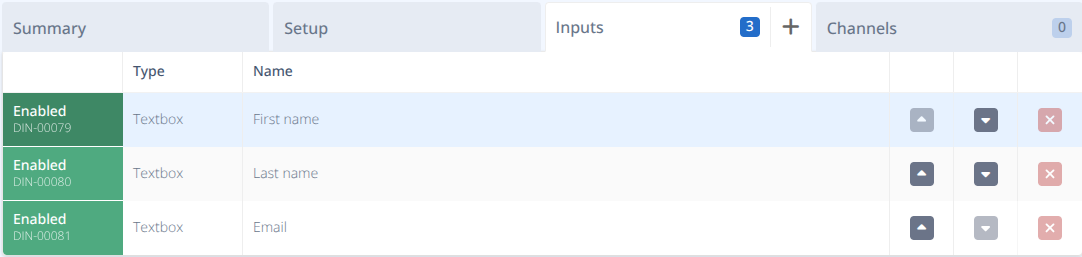
The inputs tab contains a table of Inputs currently on the form
Type- The type of the inputName- The name of Internal Name of the Input^andv- Used to change the order of the inputs on the form.x- Used to delete an input from the form
The channels tab contains a table of Channels (pages) showing where the form is used and how many submissions have been made against it.
Status- The status of the channel using the form.Type- The type of channel (ie. page).Name- The name of the channel that the form was used on.Submissions- The number of entries from the form captured.

¶ Browse
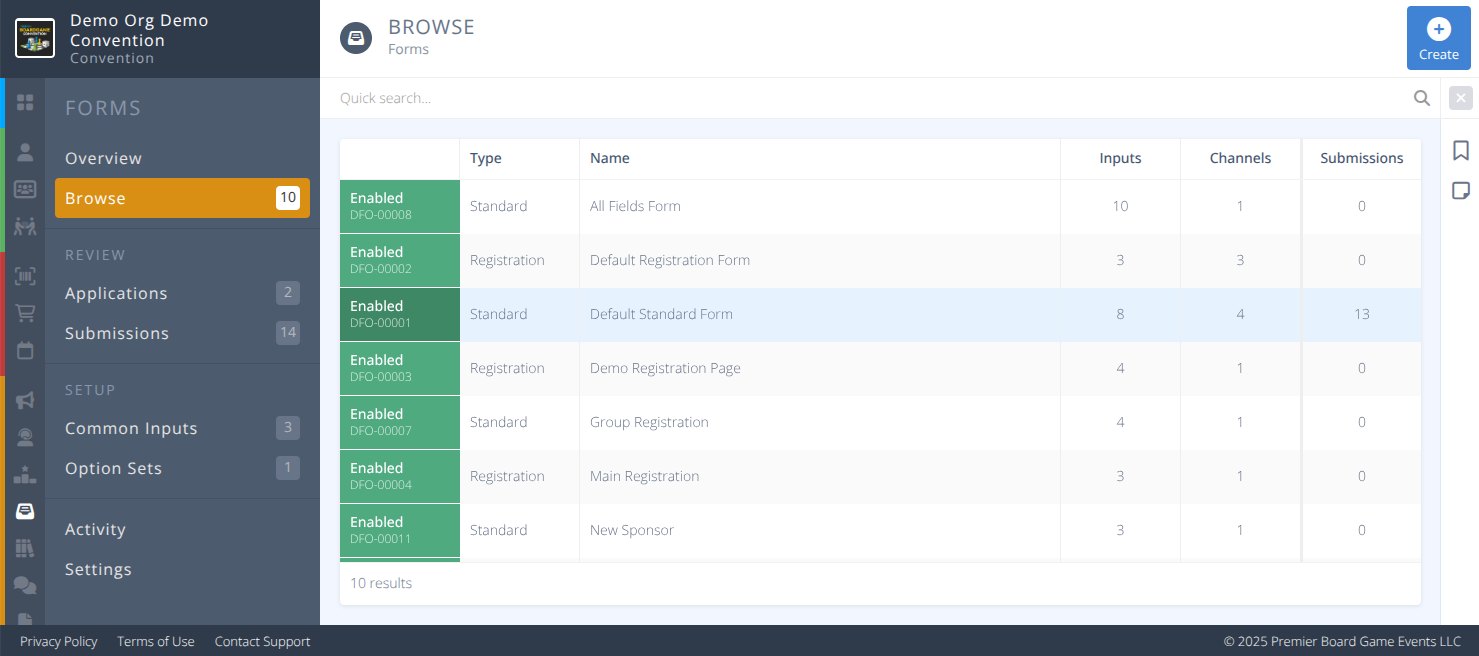
Click the Browse Menu to view the grid of all existing forms.
Selecting a row will display the details of that form and a summary of any fields flagged for metrics.
As with all of the grids the quick search shown above the grid will filter the list by Name.
Click the x to clear any filters set.
¶ Procedures
¶ Create a Form
¶ Initial Setup
- Under the Browse page click +/Create at the top right of the screen.
-
Select the Type of form you would like to create
a. Standard Capture used to collect data from anyone for example during an Application process.
b. Badge Registration used during the normal registration process and requires a unique email address for each registration form completed.
c. Group Creation used to collect data to apply for a group presence. Groups manage their own events and membership.
-
Click Save and the page will reload showing the tabs Summary, Setup, Inputs +, and Channels
-
The summary page will be empty until you add inputs in the sections below
-
Click on Inputs.
-
Click on + to add a new input. You have two ways of adding inputs:
¶ A) Adding Common Inputs
-
To use a Common Input already created click on Use shared input
a. Click the Common Input and select the input or start typing the name of the Common Input already created.
¶ B) Creating New Inputs
-
To create a new input enter the Name for internal use to find the input easily later.
-
Click Enabled for the Status.
-
Select the Type you wish to use and new tabs and fields will appear as per the chart below.
| Type | Validation Rules | Analysis | Appearance Tab | Options Tab |
|---|---|---|---|---|
Textbox |
- Required Option - Min. Length - Max. Length - Valid URL - Valid E-mail |
- Sentiment Analysis | N/A | N/A |
Toggle |
- Required Option |
Automatic | - Label - Description |
- Options List |
Select |
- Required Option |
Automatic | - Label - Description |
- Options List |
Checklist |
- Required Option - Min. Selected - Max. Selected |
Automatic | - Label |
- Options List |
Image |
- Required Option |
N/A | - Label - Description |
N/A |
Event Suggestion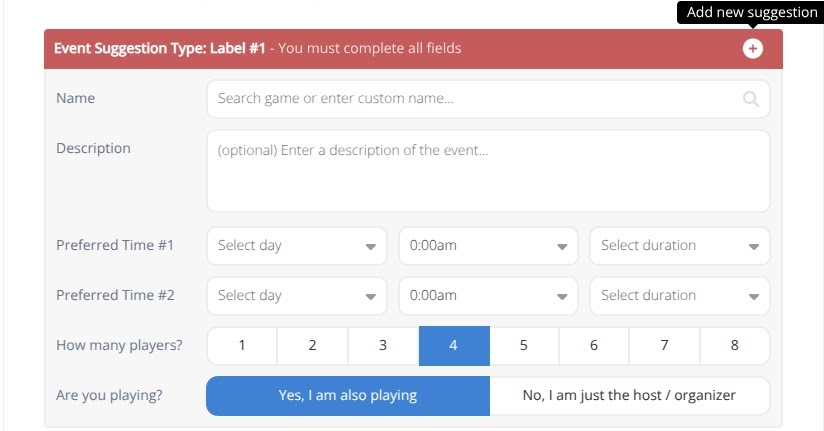 This is a special type to allow events to be submitted through a Form |
- Required Option |
N/A | - Label - Description |
N/A |
Textarea |
- Min. Length - Max. Length |
Sentiment analysis | - Label - Placeholder- Description |
N/A |
¶ Common Settings
- Select the Visibility to either be Always Available or Conditionally Available
Note: Visibility Settings cannot be added until an input with a Type of Toggle, Select, or Checklist is added to the Form. This can then be set based on the values of those inputs with and and or logic being applied.

-
For Types: Textbox and Textarea select Analysis if you wish metrics to be collected on this input. Either No analysis or Sentiment analysis
-
Click Save to save the changes made to the Form.
¶ Modify a Form
-
From the Browse click on the row of a Form containing an Input who's metric you want on the dashboard.
-
Modify any fields using the information in the
Add a New Formprocedure for guidance -
Click Save
¶ Delete a Form
WARNING It is highly recommended that you only delete a form when Channels is 0. Otherwise, the form is still in use and the results may be unexpected.
Use the Channels tab to find where the form is being used and replace with a new form before deleting.
- From the Browse click on the row of the Form you wish to delete.
- Click Delete
- Click Confirm
¶ Pin a metric to the Overview Dashboard
- From the Browse click on the row of a Form containing an Input who's metric you want on the dashboard.
- On the Summary Tab any inputs that have metrics available will show here. Click on the to add it or remove it from the Overivew Dashboard.