¶ Common Inputs
¶ Overview
Common Inputs are a way to create re-usable inputs that can be added to any form.
¶ Common Procedures
Create a Common InputModify a Common InputDelete a Common InputCreate a Form- Note: This redirects you to the Forms page
¶ Fields
Note: Mandatory fields are denoted by a
Select the appropriate Tab based on the Type of input chosen:
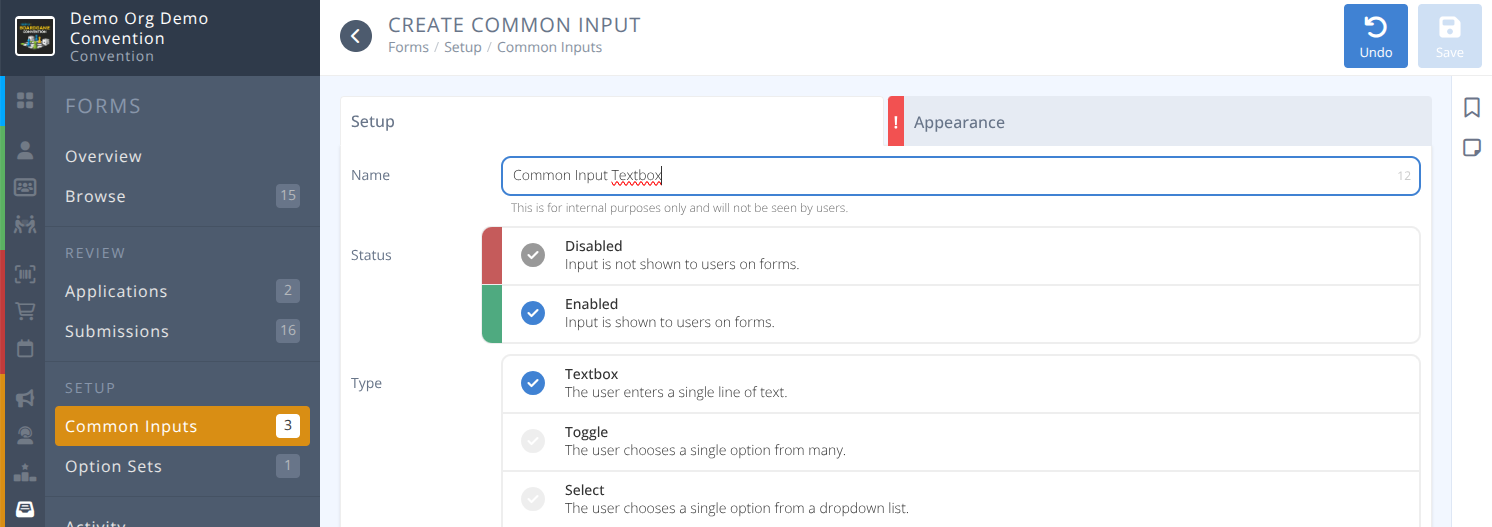

Name- The internal name used to identify this input.-
Status- Whether this common input is availble for use- Disabled - The input is not shown to users on forms.
- Enabled - The input is shown to users on forms.
-
Type- The style of input chosen- Textbox - Allows the submission of a single line of text.

- Toggle - Allows the selection of one option from many.

- Select - Allows the selection of one option from a dropdown list.

- Checklist - Allows the selection of one or more options from a list.

- Image - Allows for the submission of an image.

- Event Suggestion - Allows for the submission of 1 or more events.
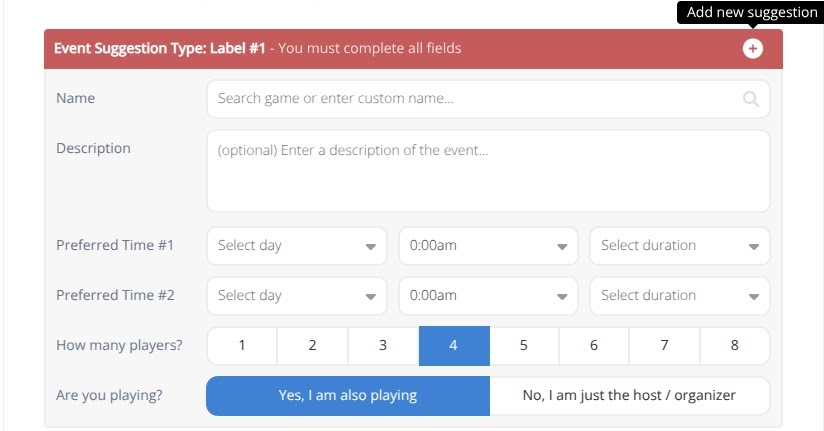
- Textarea - Allows for the submission of multiple lines of text.

- Textbox - Allows the submission of a single line of text.

-
Label- The text that appears next to the input seen by the user.- Max: 255 characters
-
Placeholder- (Textbox and Textarea inputs only) - The text that appears within the input before the user types anything.- Max: 32 characters
Description- Optional text that explains the input and its purpose to the user.- Max: 255 characters
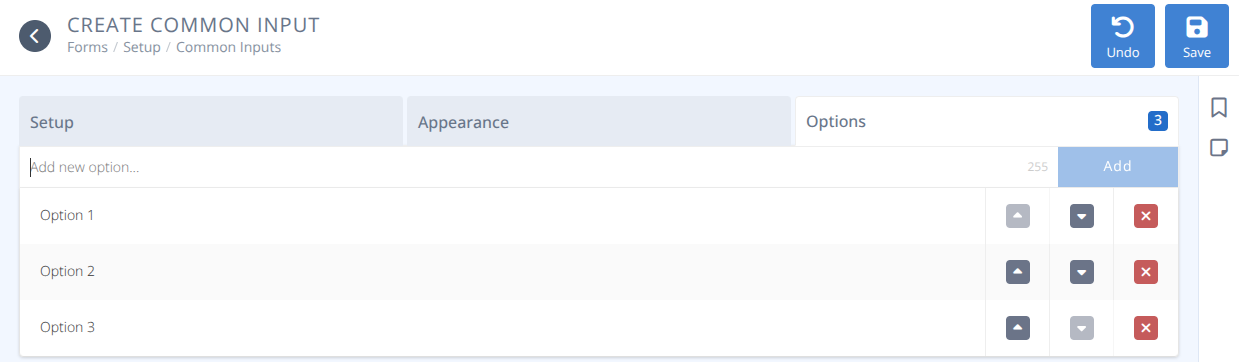
Add new option...- Type here to add a new option and press Enter or click Addto add the option^andv- Used to change the order of the option in the list.x- Used to delete an option from the list.
¶ Procedures
¶ Create a Common Input
-
From the Common Inputs menu click the +/Create button
-
Enter the internal Name for the common input. This will help you locate it when selecting it for your input. It is not displayed to the users.
(e.g. "Age Range") -
Click Enabled for the Status
-
Select the Type of the input. Use the table below for what fields are required and additional tabs for each input type.
| Type | Validation Rules | Analysis | Appearance Tab | Additional Fields | Options Tab |
|---|---|---|---|---|---|
| Textbox |
- Required Option - Min. Length - Max. Length - Valid URL - Valid E-mail |
- Sentiment Analysis | - Label - Placeholder- Description |
N/A | N/A |
| Toggle |
- Required Option |
Automatic | - Label - Description |
- Options - Existing Set |
For Custom Options only |
| Select |
- Required Option |
Automatic | - Label - Description |
- Options - Existing Set |
For Custom Options only |
| Checklist |
- Required Option Min. Selected Max. Selected |
Automatic | - Label |
- Options - Existing Set |
For Custom Options only |
| Image |
- Required Option |
N/A | - Label - Description |
N/A | N/A |
| Event Suggestion This is a special type to allow events to be submitted through a Form |
- Required Option |
N/A | - Label - Description |
- Limit - Times - Room |
N/A |
| Textarea |
- Min. Length - Max. Length |
- Sentiment analysis | - Label - Placeholder- Description |
N/A | N/A |
- Click Save
¶ Modify a Common Input
-
From the Browse click on the row of the Common Input you wish to modify.
-
Modify any fields using the information in the
Add a Common Inputprocedure for guidance. -
Click Save
¶ Delete a Common Input
WARNING It is highly recommended that you only delete a common input when Forms is 0. Otherwise, the input is still in use and the results may be unexpected.
Use the Channels tab to find where the form is being used and replace with a new form before deleting.
- From the Browse click on the row of the Common Input you wish to delete.
- Click Delete
- Click Confirm