¶ Option Sets
¶ Overview
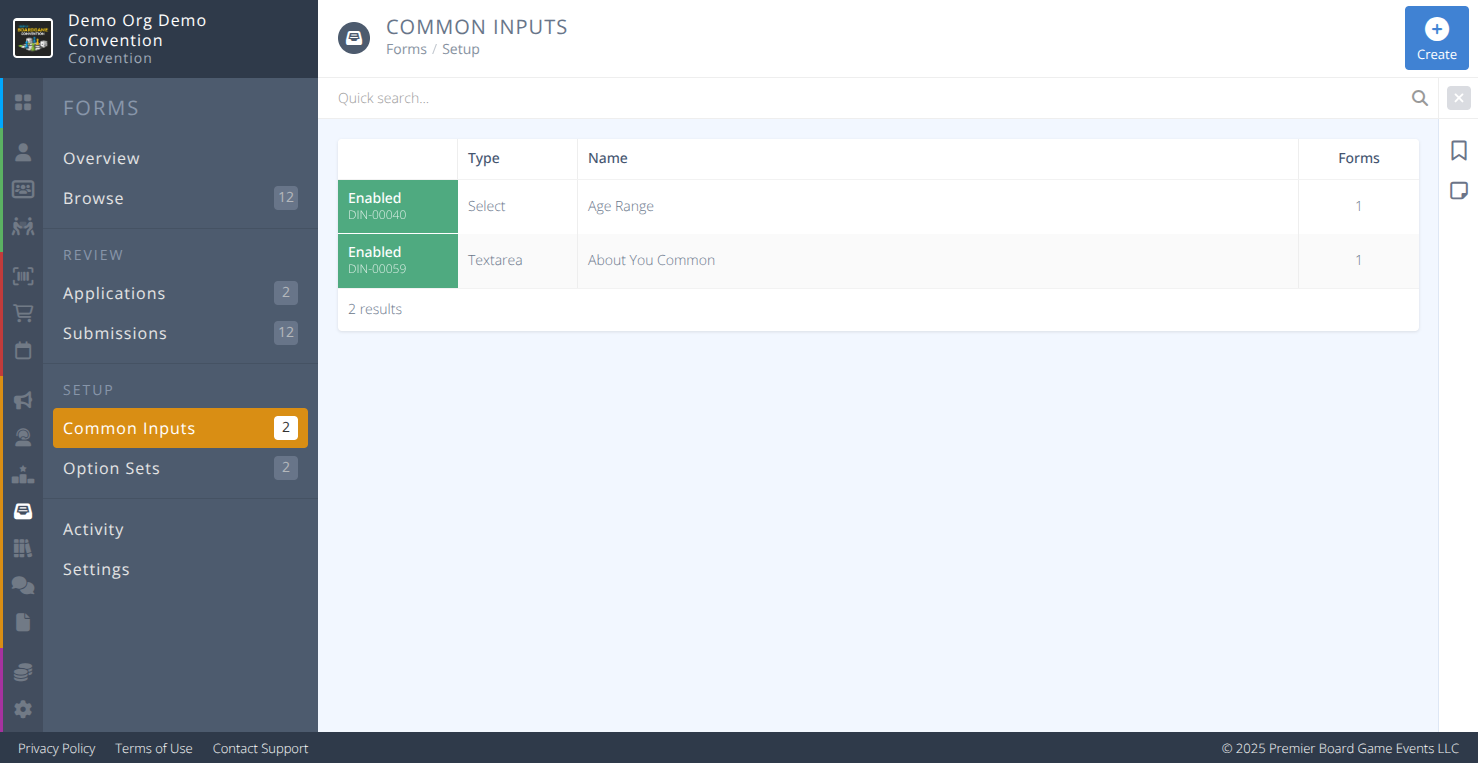
Option Sets allow you to create common sets of options for use with Toggle, Select, and Checklist Inputs on Forms. They are most useful when you may use the same options for multiple different inputs (e.g. Merch Sizes, Age groupings, etc.)
¶ Common Procedures
Create an Option SetModify an Option SetDelete an Option SetCreate a Common Input- Note: This redirects you to the Common Inputs page
Create a Form- Note: This redirects you to the Forms page
¶ Fields
Note: Mandatory fields are denoted by a
Select the appropriate Tab:
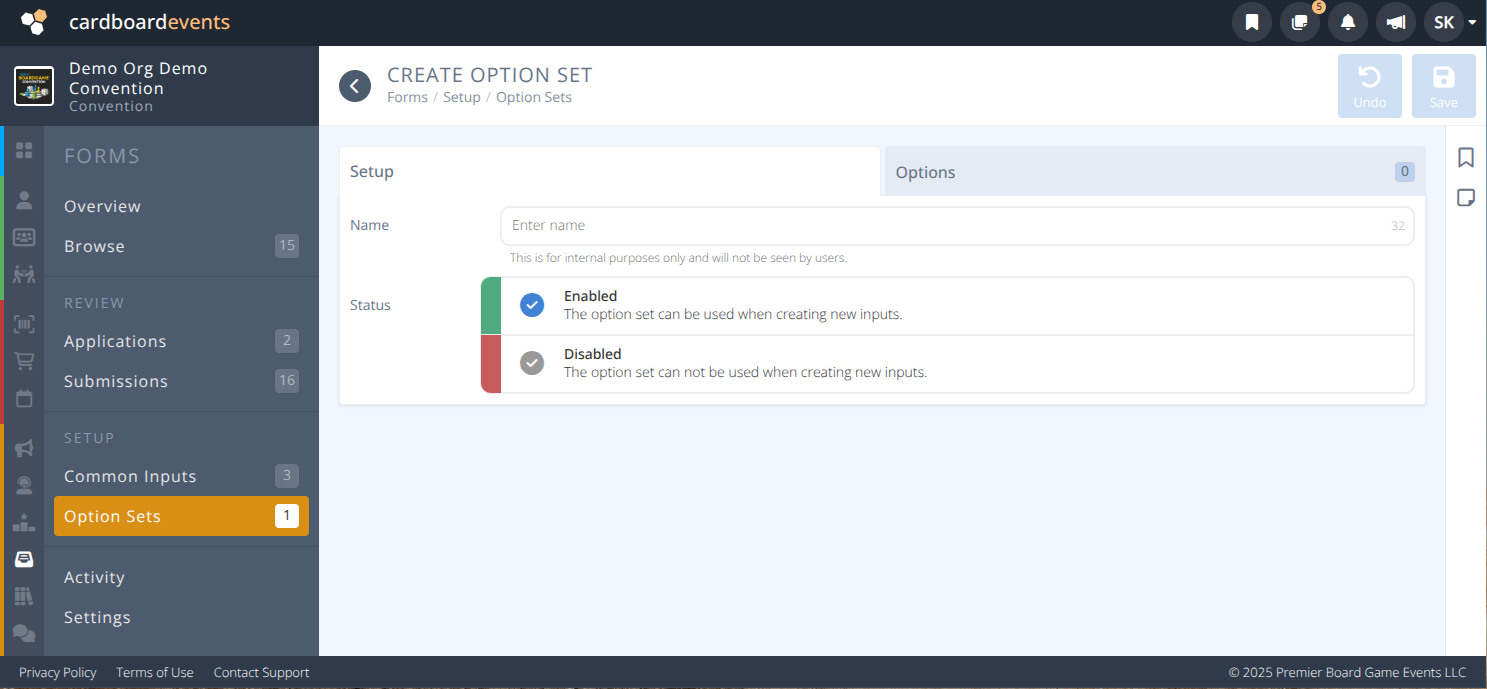

Name- The internal name used to identify this option set.-
Status- Whether this option can be selected when creating inputs- Enabled - The option set can be selected by inputs.
- Disabled - The option set cannot be selected by inputs.
OptionsTab - This is where you will specify the details of the options allowed for selection
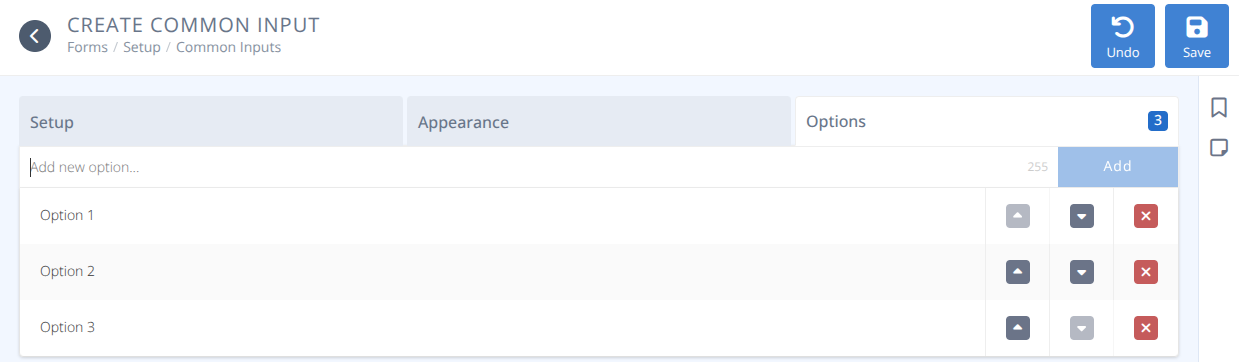
Add new option...- Type here to add a new option and press Enter or click Addto add the option^andv- Used to change the order of the option in the list.x- Used to delete an option from the list.
¶ Procedures
¶ Create an Option Set
-
From the Option Sets menu click the +/Create button
-
Enter the internal Name for the option set. This will help you locate it when selecting it for your input. It is not displayed to the users.
(e.g. "TShirt Sizes") -
Click Enabled for the Status
-
Click on the Options tab.
-
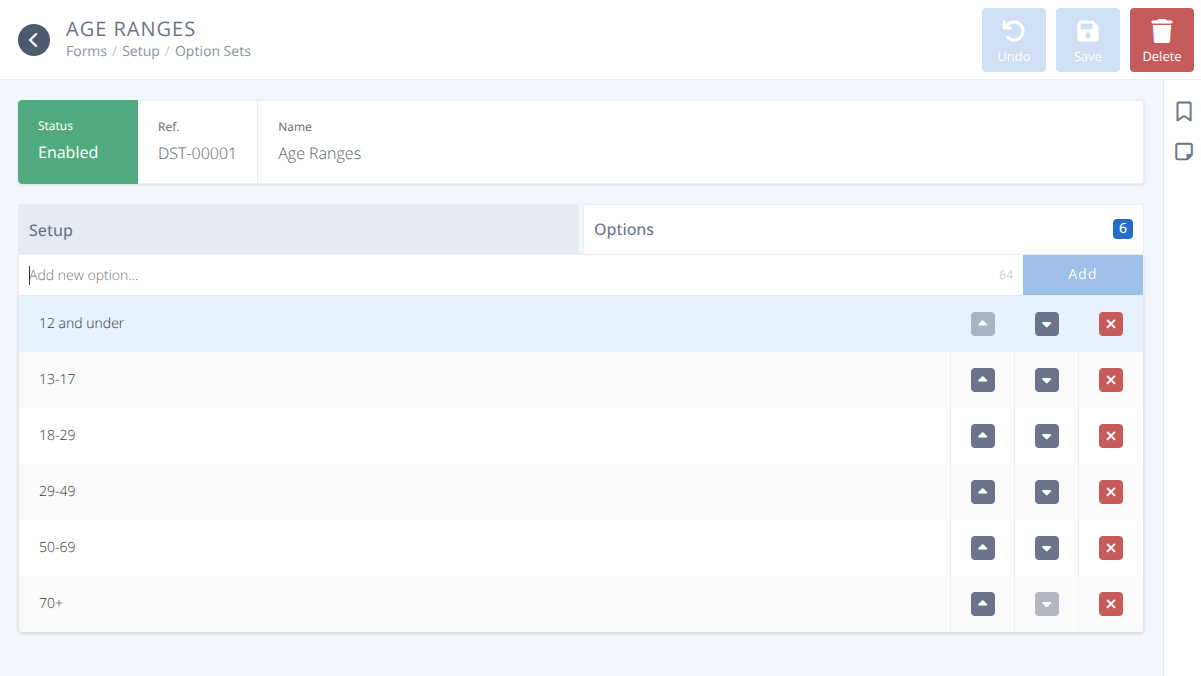
Click on the Add new option... textbox and enter an option (Max: 64 characters)
(e.g. "S (Chest 34-37, Length 28)" then press Enter or click Add and repeat for each option you want available -
Click Save
¶ Modify an Option Set
-
From the Option Sets menu click the row of the option set you want to modify
-
Edit the Name or click on the Options tab to Modify the options list
-
From the Options tab you can delete an option with the red x or modify the order using the up and down arrows
-
When the option set is to your liking click Save
-
All instances of this option set will now have the modifications.
¶ Delete an Option Set
-
From the Option Sets menu note the row and the number of Inputs that option set is used by. If the number is not 0 it is recommended to review the Common Inputs and Forms before preceeding
-
Click the row you wish to delete
-
Click Delete
Deleting an Option Set does not delete the Common Inputs or Forms that use it and they will continue to function with the last set of options present.