¶ Groups
Groups are designed to allow for the organization of events and communication within a subset of your attendees. Some examples where a group might be appropriate is a RPG Room, Blood on the Clocktower group, miniature painting or any other group that self organizaes and publishes their own events independant of the convention.
¶ Menu Breakdown
¶ Overview - A high level overview of the groups
¶ Browse - View and create groups
¶ Review - Review Group applications and submissions
Applications- Review and approve group applicationsSubmissions- Review and approve event submissions made by groups
¶ Convention - Setup your registration and library assistants
¶ Admin - Administration of Groups
Activity- See recent changes made in GroupsManage settings of Attendees by administratorsSettings- Manage settings of Groups
¶ Overview
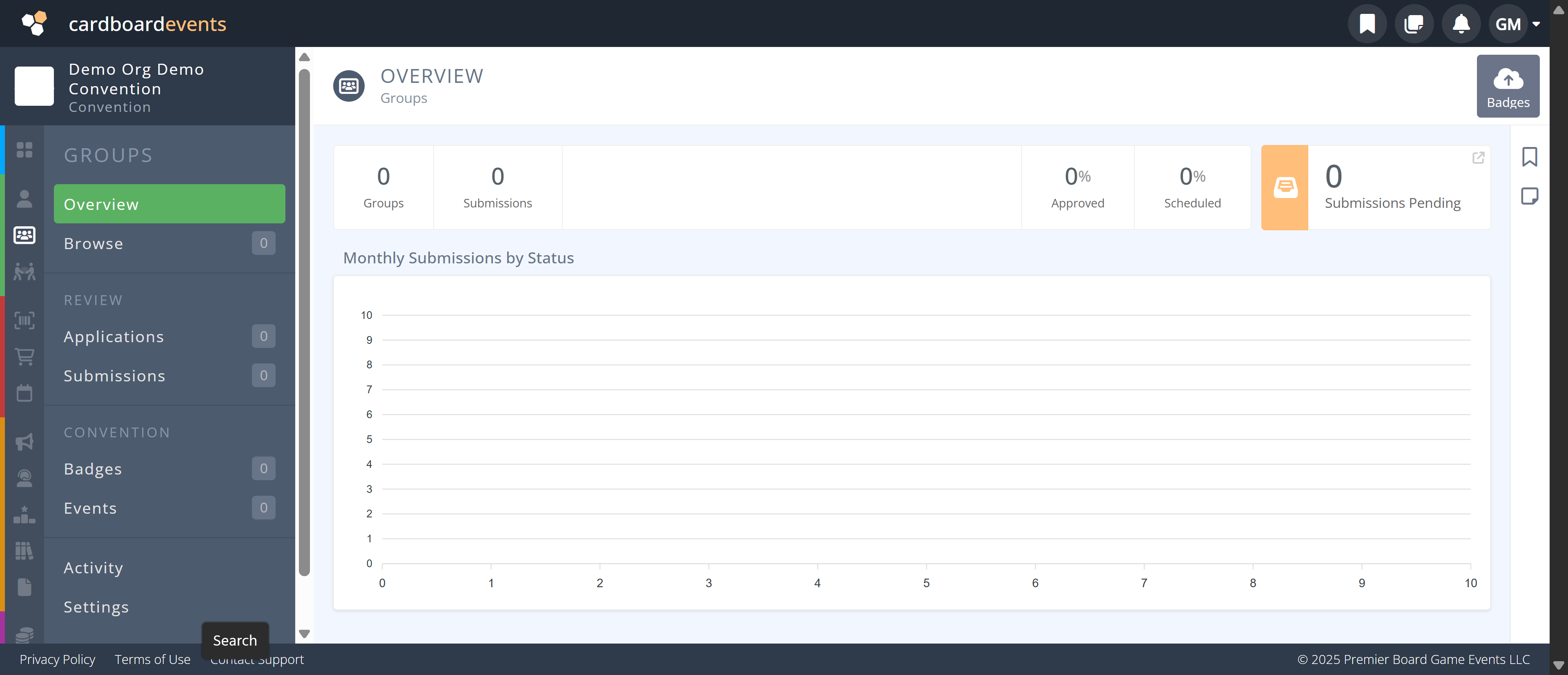
The Overview screen will show the number of groups, number of events submitted, % of events approved, % of events scheduled, and number of submissions pending approval.
¶ Common Procedures
Create an Application Process for Groups- Note: This is completed under the Other Pages section.
Manually Create a GroupBulk Import from CSV Badge Grants for GroupsReview a Group ApplicationReview a Group Event SubmissionView Group BadgesView Group EventsView Group Admin ActivityAdjust Groups Settings
¶ Fields
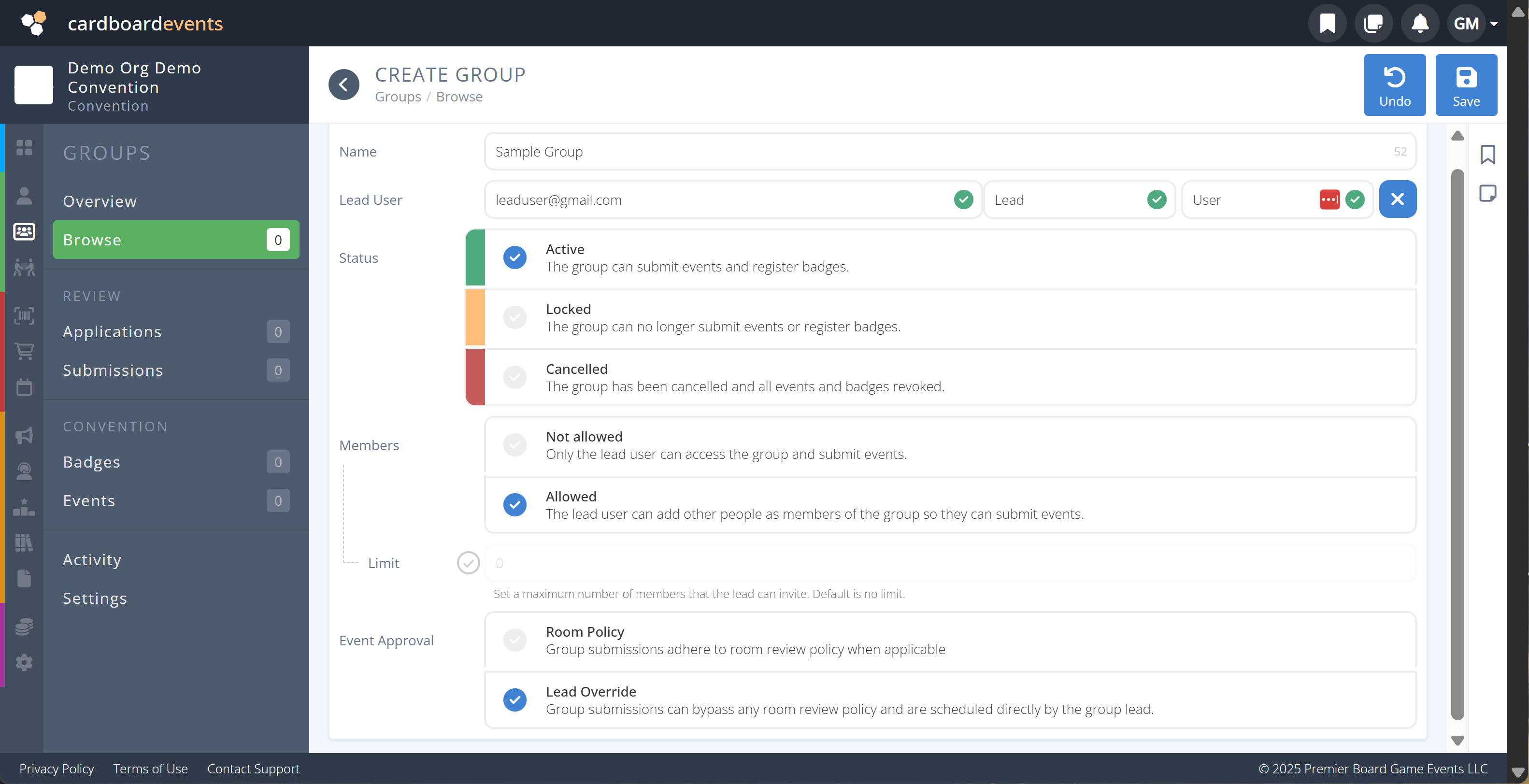
Note: Mandatory fields are denoted by a
-

Name- The name of the group -
Lead User- The email of the administrator of the group- First Name and Last Name will be prompted if a CardboardEvents account does not already exist for this email.
-
Status- The status of the group either:- Active - The group is active in the convention
- Locked - No additional events may be submitted or badges assigned.
- Cancelled - The group is cancelled all active events and badges are revoked.
-
Members- Policy on if the group allows members or is limited to the lead user. -
Limit- If Members is set to Allowed a limit can be set on the number of group members. If not selected membership is unlimited. -
Event Approval- Policy on how events are approved for this group, either:- Room Policy - Events submitted by this group follow any policies of the selected room
- Lead Override - Events submitted by this group bypass room restrictions and are submitted by the lead user.
¶ Browse
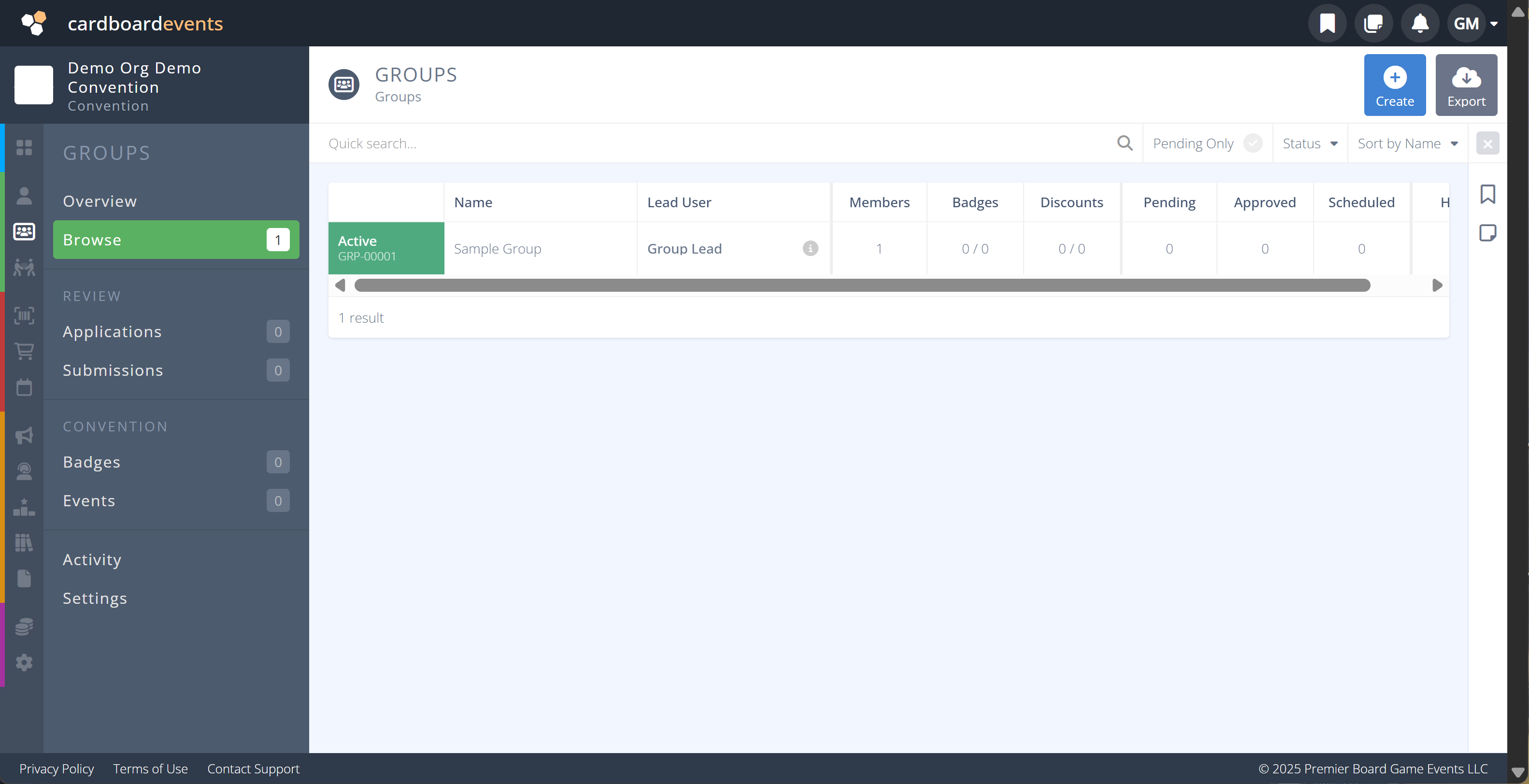
From the Browse Menu the grid will show a summary of all existing groups. Selecting a row will display the details of that group. As with all of the grids the quick search and filter options are shown above the grid. Select any option to filter the records. Click on the x to clear the current filters.
¶ Procedures
¶ Manually Create a Group
Rather then have a group created through the application and approval process a group may be manually made.
- From the Browse menu click Create in the top right corner of the screen.
- Enter the Name of the Group.
- Enter the email of the Lead User.
This will be the person who manages the group. - Click Active under Status.
- Select the Members policy.
a) For a group that only contains the lead user select Not Allowed.
b) To allow the group to contain multiple members select Allowed.
c) To limit the number of Members select the checkbox next to Limit and enter the maximum group size. - Select the Event Approval policy for the group.
a) To have the policy based on the room select Room Policy.
b) To give the group lead the ability to override room policies and schedule events select Lead Override - Click Save
¶ Bulk Import Badge Grants
Importing Badge Grants through a CSV will allow the quick granting of comped badges to groups. The Lead User can then assign those badges out to their group in the group interface.
- Create a CSV file on your computer that contains the data in the following format:
GroupReference,ItemReference,Quantity
GroupReference,ItemReference,Quantity
...
- GroupReference: The existing reference id of the group to which the badge(s) will be given. Must be in the format GRP-XXXXX.
- ItemReference: The reference of the registration sales item for a specific badge. Must be in the format RIT-XXXXX.
- Quantity: The number of the ItemReference being given to the group. Must be a number of at least 1.
-
From the Overview screen click the Badges button depicted with the cloud and up arrow, located in the top right corner.
-
Select the file on your computer that contains the bulk import data from step 1.
-
Match the columns in the CSV to the required fields and check if a header row is included (it will be ignored on the import when this is selected).
-
Click Run and the groups will be allocated the badges indicated in the file.
-
To confirm the Details go to View Group Badges