¶ Conventions
¶ Overview
The first convention you submitted to CardboardEvents is prepopulated on the Conventions Tab. All other convnetions (past, present, and future) that have been created will be available in the grid.
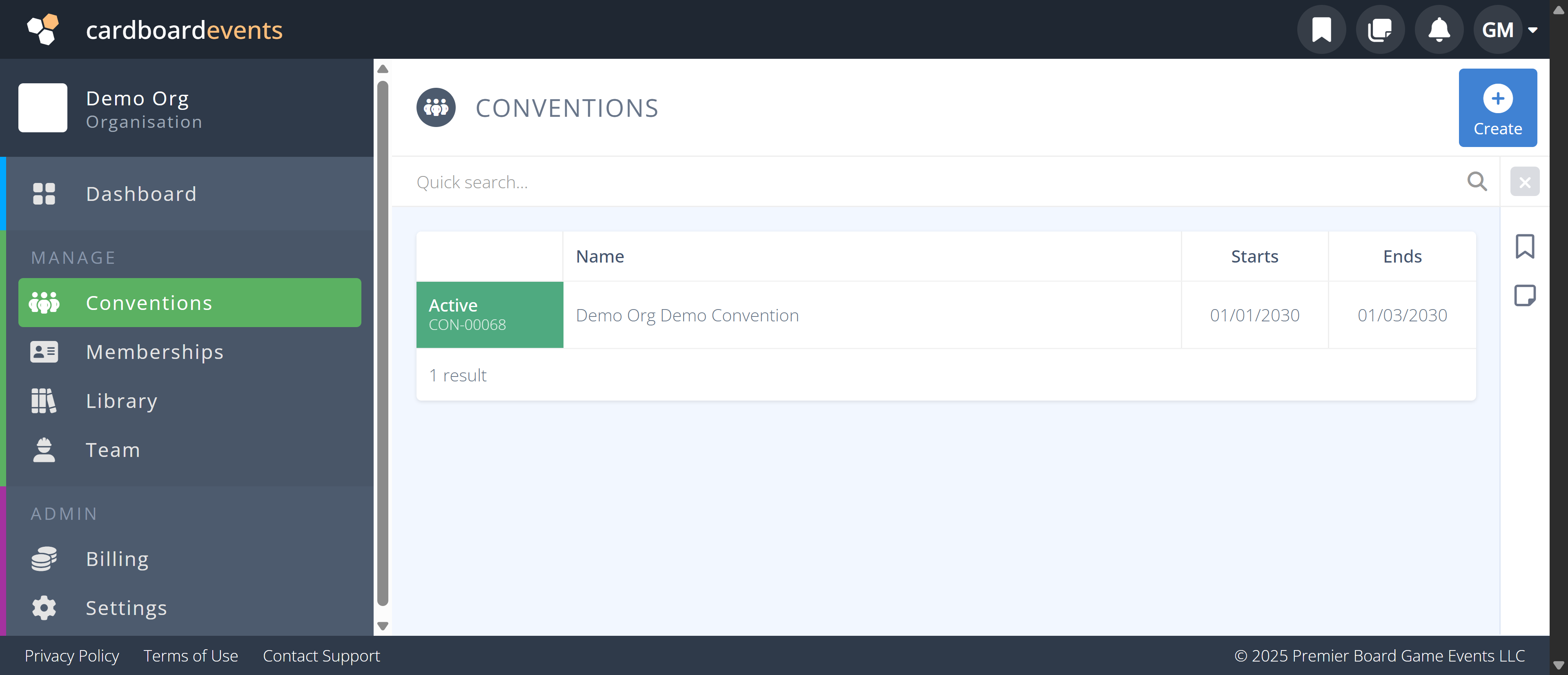
¶ Common Procedures for Conventions:
Create a New ConventionClone a Convention- Use an already existing convention as a template to create another one.Select a Convention
¶ Fields
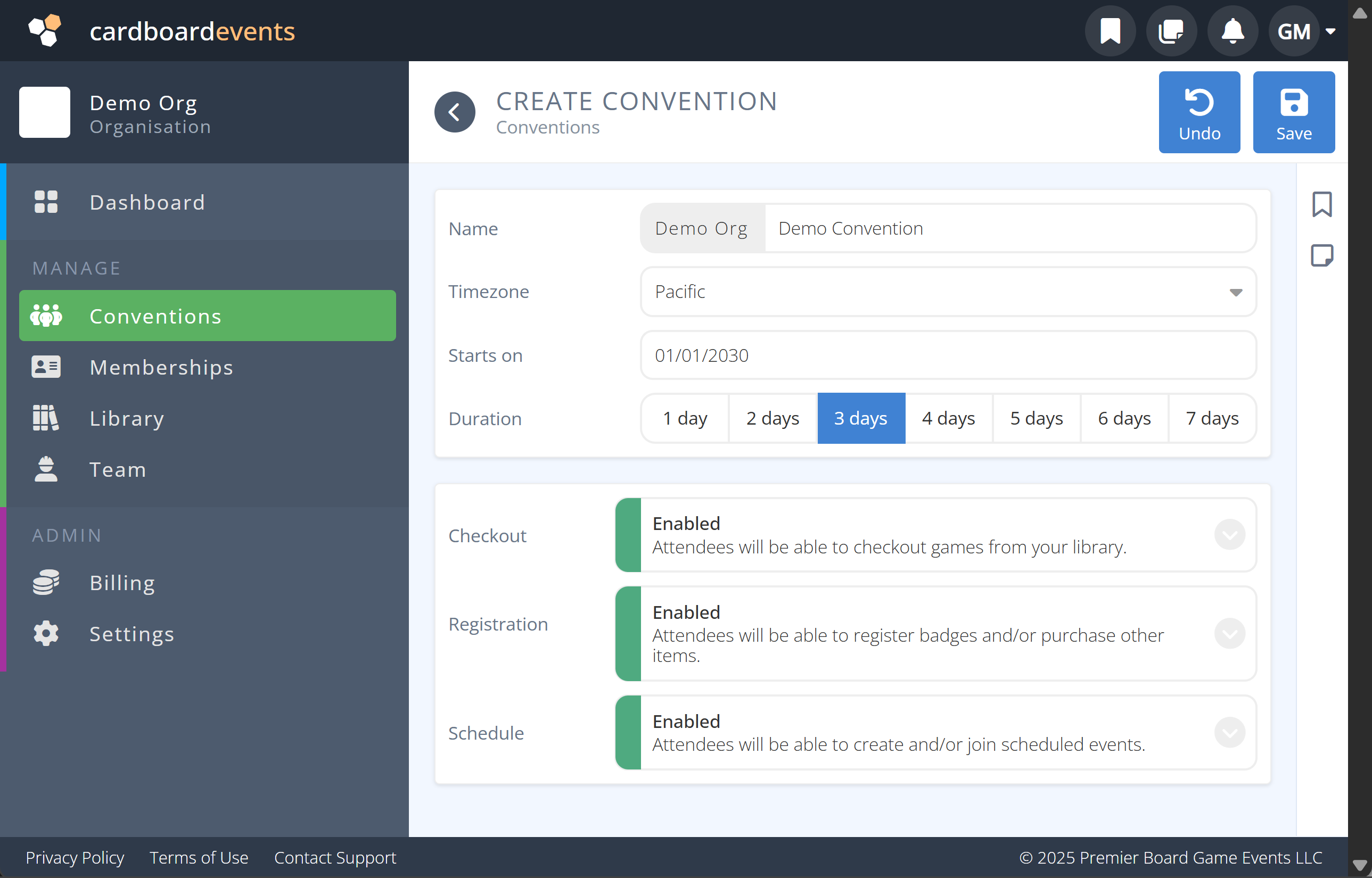
Note: Mandatory fields are denoted by a
-

Name- The name of your convention Note: This will be part of your convention URL
ie.) my.cardboardevents.com/organization-name/conventions/convention-name
eg.) my.cardboardevents.com/demo-org/conventions/demo-convention -
Timezone- The timezone your convention schedule and event will take place in. -
Starts On- The day your convention starts -
Duration- The length of your convention Note: This is currently limited to 7 days. Should your convention last more than 7 days please contact support@cardboardevents.com -
Checkout- Adds support for attendees to checkout games via badge scanning. -
Registration- Adds support for the selling of badges and merchandise. -
Schedule- Adds support for scheduling events and attendee communication.
¶ Procedures
¶ Create a New Convention
-
Click the button.
-
Enter the specific Name for your new convention (the most common approach is to add the year).
-
Enter/Select the day your convention Starts On
-
Select the Duration of your new convention.
-
Set the Template to Blank
-
Enable/Disable the services that you will need or not need for your new convention.
a) Checkout - Attendees will be able to checkout games from your Library.
b) Sales - Attendees will be able to register badges and purchase other items.
c) Schedule - Attendees will be able to create and/or join scheduled events. -
Click .
¶ Clone a Convention
-
Click the button.
-
Enter the specific Name for your new convention (the most common approach is to add the year).
-
Enter/Select the day your convention Starts On
-
Select the Duration of your new convention.
-
Set the Template to Copy previous
-
Select the Convention from the drop list that you would like to copy.
-
Browse through each tab to select which elements to copy into the new convention.
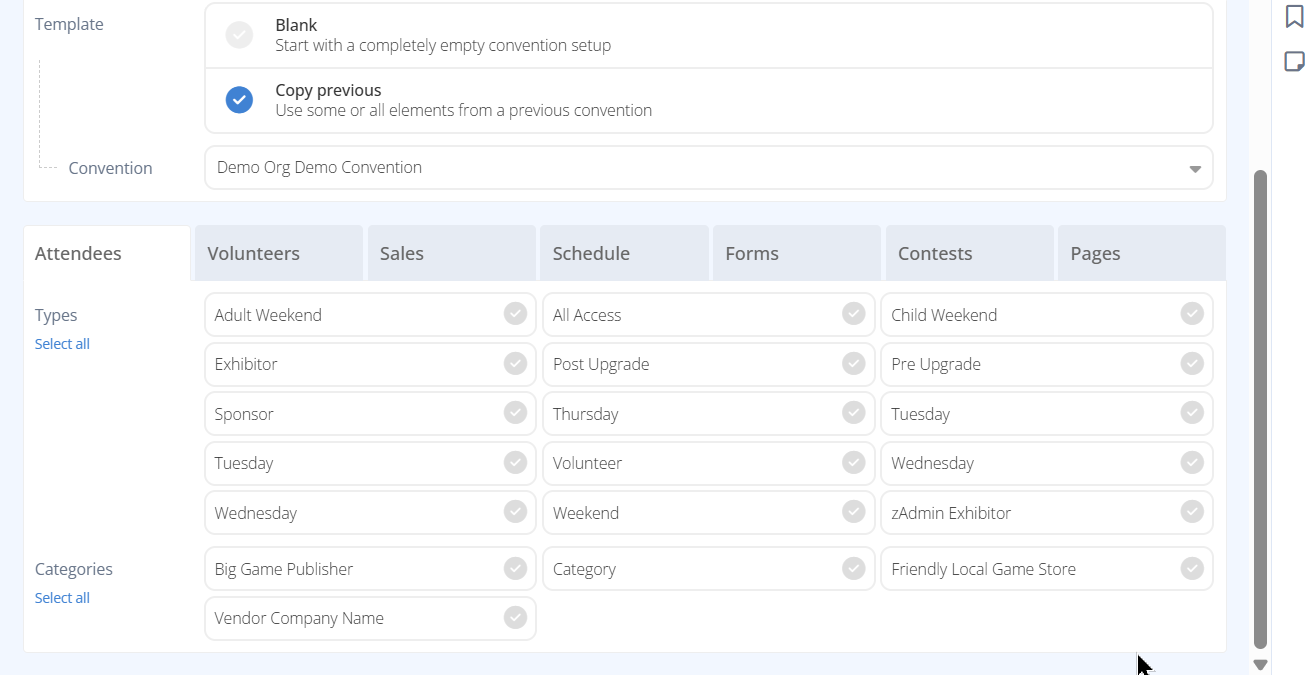
Click on each tab below for a sample screen and details on the section. In each tab you can Select all, some, or none of the items to be copied.
All badge Types and Categories from the chosen convention will be displayed.
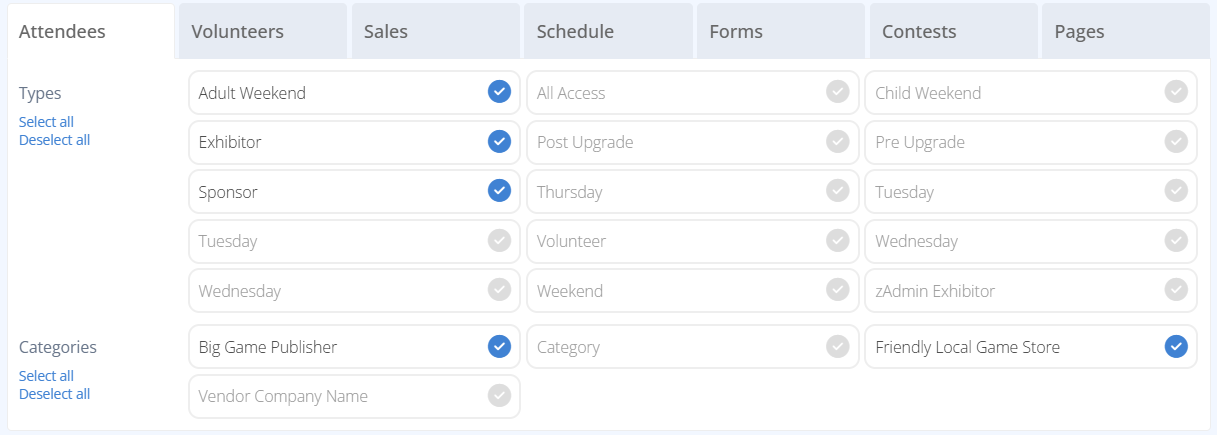
- Select the items to copy to the new convention. All information will be retained including date restrictions.
All Volunteer Roles from the chosen convention will be displayed.

- Select the items to copy to the new convention. All information will be retained including slots tied to the role.
All Sales Categories, Discounts, Items, and Referrals from the source convention will be displayed.
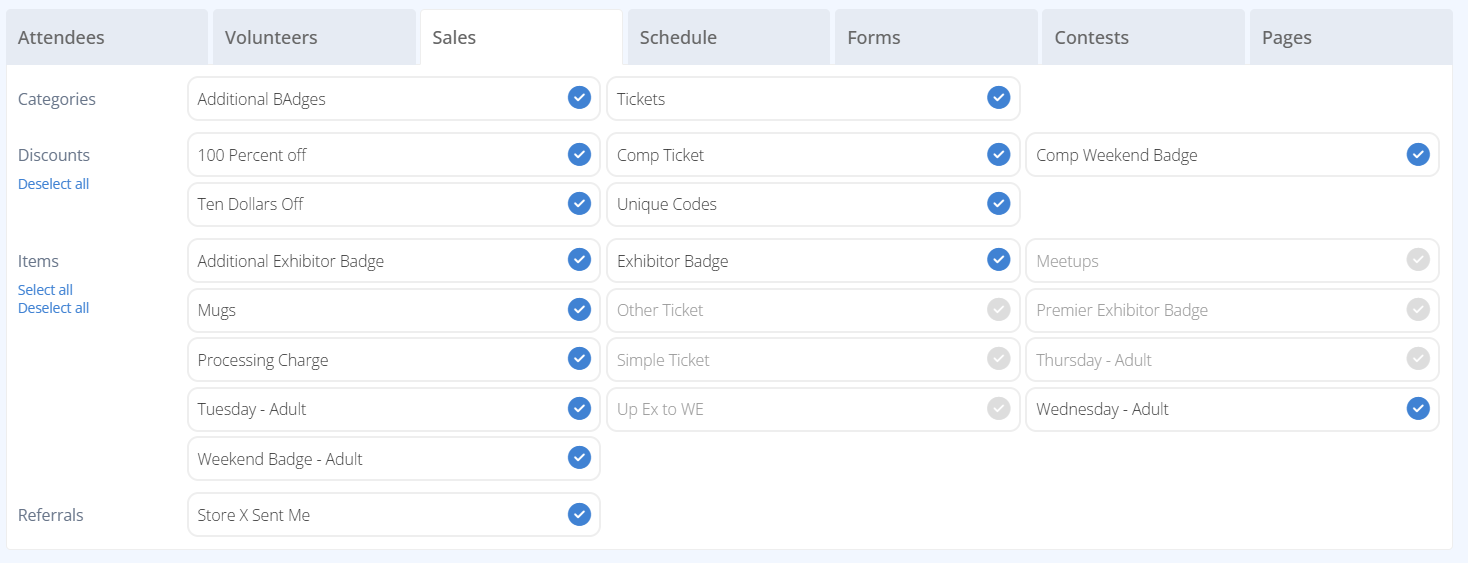
- Select the items to copy to the new convention. All information will be retained including sale dates, stock limits, images, and restrictions.
All Lobbies, Rooms, and Event Types from the source convention will be displayed.

- Select the items to copy to the new convention. All information will be retained including default lobbies and settings.
All Forms from the source convention will be displayed.
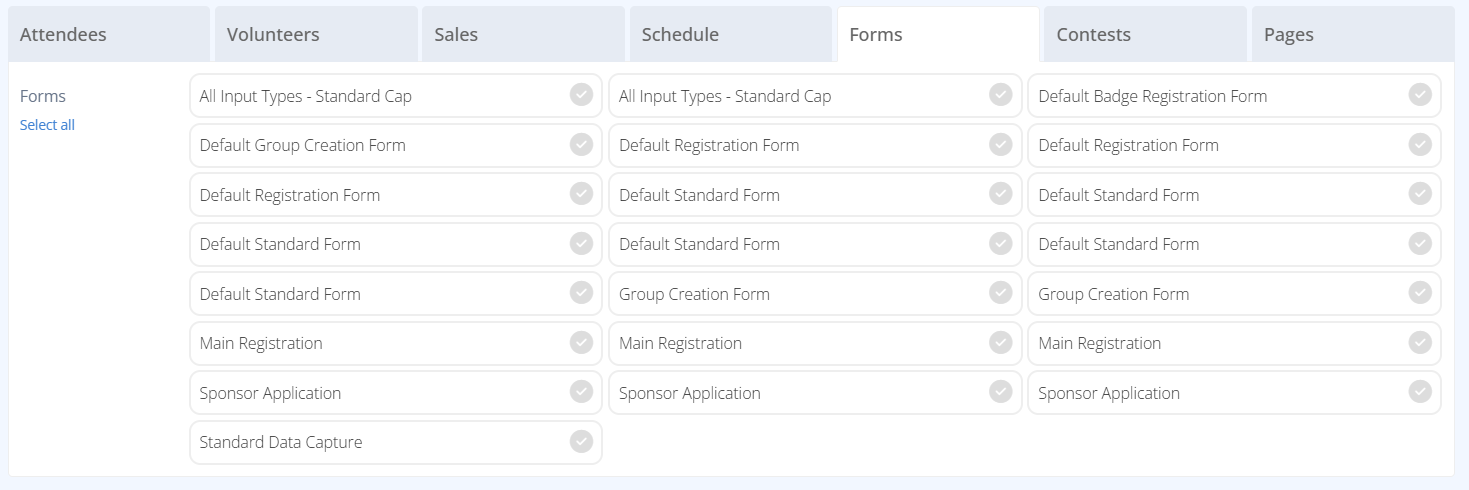
- Select the items to copy to the new convention. Option Sets and Common Inputs will also be copied. All information will be retained.
All Contests from the source convention will be displayed.
- Select the items to copy to the new convention. All information will be retained. Any QR Codes will be automatically regenerated with new codes.
All Pages from the source convention will be displayed.
- Select the items to copy to the new convention. Common Blocks will also be copied. All information will be retained.

Warning: All cloned data should be reviewed for any errors, incorrect dates, or incorrect information. The objects are copied as is and so may need to be modified before usage. This is especially important for items that are only available on certain days.
¶ Select a Convention
- Click on the row of the convention you wish to work with.
- You will be taken to the Conventions screen where you can manage your convention.