¶ Submissions
¶ Overview
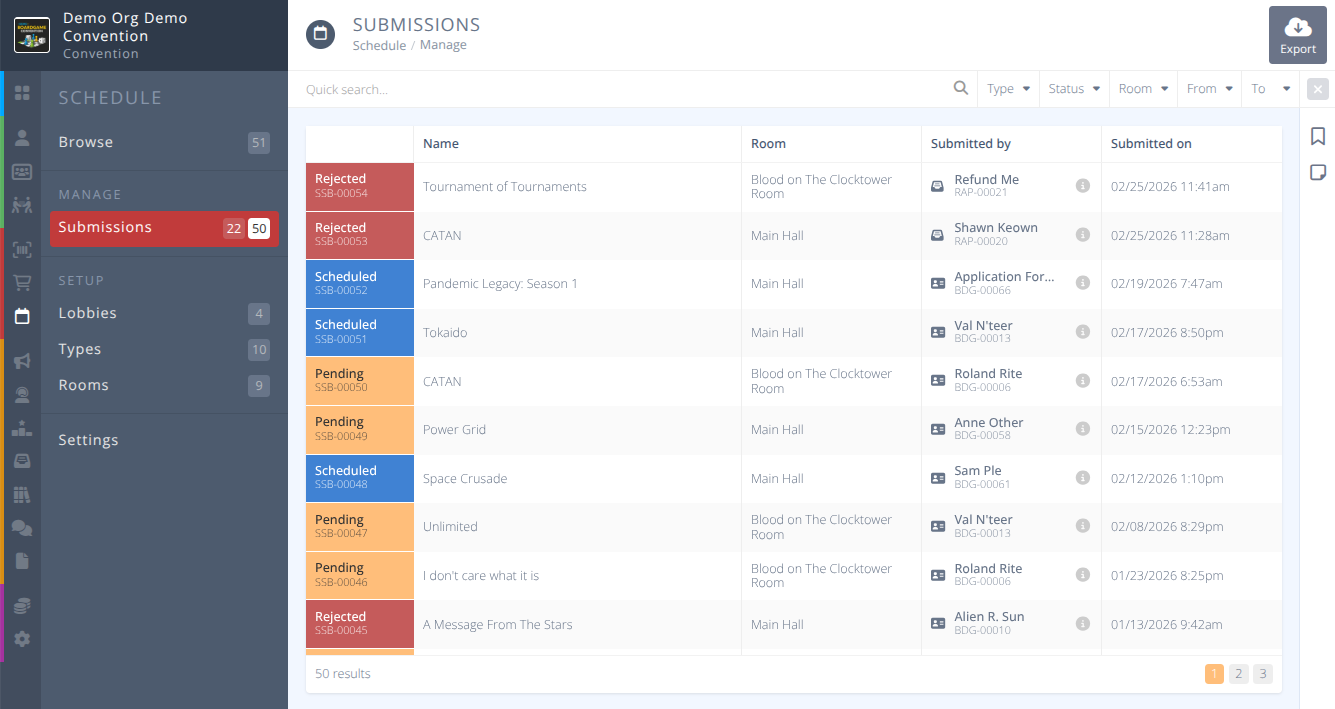
Review and export event submissions and schedule them into rooms. A submission is an event that has not been approved/accepted yet. A scheduled event is live and can be viewed on the menu and can be found when browsing the schedule on the attendee side of the software (my.cardboardevents.com).
¶ Common Procedures
View Submission DetailsAccept a SubmissionReject a SubmissionRetract a Decision on a SubmissionSchedule a Submission
¶ Fields
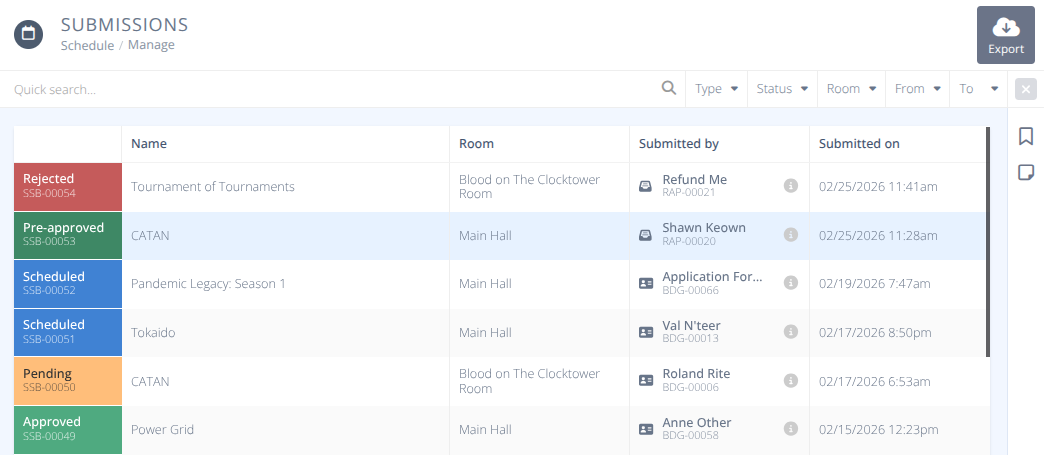
Status- The current status of the Submission, one of:
Pending - It is pending review.
Approved - It has been approved and is ready to be scheduled by the attendee.
Pre-approved - It has been pre-approved and will be scheduled once the applicant has completed their application and has a badge.
Scheduled - It has been converted to an event and has been scheduled. These are now read-only records. To edit the event locate it in the Browse menu.
Rejected - It has been rejected.Name- The name of the event submitted for approval.Room- The room the event is currently tagged against.Submitted by- The applicant or badge holder that has submitted the event.Submitted on- The date the submission was received.
¶ Procedures
¶ Previous Documentation
- Under Schedule, click Submissions.
The Submissions tab lists all submissions, whether from application forms or from badge holders directly. When viewing a submission you can accept, reject, etc. But now you can fully manage the event profile before accepting - editing anything and everything.
A submitted event can be in several different statuses. Clicking on a submitted event will bring up a summary of it and allow for applicable actions.
¶ Clone a Submission
Clone Button
All events have the option of cloning to make it quicker and easy to make a new event of the same kind.
-Save Button Any and all information about the game can be edited and saved.
¶ Retract a Decision on a Submission
-Retract Button (Rejected, Preapproved and Approved Submission ONLY): Resets the event back to Pending Status.
-Private Notes Enter information about the event that only you and your admins can see.
-Messaging Send messages to the user who submitted the event back and forth. This requires that the user have a badge, so you CANNOT send message on events that are part of an application since those users do not yet have a badge.
- Status Types
a. Pending
A pending event is waiting to be considered and is awaiting action (accept, reject, etc.).
¶ Accept a Submission
-Accept Button Select to convert the event to scheduled. A new window will appear will the following options. Attendee to Schedule allows the user to finalize scheduling the event on their own at the predefined space, time, and table ONLY (will now display as Approved). Schedule Automatically The event is immediately scheduled on behalf of the user (will now display as Scheduled). Or, if the event was part of a Group submission and the group leader did not select a host yet, then a message saying that the Group Leader will need to select a host to schedule (will now display as Approved).
¶ Reject a Submission
-Reject Button Select to reject the submitted event. Enter a message and a notification will be sent to the user.
b. PreApproved
This status means that the event has been Approved (see approved), but DO NOT have a badge yet (e.g. their application is still waiting for approval due to them needing a set number of approved events first).
c. Approved
An approved event is one that has been approved by you, but still needs to be finalized by the user (e.g. you selected the option to have the Attendee to Schedule their own event or the event is part of a group without a host yet). An approved event is still not active yet.
d. Scheduled
A Scheduled event is one that has been finalized, either by user or admin. It is a live event and can be found on the event tab and can be found when browsing on the attendee side of the sofware (my.cardboardevents.com).
e. Cancelled
A cancelled event, either by user or admin, has been cancelled and is no longer being considered.
¶ Schedule a Submission
- Space Pick Time Tool
When it's time to schedule the submission to a space and/or time, you can use the new Pick Time to easily do it.
All events must have a (Room) selected to be approved. Each room can be different. If the room DOES NOT have a defined space (tables), then the event CAN be approved WITHOUT selecting a space via the pick time tool. If the room DOES have a defined space (tables), then the event CANNOT be approved WITHOUT selecting a space via the pick time tool.
If the room has spaces then there is a Pick Time button that will open the visual space picker. If the room has no spaces then a dropdown will appear to manually select your time.
Clicking the Pick Time button opens the visual picker and allows you to easily pick a time (and space) via the visual diagram by doing the following.
a. Pick the Day.
b. Determine the available Space (table).
c. Click the start time for the event on an available open space (green)
d. Click the end time for the event on the same available space (green).
e. The start and end times of two different events can be the same, but they cannot overlap (e.g. one event can end at 2pm and a 2nd event can start at 2pm on the same space/table).
f. Click Confirm.