¶ Roles
¶ Overview
Manage and export your volunteer roles. Define the shifts/slots that each role has available and the number of people who are neeeded for each slot.
¶ Common Procedures
¶ Roles
¶ Slots
Use the Wizard to Generate SlotsAdd a Schedule Slot to a RoleEdit a Schedule SlotRemove a Schedule SlotManage Assignments for a Slot
¶ Volunteers
Approve a Pending AssignmentAdd a Volunteer to a SlotAdd an Assignment Slot to a VolunteerManage Assignments for a Volunteer
¶ Fields
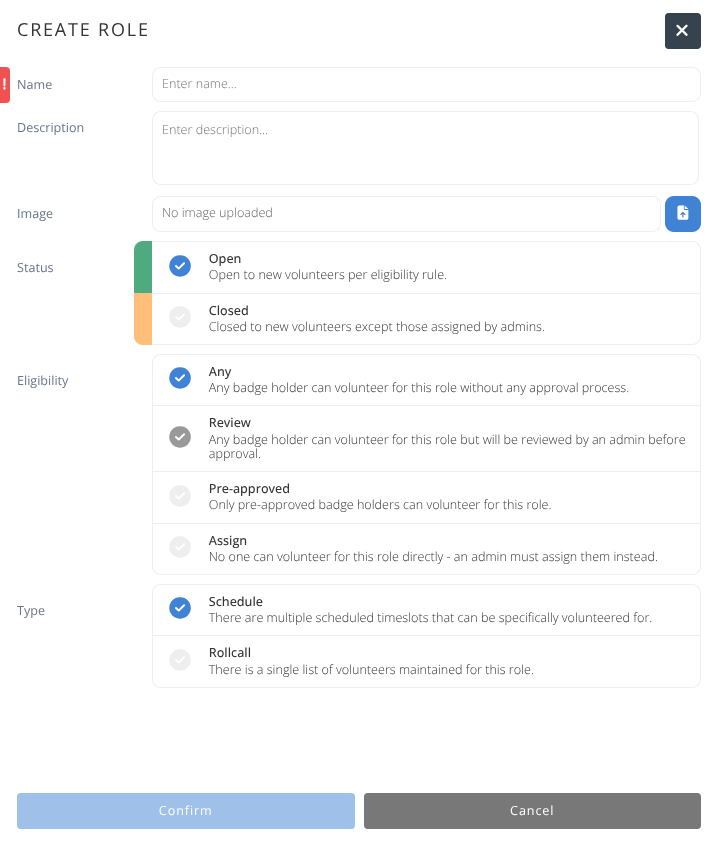
Note:
Mandatory fields are denoted by a
Fields visible to Attendees are marked by an


Name- The name of the volunteer role or position.-
Description- Describe and define the volunteer role, so attendees know what they are volunteering to do. -
Image- Upload an optional image to represent the volunteer role. -
Status- The status of the Role, either:- Open - Available to new volunteers if eligible.
- Closed - Closed to new volunteers.
-
Eligibility- Who has access to the role.- Any - Any badge holder can volunteer for this role without any approval process.
- Review - Any badge holder can volunteer for this role but will need to be approved by an admin before confirmed.
- Pre-approved - Only pre-approved badge holders can volunteer for this role.
- Assign - No one can volunteer for this role directly - an admin must assign them instead.
-
Type- Schedule - There are 1 or more timeslots tha can be specifically volunteered for.
- Rollcall - There is a single list of volunteers maintained for this role and no timeslots assigned. e.g.) On-call, Official Game Host, etc.
-
Max Required- Maximum number of volunteers for this role. Duration- The number of hours this role represents.
Display Only Fields
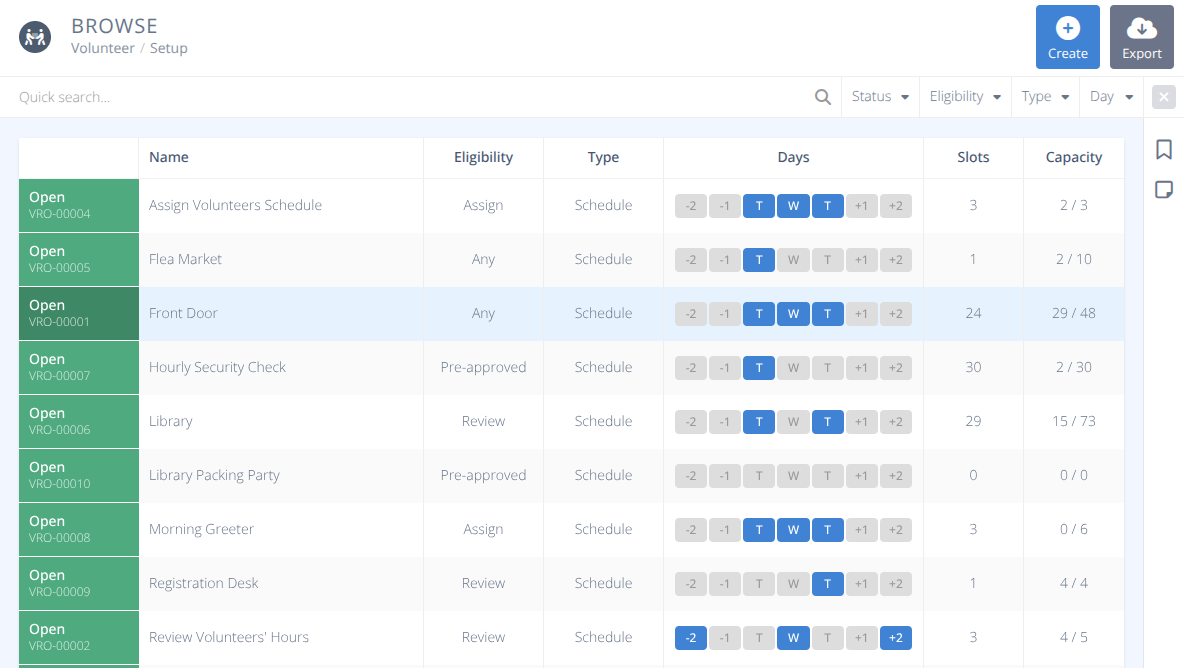
Days- A visual view for what days the role is available.Slots- The number of different timeslots for this role.Capacity- The total capacity of all timeslots for this role.
¶ Browse
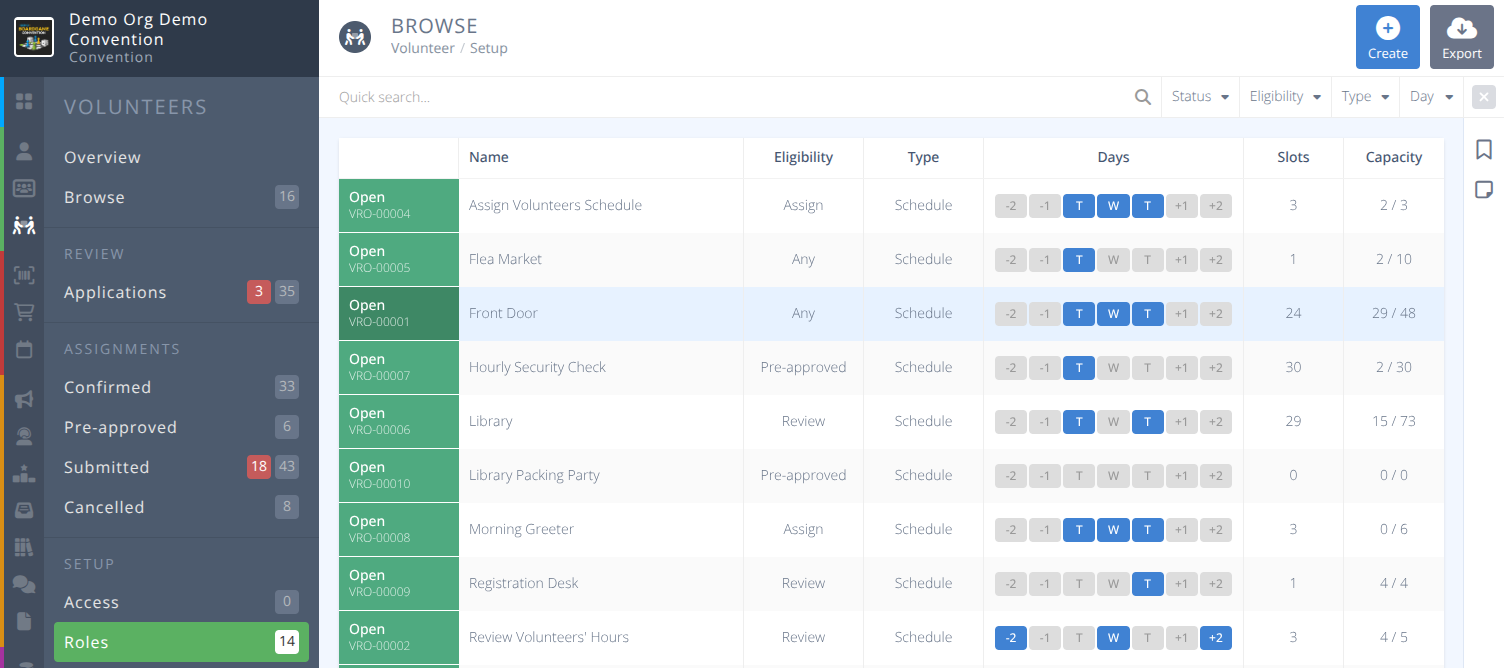
From the Roles Menu the grid will show a summary of all existing roles. Selecting a row will display the details of that role. As with all of the grids the quick search and filter options are shown above the grid. Select any option to filter records by Name, Status, Eligibility, Type, or Day.
¶ Detailed View
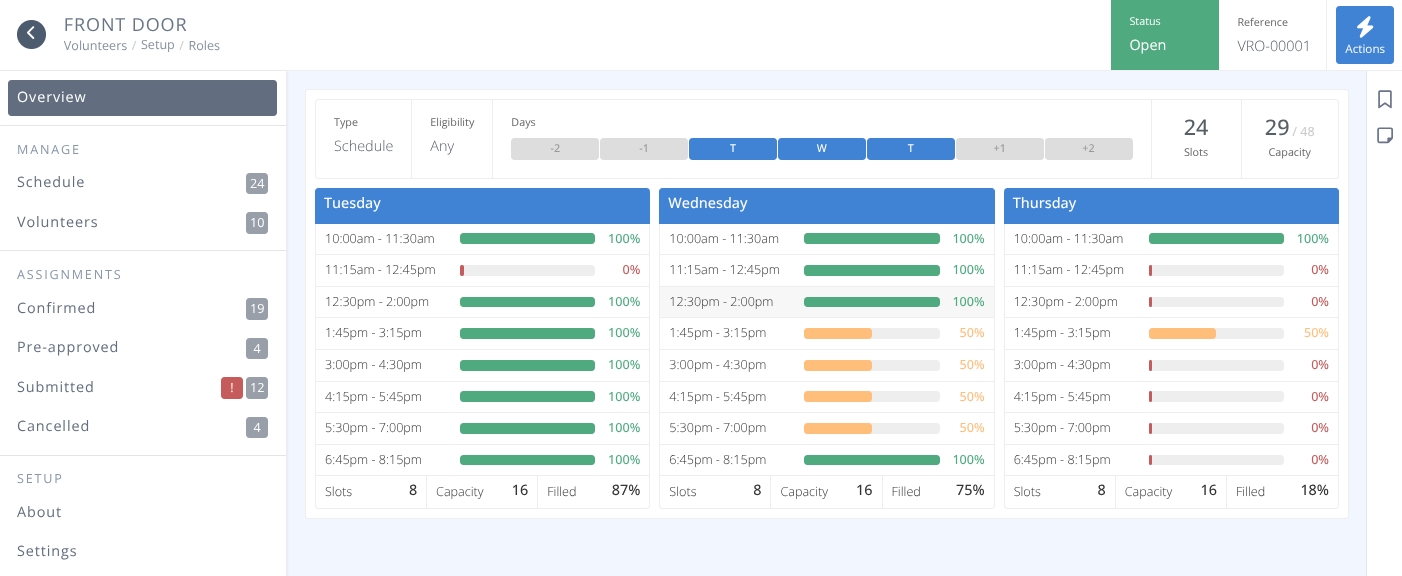
Clicking on a role will show the detailed view of that role. Along the top of the screen will be shown the Status, Reference and Action button. Clicking on the Actions will provide access to the available actions for this role.
For details on each menu item select the appropriate tab below:
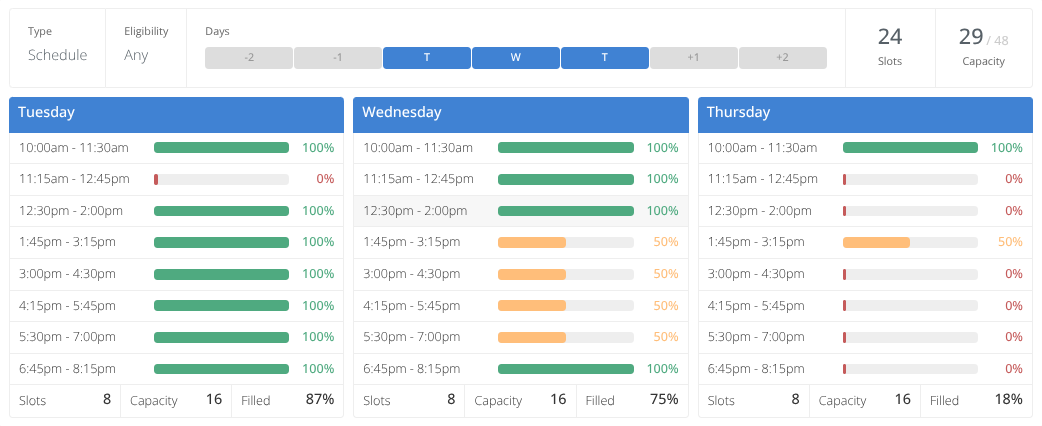
The Overview screen provides a quick view for the chosen Role and Assignment Slots. The Type, Eligibility, Days, Slots, and Capacity are shown on the top bar and a daily breakdown of the slots, capactiy, and filled percentage is shown below.
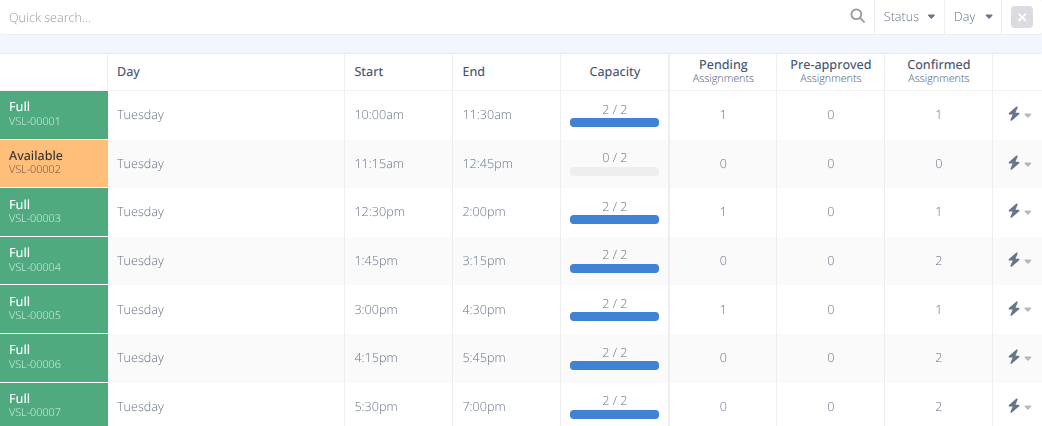
The Schedule menu shows a break down of all slots for the chosen role. In addition to the previous Action buttons Add and Wizard buttons have been added.
 !
!
¶ Fields
Status- The availability of additional capacity for this slot, either:- Available
- Full
- Closed
Day- The day of the slot.Start- The start time of the slot.End- The end time of the slot.Capacity- A representation of the number of slots available / total slots.AssignmentsPending- The number of pending requests for this slot.Pre-approved- The number of assignments pre-approved for this slot.Confirmed- The number of assignments for this slot that are confirmed.
¶ Actions
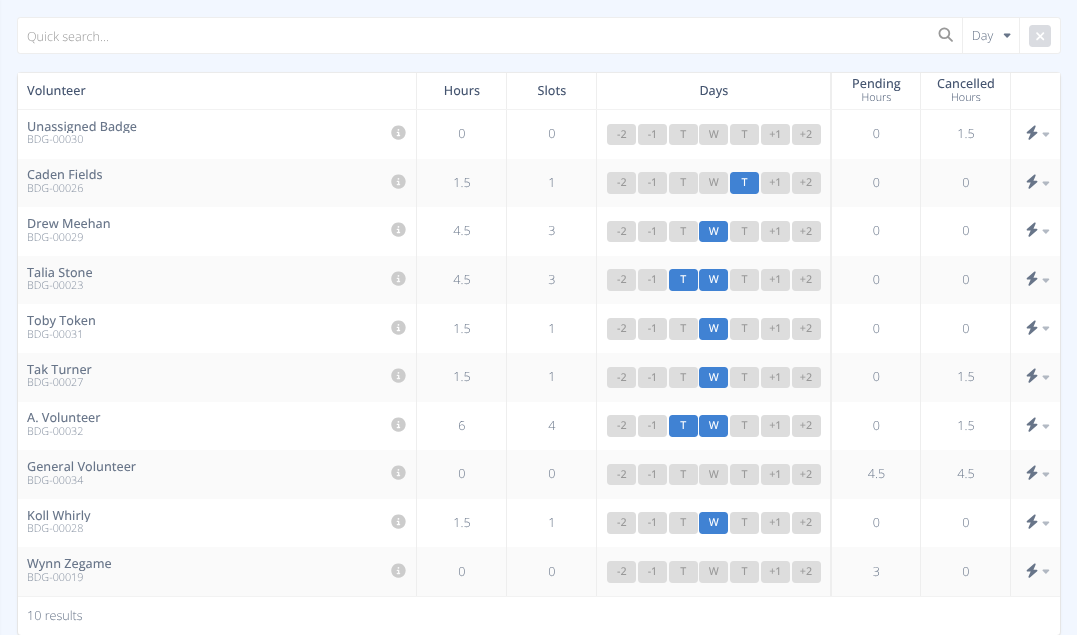
Volunteers shows the list of volunteers that have interacted with this role.
¶ Fields
Volunteer- The name and badge number or application number of the volunteer.
The will show the details of the volunteer in the side panel.
Hours- The number of confirmed hours this volunteer has for this role.Slots- The number of slots this volunteer has confirmed for this role.Days- A representation of which days this volunteer has for this role.Pending Hours- The number of pending hours this volunteer has for this role.Cancelled Hours- The number of cancelled hours this volunteer has for this role.
¶ Actions
The Confirmed menu shows the list of confirmed slots for the role.
¶ Fields
Status- For this view the status will always be Confirmed .Volunteer- The name of hte badge holder for this volunteer slot.
The will show the details of the volunteer in the side panel.Slot- The date, time, and visual representation of the capacity of the slot.
The will show the details of the slot in the side panel.Confirmed on- The date the slot assignment was confirmed.
¶ Actions
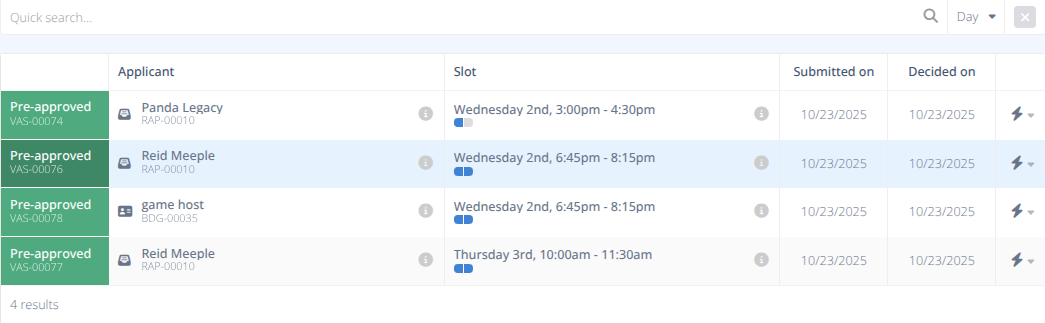
The Pre-approved menu provide a list of pre-approved slots for the role.
¶ Fields
Status- For this view the status will always be Pre-approvedApplicant- The name of the applicant and badge or application number the request came from.
The will show the details of the volunteer in the side panel.Slot- The date, time, and visual representation of the capacity of the slot.Submitted on- The date the request for the slot was submitted.Decided on- The date the request was changed to pre-approved.
¶ Actions
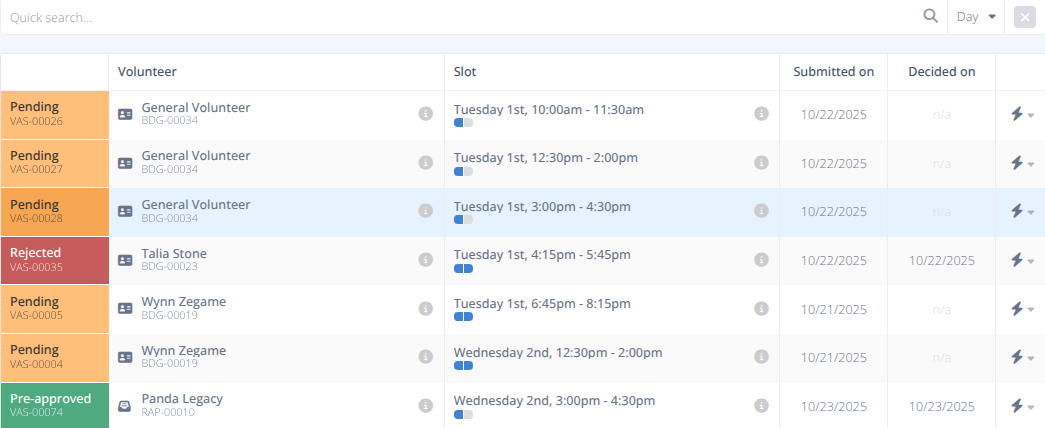
The submitted menu provides a list of submitted applications for the role for statuses Pending, Rejected, and Pre-approved. If an  is noted on the menu it denotes that there are pending submissions that need review.
¶ Fields
Status- The status of the request for the volunteer slot, either:- Pre-approved
- Pending
- Rejected
Volunteer- The name of the applicant and badge or application number the request came from.
The will show the details of the volunteer in the side panel.Slot- The date, time, and visual representation of the capacity of the slot.Submitted on- The date the request for assignment was submitted.Decided on- The date the request for assignment was decided.
¶ Actions
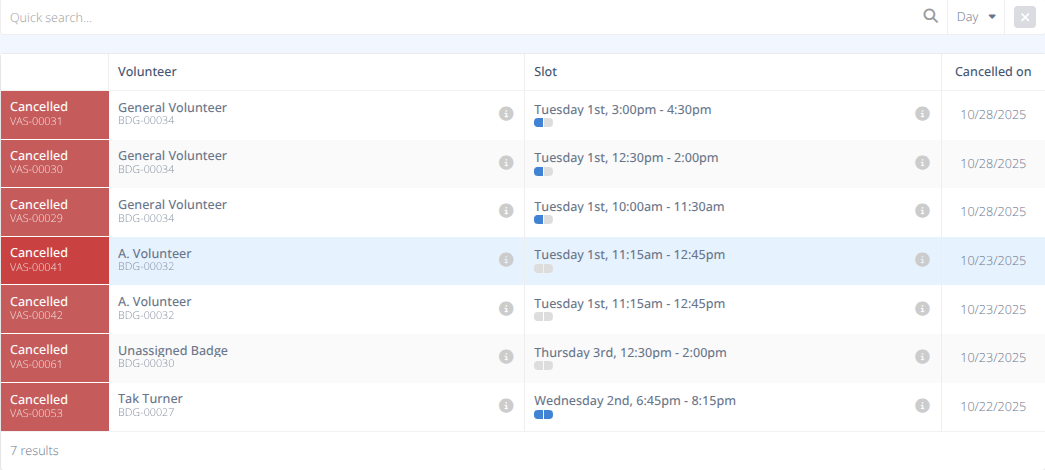
The Cancelled menu provides a list of all slot assignments for this role that have been cancelled.
¶ Fields
Status- For this view the status will always be Cancelled .Volunteer- The name of the volunteer and badge of the cancelled assignment.
The will show the details of the volunteer in the side panel.Slot- The date, time, and visual representation of the capacity of the slot.Cancelled On- The date the assignment was cancelled.
¶ Actions
There are no actions for the Cancelled grid.
The About menu defines the basics of the role.

¶ Fields
Mandatory fields are denoted by a
Fields visible to Attendees are marked by an
Fields that cannot be modified are marked by a
-
Name- The name of the role. -
Description- The description of the role. -
Image- An image to display next to the role. If no image is provided the initials will be used for the image.
Recommended size: 160x160 px
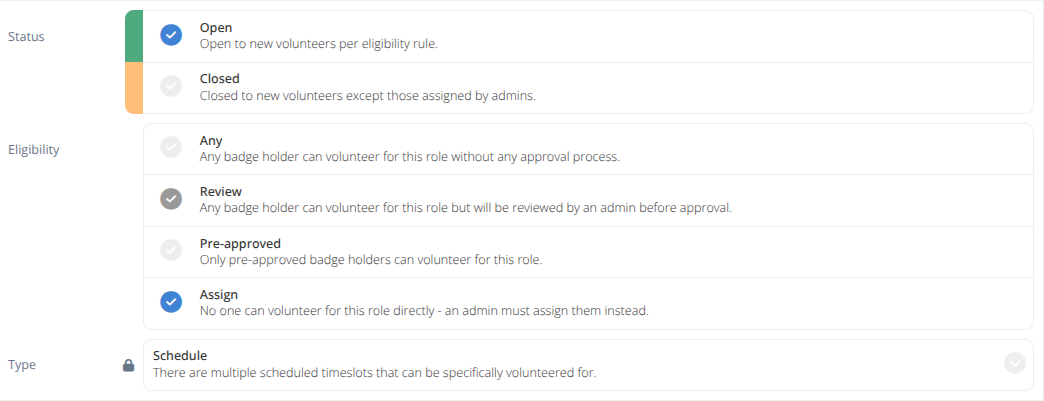
The Settings menu is where you can define how the role works.
-
Status- Is the role:- Open - If eligible, it can be selected by volunteers.
- Closed - Only admins can assign volunteers to it.
-
Eligibility- The eligibility of the role, either:- Any - Any badge holder can apply for this role without an approval process.
- Review - Any volunteer can apply for this role, but will be reviewed by an admin before approval.
- Pre-approved - Only pre-approved volunteers can volunteer for this role.
- Assign - No one can volunteer for this role directly - an admin must assign them to it.

Type- Once set this type cannot be changed.
¶ Procedures
For procedures involving the detailed view of roles refer to the Detailed View Procedures below this section.
¶ Create a Role
- From the Roles menu click +/Create in the top right corner of the screen.
- Enter the Name of the Role that will inform volunteers of what the position is.
- Enter the Description of the Role so that volunteers know the details of the role and what they will be doing in it.
- If preferred upload an image that represents the role.
Recommended size: 160px x 160px.
If no image is provided the initials of the role will be shown. - Choose the Status of the role to determine if it is open for signups.
- Select the Availability of the role.
- Select the Type of the role to determine if it will have timeslots or not.
- If the type is Rollcall:
a) Enter the Max. Required volunteers required for this role.
b) Select the Duration that this role represents. - Click Save
¶ Edit a Role
- From the Roles menu click on the role you would like to edit.
- You will now see the role details screen.
- Use the About and Settings menus to adjust the role details.
- Click Save.
¶ Cancel or Delete a Role
- From the Roles menu click on the role you would like to cancel.
- You will now see the role details screen.
- Click the Actions button and select Cancel role
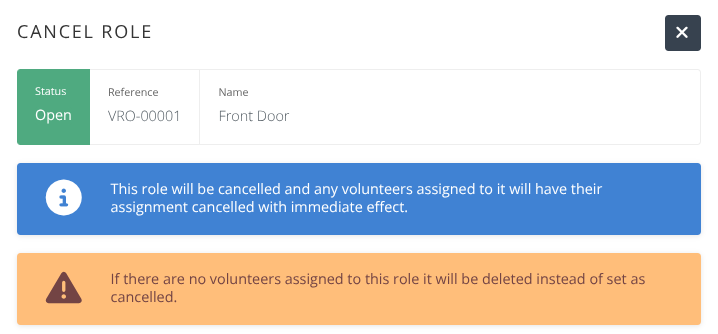
- Click Confirm
¶ Use the Wizard to Generate Slots
- From the Roles menu click on the role you would like to generate slots for.
- Click on the Schedule menu
- Click on the Wizard button in the actions area
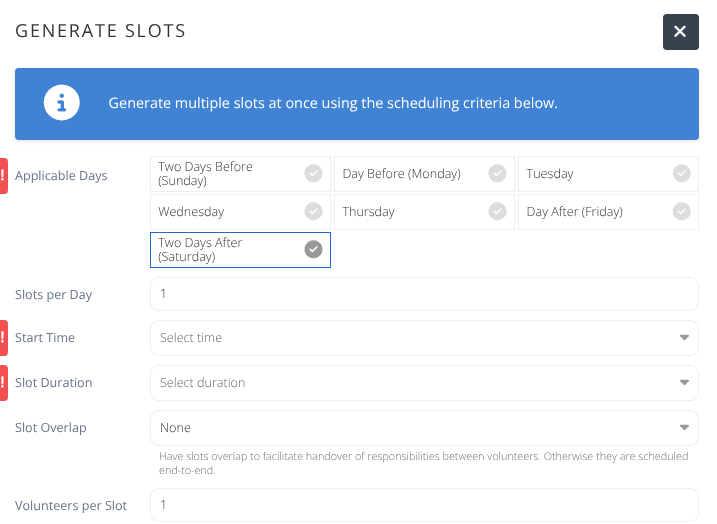
- Complete the fields as displayed noting that all fields are required to generate the slots
- Click Confirm
- Your slots will be generated and the Schedule grid updated
¶ Add a Schedule Slot to a Role
- From the Roles menu click on the role you would like to edit.
- Click the +/Add button in the actions area
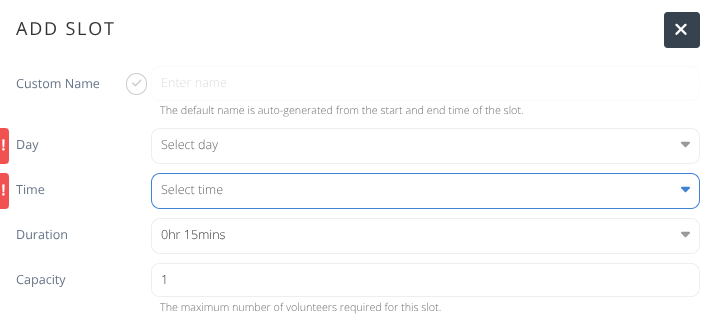
- Complete the details of the slot to add
- Click Confirm
¶ Detailed View Procedures
You must be on the detailed view to use the following procedures.
¶ Add Volunteer
| Accessible From: | Schedule menu |
| Status: | Must be Available |
- From the Schedule menu locate the assignment you wish to add a volunteer to, using the filters if needed.
- Click the Actions button on the row of the assignment you wish to add a volunteer to.
- Click on Add volunteer to add another volunteer to this slot.
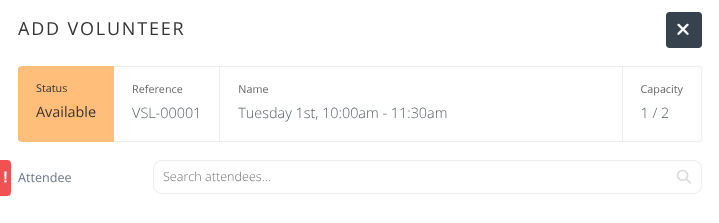
- Click Confirm.
¶ Manage Assignments
| Accessible From: | Schedule and Volunteers menu |
| Status: | Any |
- From the Schedule or Volunteers menu locate the assignment or volunteer you wish to manage assignments for, using the filters if needed.
- Click the Actions button on the row you wish to manage.
- Click on Manage assignments.
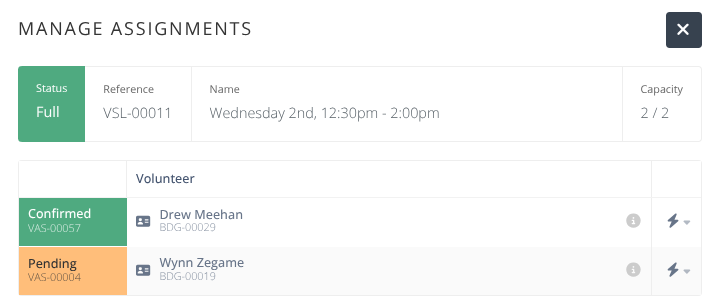
- Use the Actions button on any assignment row to cancel confirmed assignments or approve, switch, or reject pending assignments. Refer to those specific procedures for pop up screens and notifications.
¶ Edit Slot
| Accessible From: | Schedule menu |
| Status: | Any |
- From the Schedule menu locate the assignment slot you wish to edit, using the filters if needed.
- Click the Actions button on the row of the assignment slot you wish to edit.
- Click on Edit slot.
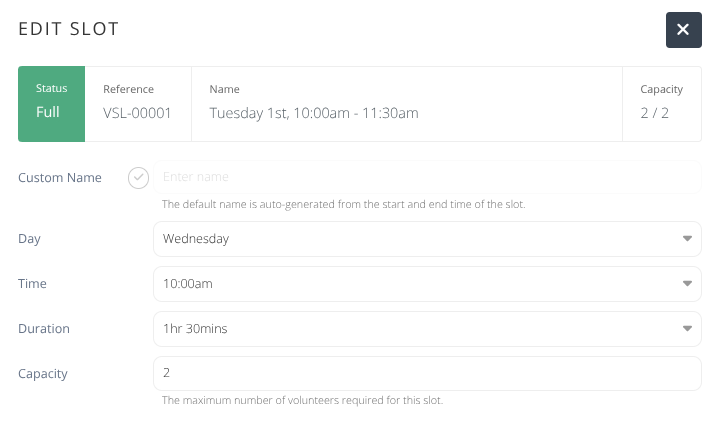
- Assign, edit, or remove a
Custom Name. You may also edit theDay,Time,Duration, orCapacityof the slot - Click Confirm to save the changes.
¶ Close Slot
| Accessible From: | Schedule menu |
| Status: | Must be Available |
- From the Schedule menu locate the assignment slot you wish to close, using the filters if needed.
- Click the Actions button on the row of the assignment slot you wish to close.
- Click on Close slot.
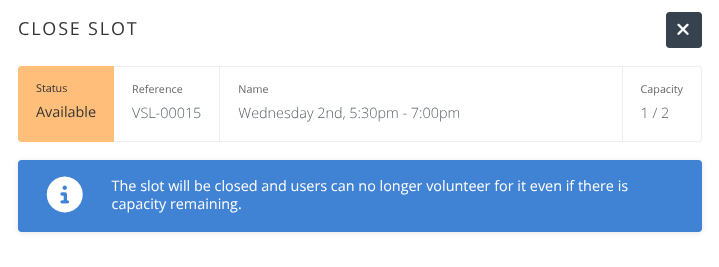
- Click Confirm to save the changes.
¶ Open Slot
| Accessible From: | Schedule menu |
| Status: | Must be Closed |
- From the Schedule menu locate the closed assignment slot you wish to open, using the filters if needed.
- Click the Actions button on the row of the assignment slot you wish to re-open.
- Click on Open slot.
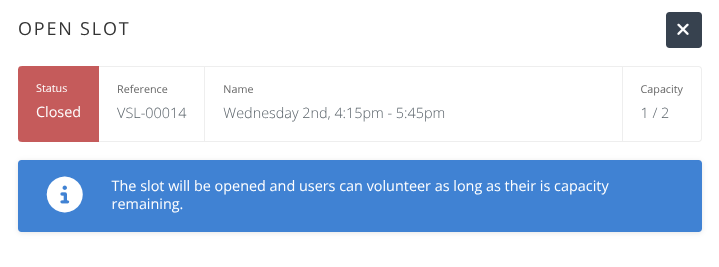
- Click Confirm to save the changes.
¶ Remove Slot
| Accessible From: | Schedule menu |
| Status: | Any |
- From the Schedule menu locate the closed assignment slot you wish to open, using the filters if needed.
- Click the Actions button on the row of the assignment slot you wish to re-open.
- Click on Remove Slot.
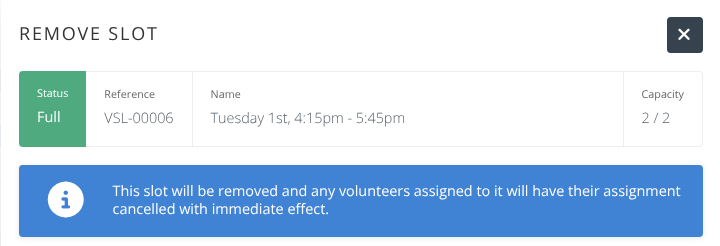
- Click Confirm to save the changes.
¶ Add Assignment
| Accessible From: | Volunteers menu |
- From the Volunteers menu locate the Volunteer you wish to add an assignment to, using the filters if needed.
- Click the Actions button on the row of the volunteer you wish to add an assignment to.
- Click on Add assignment.
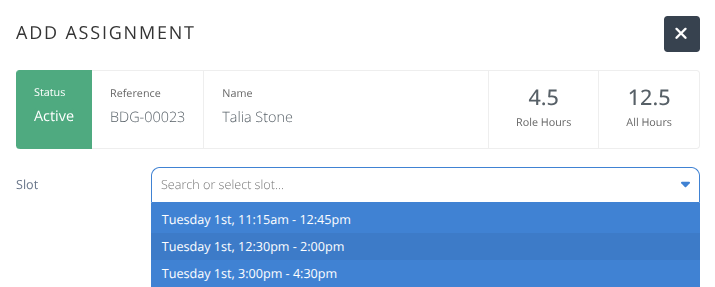
- Select the desired slot from the dropbox.
- Click Confirm to save the changes.
¶ Approve Assignment
| Accessible From: | Submitted menu |
| Status: | Must be Pending |
- From the Submitted menu locate the assignment you wish to approve, using the filters if needed.
- Click the Actions button on the row of the assignment you wish to approve.
- Click on Approve assignment to approve the assignment.
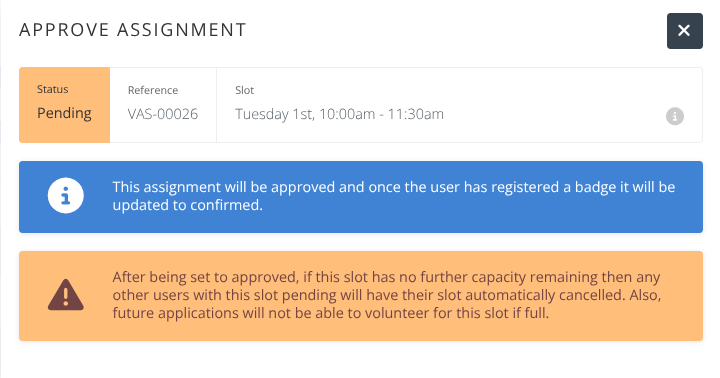
- Click Confirm.
¶ Switch Assignment
| Accessible From: | Submitted menu |
| Status: | Must be Pending |
- From the Submitted menu locate the assignment you wish to change to another role and/or slot, using the filters if needed.
- Click the Actions button on the row of the assignment you wish to switch.
- Click on Switch assignment to choose a new role and/or slot for this assignment.
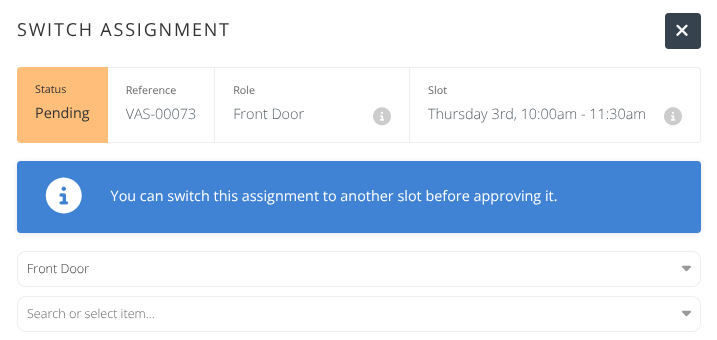
- Click Confirm.
¶ Reject Assignment
| Accessible From: | Submitted menu |
| Status: | Must be Pending |
- From the Submitted menu locate the pending assignment you wish to reject, using the filters if needed.
- Click the Actions button on the row of the pending assignment you wish to reject.
- Click on Reject assignment.
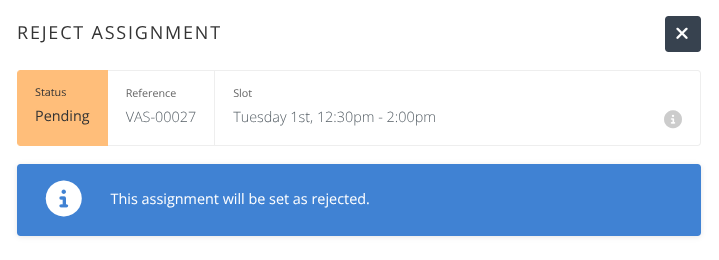
- Click Confirm.
¶ Retract Decision
| Accessible From: | Pre-approved and Submitted menu |
| Status: | Must be Pre-approved or Rejected |
- From the Submitted or Pre-approved menu locate the assignment you wish to retract a decision on, using the filters if needed.
- Click the Actions button on the row of the assignment to retract a decision on.
- Click on Retract decision.
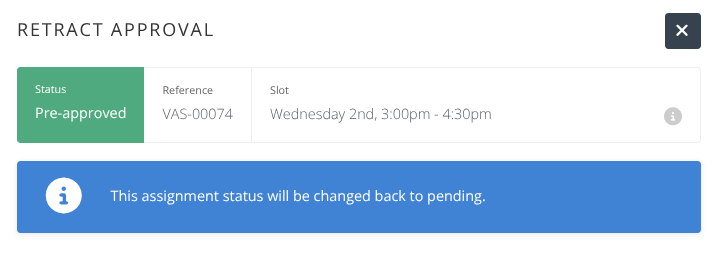
- Click Confirm.
¶ Cancel Assignment
| Accessible From: | Confirmed menu |
| Status: | Must be Confirmed |
- From the Confirmed menu locate the assignment you wish to cancel, using the filters if needed.
- Click the Actions button on the row of the assignment to retract a decision on.
- Click on Retract decision.
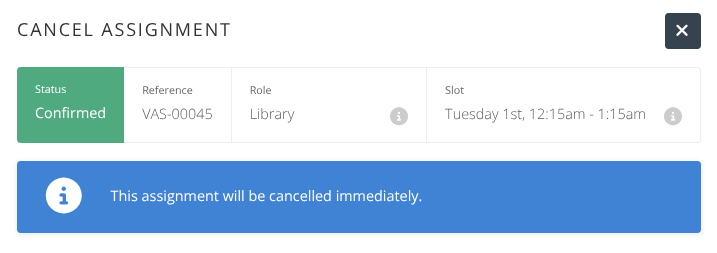
- Click Confirm.