¶ Access
¶ Overview
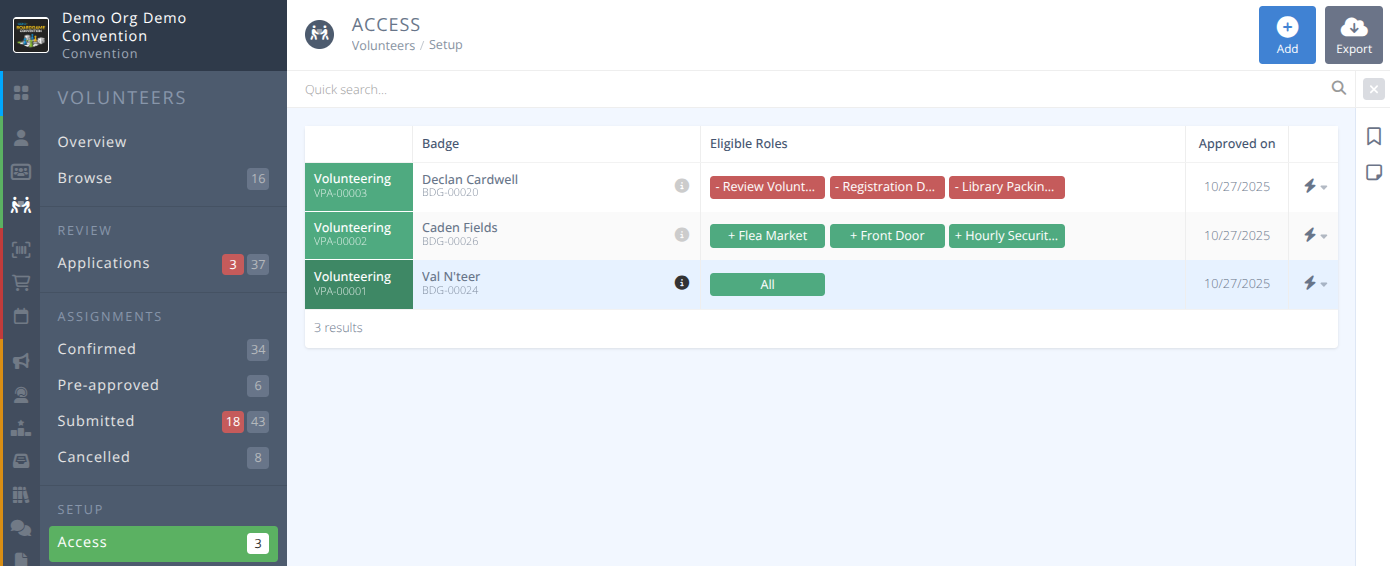
When the Volunteers Section is set to Restricted in Settings this section is used to control access.
¶ Common Procedures
Grant an Attendee Access to Volunteer RolesRemove Access for an Attendee to Volunteer RolesManage Access for an Attendee to Volunteer Roles
¶ Fields
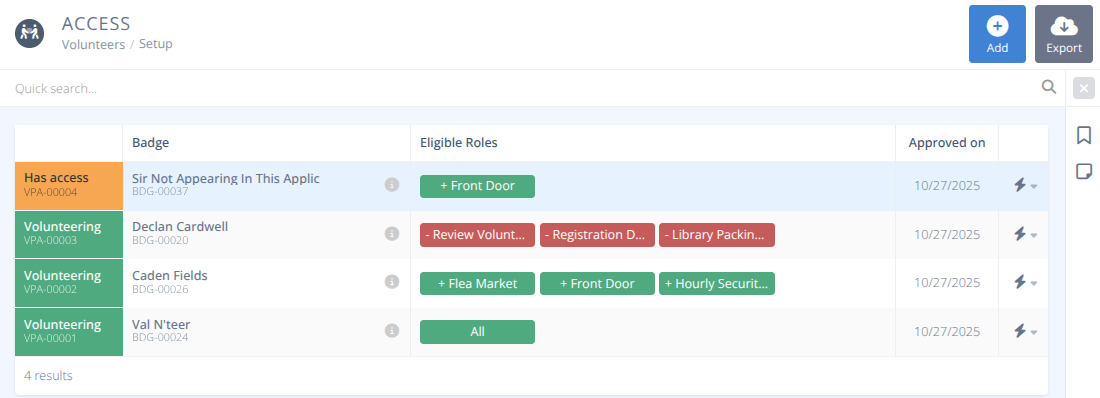
Status- The status of the access either:- Has access - Access has been granted via this page
- Volunteering - Access has been granted through the volunteer application process and via this page
Badge- The name of the badge holder and badge number of the person with access.Eligible Roles- A list of:- + allowed role name(s) - Access is granted to the selected roles
- - blocked role name(s) - Access is granted to all roles except the selected roles
- All
Approved on- The date access was approved
¶ Procedures
¶ Grant an Attendee Access to Volunteer Roles
Aside from through the application process, volunteer role access may be explicity granted by:
- From the Access menu click +/Add
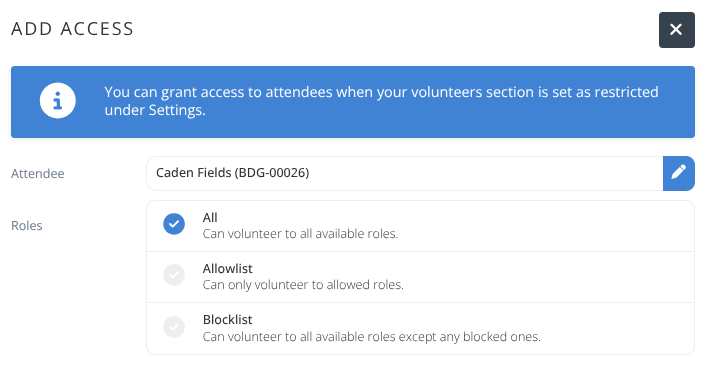
- Search for the Attendee to add.
- Choose the Roles the attendee will have access to either:
- All - The attendee can volunteer to all available roles.
- Allowlist - The attendee can volunteer to the selected roles.
- Choose all roles that are Allowed - Blocklist - The attendee can volunteer to any of the roles not selected.
- Choose all roles that are Blocked
- Click Confirm
¶ Remove Access for an Attendee to Volunteer Roles
- Locate the attendee that you wish to remove access from using the quick search if needed.
- Click the Actions button on the row of the attendee you wish to remove access from.
- Click Remove access
Note: If the attendee has confirmed assignments they will still have access as an approved volunteer.

- Click Confirm
¶ Manage Access for an Attendee to Volunteer Roles
- Locate the attendee that you wish to manage access for using the quick search if needed.
- Click the Actions button on the row of the attendee you wish to manage access for.
- Click Manage access
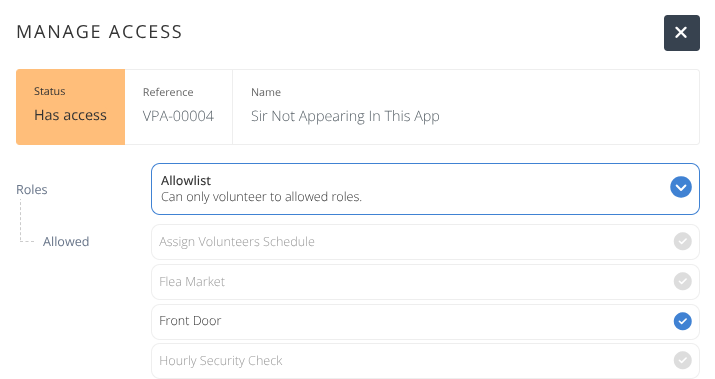
- Choose the Roles the attendee will have access to either:
- All - The attendee can volunteer to all available roles.
- Allowlist - The attendee can volunteer to the selected roles.
- Choose all roles that are Allowed
- Blocklist - The attendee can volunteer to any of the roles not selected.
- Choose all roles that are Blocked
- Click Confirm